
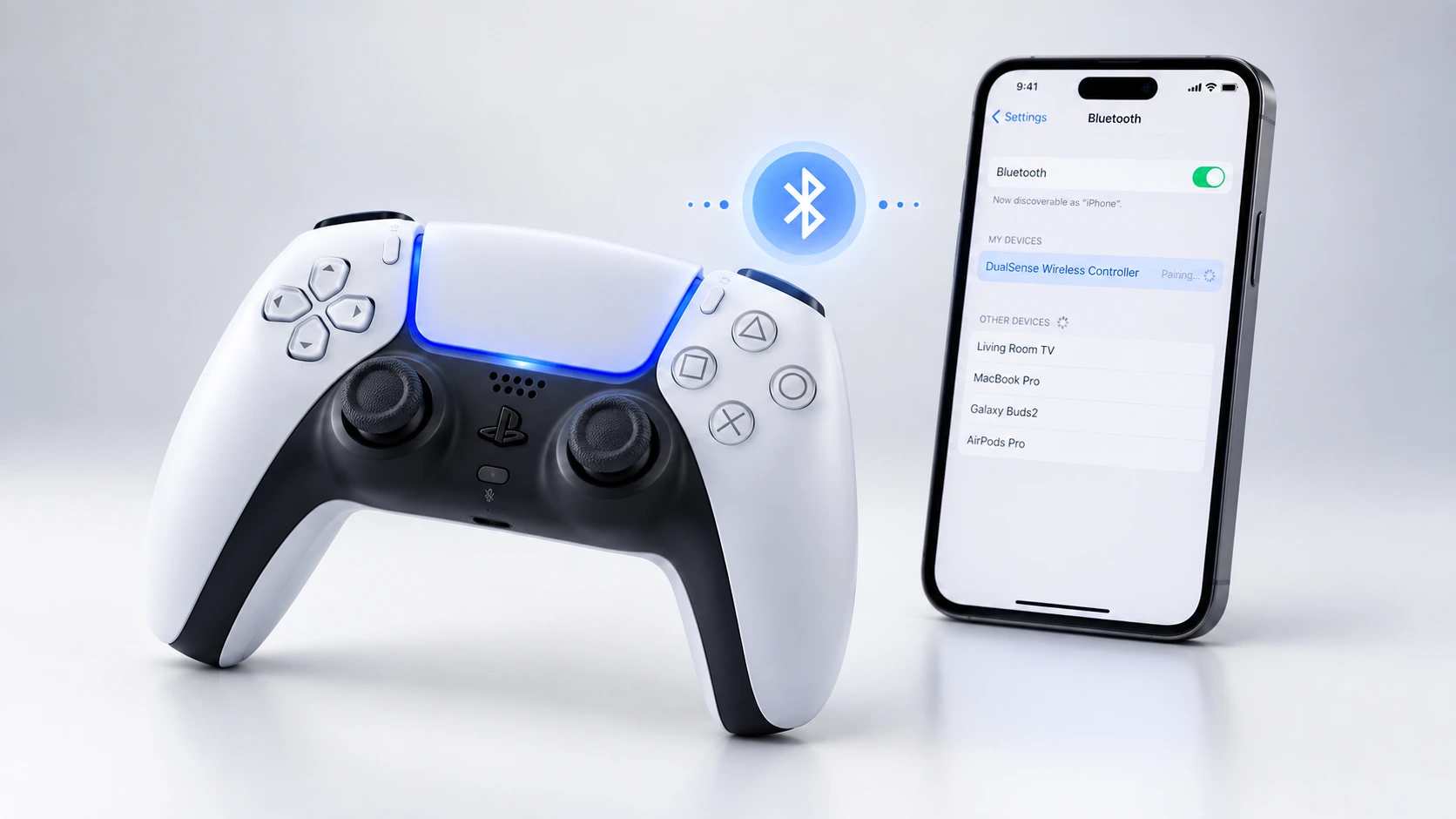
Why You’d Want to Use Your PS5 Controller with Your Phone
Trying to play mobile games with touchscreen controls is frustrating. Your thumbs cover half the screen. Precision aiming is nearly impossible. And after 10 minutes, your hands cramp up.
Good news: Your PS5 DualSense controller works perfectly with both iPhone and Android phones. I have been pairing controllers to phones for years, and the setup takes less than two minutes once you know the right steps.
This guide walks you through everything. I will show you exactly how to pair PS5 controller to phone via Bluetooth, explain why wireless works better than a cable, and share which games and apps actually support controller input. You will also learn how to fix the most common connection problems and what to do when your buttons feel mapped wrong.
What You Need Before You Start
Make sure your DualSense controller is charged enough to complete the pairing process. Dead batteries halfway through cause most failed connections I see.
Your phone needs Bluetooth capability. Every iPhone from the iPhone 6 onward has it. Same with any Android phone from the past eight years. If your phone can connect to wireless headphones, it will work with the controller.
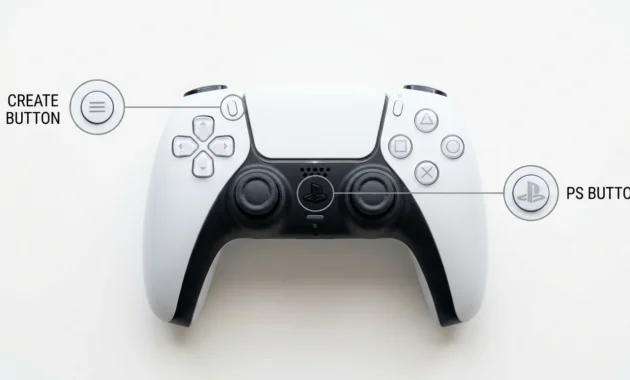
Here is the part people miss: Your controller must be completely disconnected from your PS5 first. If the light bar is still glowing, the controller thinks it is connected to your console. Hold the PS button in the center for about 7 to 10 seconds until the light bar turns off completely.
That is it. Charged controller. Bluetooth phone. The controller was fully powered down.
How to Pair a PS5 Controller to a Phone via Bluetooth (Step-by-Step)
The pairing process is identical for iPhone and Android, with one difference: where you find the Bluetooth menu on each phone. I will walk you through both.
First, turn on Bluetooth on your phone. Open your Settings app and make sure Bluetooth is toggled on. Leave that screen open because you will need to see the available devices list in a moment.
Now comes the part that trips people up if you rush it.
How to Put a PS5 Controller in Pairing Mode
Grab your controller. You will press two buttons at the same time: the PS button in the center and the Create button on the top left next to the D-pad. The Create button is the small one with three horizontal lines.
Hold both buttons down simultaneously for about 5 seconds. Do not let go early.
Watch the light bar around the touchpad. When you see it start flashing blue rapidly, the controller is in pairing mode. If you need more detailed visual guidance on exactly where these buttons are located, check out our complete guide on putting your PS5 controller in pairing mode with step-by-step photos.
That flashing blue light is your confirmation that you did it right. If the light does not flash, you either did not hold long enough or the controller was not fully powered down before you started.
The controller will stay in pairing mode for about 30 seconds. If your phone does not find it in that time, the lights will stop flashing and you will need to repeat the process.
For iPhone Users: Pairing Steps
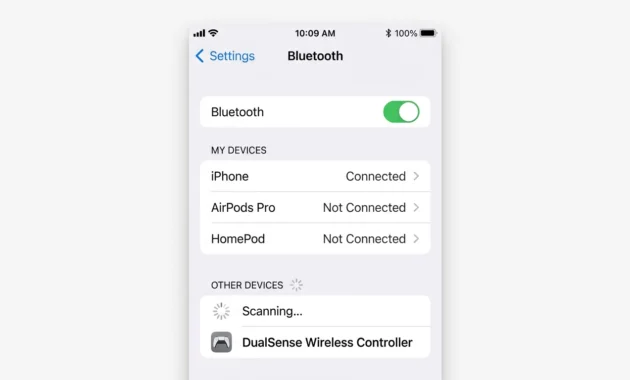
With your controller flashing blue, look at your iPhone Bluetooth settings screen. You should see a list of available devices.
Scroll down until you see the DualSense Wireless Controller appear in the list. Sometimes it shows up as just Wireless Controller. Either name is correct.
Tap it once.
Your iPhone will connect immediately. The flashing blue light on your controller will change to a solid light, usually white or light blue depending on your controller. That solid light means you are connected and ready to go.
If the DualSense Wireless Controller does not appear in the list after 10 seconds, make sure your controller is still flashing blue. If it stopped, put it back in pairing mode using the PS button and Create button again.
For Android Users: Pairing Steps
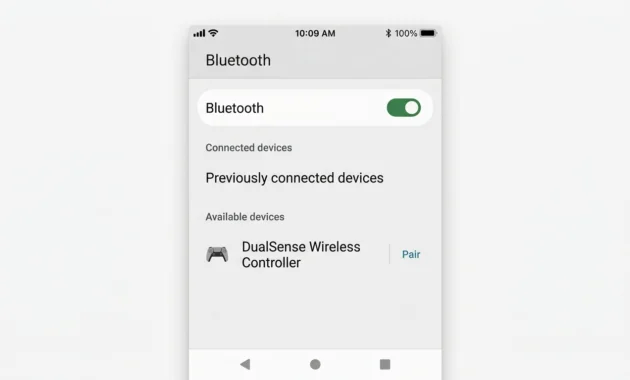
Open your Android Bluetooth settings. The exact path varies by phone, but most Android devices use Settings, then Connected Devices or Connections, then Bluetooth.
Make sure Bluetooth is turned on. Then tap Pair New Device or Scan for Devices, depending on your Android version. Some phones start scanning automatically.
Wait a few seconds. You should see the DualSense Wireless Controller appear in the available devices list. On some Android phones it shows up as Wireless Controller without the DualSense label. That is normal.
Tap the controller name.
Your phone will show a pairing prompt. Tap Pair or Connect to confirm.
The blue flashing lights on your controller will switch to a solid light once the connection completes. You are done. The controller is now paired to your Android phone and ready to use in any game or app that supports controller input.
If the controller name never appears, check that your controller is still in pairing mode with the blue flashing lights. If the lights stopped flashing, repeat the button-hold process to restart pairing mode.
Bluetooth vs Wired: Why Wireless Pairing Works Better
You can connect your PS5 controller to your phone with a USB-C to USB-C cable. It works immediately. No pairing mode, no Bluetooth menu, just plug it in and start playing.
But do not use the wired method unless you have to.
The wired method has one advantage: no battery drain. If your controller is nearly dead and you need to finish a gaming session, plug in the cable. You can play as long as you want without worrying about the controller dying mid-game.
Wired also gives you an instant connection when Bluetooth is acting up. Some phones have Bluetooth interference in certain locations or when too many devices are nearby. A cable bypasses all of that.
But for regular use, stick with Bluetooth. The wireless pairing method gives you better control response and full button functionality, and you can sit however far from your phone feels comfortable. Most games feel noticeably more responsive over Bluetooth than they do over a cable.
I recommend Bluetooth for daily gaming and keep a USB-C cable as your backup plan when the controller battery runs low.
What to Do If Your Controller Won’t Pair
Most pairing problems come down to three things: the controller is not actually in pairing mode, your phone’s Bluetooth is not working right, or there is an old connection blocking the new one.
Controller Lights Won’t Flash Blue
This is the most common problem I see.
You are holding the PS button and Create button but nothing happens. Or the light bar glows solid instead of flashing. That means the controller is not entering pairing mode. If you are unsure about the exact button positions, our detailed pairing mode tutorial shows exactly where to place your fingers with close-up images of the controller. The fix is usually one of three things.
The fix is usually one of three things.
First, make sure you are holding both buttons for the full 5 seconds. Most people let go too early. Count to five slowly while holding both buttons down. The flashing does not start immediately. It takes a few seconds.
Second, the controller might still be connected to your PS5. If you see any light on the controller before you start the pairing process, it is still on. Hold the PS button alone for 7 to 10 seconds until the light bar goes completely dark. Wait 5 seconds. Then try the pairing button combination again.
Third, your controller battery might be dead. Plug it into a charger for 10 minutes and try again. A completely drained battery will not enter pairing mode even if you hold the buttons correctly.
If you see the blue flashing lights around the touchpad, you did it right. That is your visual confirmation that pairing mode is active.
“DualSense Wireless Controller” Doesn’t Appear on Phone
Your controller is flashing blue, but your phone does not show it in the Bluetooth list. Frustrating.
Check that Bluetooth is actually turned on in your phone settings. I know that sounds obvious, but I have seen it happen. Sometimes toggling Bluetooth off and back on again forces your phone to refresh the available devices list.
Move your phone closer to the controller. Bluetooth range during pairing is shorter than you think. Get them within two feet of each other.
If other Bluetooth devices are connected to your phone, disconnect them temporarily. Too many active Bluetooth connections can block your phone from finding new devices. Turn off your wireless earbuds or disconnect your smartwatch, then try pairing the controller again.
Close your Bluetooth settings and reopen them. Some phones do not refresh the available devices automatically. Closing and reopening forces a fresh scan.
If the DualSense Wireless Controller appeared once but the pairing failed, your phone might still have a broken connection saved. Go into your Bluetooth settings, find the controller in the list of previously connected devices, and tap Forget This Device. Then put the controller back in pairing mode and try connecting again from scratch.
Still not working? Restart your phone completely. Bluetooth can get stuck, and a restart clears it. Once your phone is back on, turn on Bluetooth, put the controller in pairing mode, and the DualSense Wireless Controller should show up within 10 seconds.
How to Disconnect Your Controller (The Right Way)
When you finish playing on your phone, you need to disconnect the controller properly. Especially if you plan to use it with your PS5 again later.
Most people just turn off the controller and call it done. That works. But it creates a problem the next time you try to connect the controller back to your PlayStation console.
Here is what I recommend instead.
Go into your phone’s Bluetooth settings. Find the DualSense Wireless Controller in your list of connected devices. Tap it to open the device options.
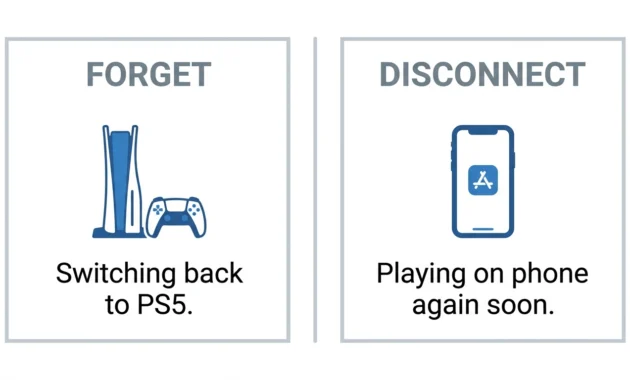
You will see two choices: Disconnect or Forget.
Use Forget if you plan to switch the controller back to your PS5. This completely removes the pairing from your phone’s memory. When you turn on your PS5 and press the PS button on the controller, it will reconnect to your console immediately without any confusion about which device it should connect to.
If you just use Disconnect, your phone remembers the controller. The next time you turn on the controller near your phone, it might try to connect to your phone instead of your PS5. I have seen people frustrated because their controller keeps connecting to their phone when they are trying to play on their console. Forgetting prevents that.
The controller lights will turn off completely when you disconnect. That is your visual confirmation the controller is no longer paired to your phone.
Use Disconnect only if you plan to use the controller with your phone again soon and you do not need it for your PS5. This keeps the pairing saved so you can reconnect quickly without going through the full pairing process again.
But if you are switching back to console gaming, always use Forget. It takes two extra seconds and saves you the headache of a controller that connects to the wrong device.
Why Your Buttons Feel Different (And How to Fix It)
You press X to select something, and nothing happens. You press Circle instead, and suddenly it works. Your buttons feel backwards.
Mobile games map controller buttons differently than PlayStation games do. On your PS5, X is the default confirm button, and Circle is cancel. Many mobile games reverse this. Circle becomes the select button, and X becomes back or cancel. Some games even swap the shoulder buttons or remap the triggers completely.
The reason is simple. Mobile games are built for touchscreen first, and controller support is added later. Developers map buttons based on what feels natural for their specific game, not based on PlayStation standards. And since most mobile games support Xbox controllers too, they sometimes follow Xbox button conventions where the bottom face button confirms instead of the right face button.
Your phone’s Bluetooth settings cannot fix this. Button mapping happens inside each individual game, not at the system level.
Here is how to fix it.
Open the game you want to play. Go into the game’s Settings menu. Look for a section called “Controller,” “Controls,” or “Button Mapping.” Most mobile games that support controllers have this option somewhere in their settings.
Tap into the controller settings. You should see a layout showing which button does what. Many games let you customize every button. Tap the action you want to change, then press the button you want to assign to that action.
Remap the buttons until they feel right. Save your changes. Test them in the game.
Some games give you full control over every button. Others only let you choose from a few preset layouts. And a handful of games do not allow any button customization at all. You are stuck with whatever mapping the developer chose.
I recommend checking the controller settings in every new game you download. Even games from the same developer sometimes use different button layouts. It takes 30 seconds to check and fix, and it prevents the frustration of dying in a game because you pressed what you thought was the jump button and your character crouched instead.
Best Games and Apps That Work with PS5 Controllers
Not every mobile game supports controllers. Some games detect your DualSense immediately and work perfectly. Others ignore it completely and force you back to touchscreen controls.
Here is what actually works based on extensive testing.
PlayStation Remote Play and Official Apps
PlayStation Remote Play is the official reason Sony wants you to pair your controller to your phone. This app streams games from your PS5 console to your phone over Wi-Fi. You can download the official PlayStation Remote Play app from Sony to get started.
The controller works exactly like it does on your console because you are literally playing PS5 games remotely.
You need a strong Wi-Fi connection. Both your phone and PS5 must be on the same network for best results. The experience is smooth when your connection is good and frustrating when it is not.
Cloud gaming services like Xbox Game Pass Ultimate, GeForce Now, and Amazon Luna all support PS5 controllers. You stream the game from their servers and play on your phone. Controller response is excellent as long as your internet speed holds up.
Popular Mobile Games
Call of Duty Mobile has full controller support, and it works great. The game detects your DualSense automatically and switches from touchscreen to controller mode. You will need to adjust sensitivity settings to match your play style, but the core controls respond perfectly.
PUBG Mobile supports controllers but restricts you to playing only against other controller users. Fair matchmaking, but it means longer queue times.
Fortnite, Minecraft, Dead Cells, Stardew Valley, and most premium paid mobile games support controllers. Free-to-play games are hit or miss. Check the app description or reviews before downloading if controller support matters to you.
Genshin Impact supports controllers and feels significantly better with physical buttons than a touchscreen. Same with Diablo Immortal and most action RPGs.
Sports games and racing games almost always support controllers. NBA 2K, Madden Mobile, Asphalt 9, and Real Racing 3 all work with your DualSense.
Emulators (The Real Reason Most People Want This)
Let me be honest. A lot of people pair PS5 controllers to phones specifically to play emulated games. Classic PlayStation, Nintendo, and Sega titles.
RetroArch handles almost every retro console. Game Boy, NES, SNES, Sega Genesis, and even Nintendo 64 games all work well once you configure your controller settings inside the app. Configuration takes a few minutes the first time, but your settings are saved for future sessions.
PS2 emulation depends entirely on your phone’s processing power. High-end Android phones from the past two years can handle it. Older phones struggle. Games run but expect frame rate drops and occasional stuttering. Not every PS2 game is playable even on powerful phones.
One quirk with DuckStation: the app sometimes forgets your button mappings when you close and reopen it. You might need to reconfigure your controls occasionally. Minor annoyance but worth mentioning.
Most emulators require you to provide your own game files legally. I am not going to explain how to get those. You are on your own there.
Hidden Shortcuts and Tips You Should Know
The PS button does more than just turn your controller on and off. Press it while playing a game on your phone, and it acts as a home button. Takes you straight back to your phone’s home screen without needing to reach for your phone.
Sounds minor. But when you are holding a controller with both hands and need to quickly switch apps or check a notification, that shortcut saves you from awkwardly reaching for your phone while keeping the controller balanced.
If you have a PS4 controller lying around, it pairs to phones the same way. One difference: you hold the PS button and the Share button instead of the Create button. The Share button is in the same location as the Create button on PS5 controllers. And when a PS4 controller connects successfully, the light bar turns solid orange instead of white or blue.
One last thing about the DuckStation emulator. Sometimes it forgets your button configuration when you restart the app. Not every time. Just often enough to be annoying. Keep your button layout saved in your head because you might need to reconfigure it occasionally.
Frequently Asked Questions
Can I Bluetooth My PS5 Controller to My iPhone?
Yes. The pairing process is identical to Android. Turn on Bluetooth in your iPhone settings, put the controller in pairing mode by holding the PS button and Create button for 5 seconds, then select DualSense Wireless Controller from the available devices list.
How Do I Put My PS5 Controller Out of Pairing Mode?
Press the PS button once to turn the controller off. If it is already connected to a device, the connection will end pairing mode automatically.
Will This Work with My PS4 Controller Too?
Yes. Hold the PS button and the Share button instead of the Create button to enter pairing mode. The Share button is in the same top-left position as the Create button on PS5 controllers.
Can I Keep My Controller Paired to Both My Phone and PS5?
No. Controllers pair to one device at a time. Use Forget in your phone’s Bluetooth settings when you want to switch back to your PS5, or the controller will keep trying to connect to your phone instead of your console.
Do I Need a Powerful Phone for This to Work?
Any phone with Bluetooth can pair with the controller. Performance depends on what games you play—basic games and PS1 emulators run on any phone, but PS2 emulation and graphically demanding games need a newer high-end device.