
What a Default App Actually Is (and Why Your Phone Already Has One)
Here is something that catches most people off guard. Your Android phone came with every major action already assigned to a specific app before you ever touched it. Tap a link, and it opens in a browser. Get a text; it lands in a messaging app. Open a PDF, and one particular app launches. You never chose any of that. The phone chose for you.
That is what a default app actually is. It is the app Android automatically sends a specific action to without asking. When only one app on your phone can handle something, Android just opens it. But when multiple apps can handle the same action, Android needs a tiebreaker. Either it asks you each time, or it uses whatever you have set as the default and goes there directly.
Think of it like a speed dial contact. You could scroll through every number every time you need to call someone. Or you tap the one you use most, and it connects. Default apps work the same way. Android skips the question and goes straight to the answer you already gave it.
The interesting part is what most people never think about. A significant majority of Android users have never deliberately changed a single default app on their phone. Not because they are satisfied with every choice the manufacturer made. Simply because they did not know they could, or they assumed the phone already had the best setup.
And here is where it gets genuinely surprising. Most people assume Chrome is the default browser on every Android phone. It is not. On Samsung Galaxy devices specifically, Samsung Internet is the browser that ships as the default. Chrome is actually the pre-set default browser on a smaller share of new Android devices than most people realize. So if you have a Samsung and links keep opening somewhere you did not expect, that is why.
How to Change Default Apps on Android (The Steps That Work on Any Phone)
Every Android phone uses the same starting point. Open the Settings app, tap Apps, and somewhere inside that Apps menu you will find the default app settings. The label changes depending on who made your phone. But the path always starts the same way.
Here are the steps that work across most Android devices:
- Open the Settings app on your phone
- Tap Apps (sometimes labeled Apps and Notifications on older Android versions)
- Look for default apps in the list or tap the three-dot menu icon in the top right corner
- Tap Default apps (or Choose default apps on Samsung)
- Select the category you want to change, such as the browser app or SMS app
- Tap your preferred app from the list to set it as the new default
That is the core path. Every major Android manufacturer, including Google, Samsung, ASUS, and Sony, uses some version of this same default application settings structure. The labels shift slightly. The steps do not.
One shortcut I always mention because most guides skip it entirely. If you open Settings and cannot find Apps or the default apps setting page anywhere, tap the search icon at the top of your Settings screen and type “Choose default apps.” Your phone will take you directly there regardless of the brand or Android version. Faster than scrolling and far less frustrating.
And the steps themselves take under a minute once you know where to look.
The One Thing to Check Before You Start
Before you open default apps and start looking for your preferred app, check that the app is actually installed on your phone.
This catches a lot of people off guard. When you change the default app in Android settings, only installed apps appear as options in the Default apps menu. If you open the list and your preferred browser, messaging app, or PDF reader is not showing up, the phone is not hiding it. The app simply is not on the device yet.
Install the app from the Play Store first. If the Play Store itself is missing or will not open, here is how to reinstall the Google Play Store before you go any further. Then come back to the Default apps menu, and the app will be there waiting.
Every Default App Category Explained (Browser, SMS, Phone, Launcher, and More)
Most guides cover three default app categories and call it done. Browser, messages, phone. That is it. But Android’s default app settings page has more categories than that, and the ones most guides skip are often the ones people actually need.
Here is every major category, what each one controls, and what I would actually set it to.

Default Browser App—Stop Links Opening in the Wrong Browser
The browser default controls every web link you tap from outside a browser. Emails, text messages, and social media posts—when you tap a link in any of those, Android sends it to whatever app is set as your default browser app.
On Samsung Galaxy devices, that is Samsung Internet unless you change it. A large majority of Android users end up switching to Google Chrome, and the path to do that on Samsung is Settings > Apps > three-dot menu > Choose default apps > Browser app. Select Chrome or whichever browser you prefer.
Firefox and Brave are solid alternatives worth considering if Chrome is not your preference.
One thing that catches people off when changing the default browser on Android. Switching your browser does not change your search engine. Those are two completely separate settings. If you want Google Search inside Firefox, you go into Firefox’s own settings and change the search engine there. The Android default only controls which app opens. What happens inside that app is the app’s business.
Default SMS App — Why Google Messages Is Worth the Switch
The SMS app default controls which app handles all your text messages, both sending and receiving.
If you are on Samsung, the default is Samsung Messages. Switching to Google Messages is worth doing for one specific reason: RCS support. RCS is the modern messaging standard that brings read receipts, typing indicators, and higher-quality media sharing to regular Android-to-Android texting, and Google Messages has broader RCS support than most stock alternatives. To change the default messaging app on Android, go to Settings > Apps > Default apps > SMS app and select Google Messages.
Textra is another popular option if you want more customization over how your messages look and feel.
Default Phone App — Change Your Dialer
The default phone app controls every incoming and outgoing call on your device.
Most people stick with the stock dialer, which is fine. But third-party dialers do exist if you want features like call recording, spam blocking, or a different interface. Go to Settings > Apps > Default apps > Phone app and select your preferred dialer from the list.
One caveat worth knowing. On some carrier-branded Android devices, this option appears in the menu but does not actually work. The setting looks available, but selecting a different app has no effect. That is a carrier restriction, not a phone fault. I cover exactly what causes that and what you can do about it in the troubleshooting section below.
Home App — Change Your Launcher and Entire Home Screen
This one surprises people. The Home app category in Default apps controls your entire home screen layout. Change it and you are not just tweaking an icon. You are replacing the whole launcher.
Nova Launcher is the most popular third-party option and gives you detailed control over grid size, icon style, gestures, and animations. Microsoft Launcher is worth trying if you use a lot of Microsoft apps and want them integrated into your home screen. Action Launcher has a clean design that sits somewhere between stock Android and full customization.
To change the launcher on Samsung or any other Android phone, install the launcher from the Play Store first, then go to Settings > Apps > Default apps > Home app and select it from the list.
Digital Assistant — How to Switch Away from Bixby on Samsung
Most Samsung users do not know this setting exists. And it is the one they usually want most.
The Digital Assistant category in Default apps controls which assistant responds when you long-press the home button or use the dedicated assistant shortcut. On Samsung devices, Bixby is the default. To switch to Google Assistant, go to Settings > Apps > Default apps > Digital assistant app and select Google from the list.
If you have Amazon Alexa or another assistant installed, those show up here too. Each one only appears after it is installed, so install your preferred assistant first if you do not see it in the list.
Samsung, Pixel, and Xiaomi: Find the Default Apps Menu on Your Exact Phone
The default app system on Android works the same way on every phone. But the path to reach it looks completely different depending on who made your device. This is the part that breaks most tutorials. Someone writes a guide using a Pixel, and every Samsung user reads it and cannot find the screen they are describing.
The underlying settings are identical across all brands. Only the navigation changes. Here is exactly where to go on each one.
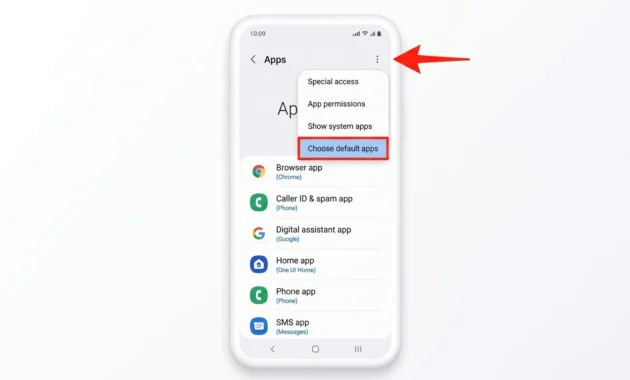
How to Change Default Apps on Samsung Galaxy (One UI)
Samsung Galaxy devices hide the default apps option in a place most people would never think to look. And that is not a criticism of Samsung. It is just how One UI organizes things.
Here is the path:
- Open Settings
- Tap Apps
- Tap the three-dot menu icon in the top right corner of the screen
- Select “Choose default apps” from the dropdown
That three-dot menu step is what trips people up. Samsung Galaxy users who search for “Default apps” directly inside Settings will not find it there. The option lives inside Apps, behind that menu icon. Samsung’s own official support documentation confirms this is the correct path for One UI devices.
On some newer One UI versions, you may see “Choose default apps” appear directly inside the Apps screen without needing the three-dot menu. If you see it listed there, tap it directly and skip step three.
Worth knowing: Samsung Internet ships as the default browser on the majority of Samsung devices, which is why so many Galaxy users end up here looking to switch to Google Chrome or another browser.
How to Change Default Apps on Google Pixel
Google Pixel phones run stock Android, so the path stays simple and matches what Google itself publishes.
Here is the path:
- Open Settings
- Tap Apps
- Tap Default apps
- Select the category you want to change and choose your preferred app
That is genuinely it. The Default apps option sits directly inside the Apps screen on Pixel devices. No three-dot menu, no submenus. If you are coming from a Samsung and switching to a Pixel, this will feel noticeably simpler.
How to Change Default Apps on Xiaomi and Redmi Phones
Xiaomi and Redmi phones run MIUI, and MIUI places the default apps setting slightly deeper than stock Android does.
Here is the path on most MIUI versions:
- Open Settings
- Tap Apps
- Tap Manage apps
- Tap the three-dot menu or look for default apps within that screen
The exact label and location can shift slightly depending on which MIUI version your phone is running. If you go through those steps and still cannot find it, open Settings and use the search bar at the top. Type “Default apps” and your phone will surface the setting directly regardless of where MIUI has placed it in the menu structure.
That search shortcut works on Samsung and Pixel too. If you are ever stuck on any Android device, that is the fastest way to get there without memorizing any path.
How to Change the Default App for a Specific File or Link
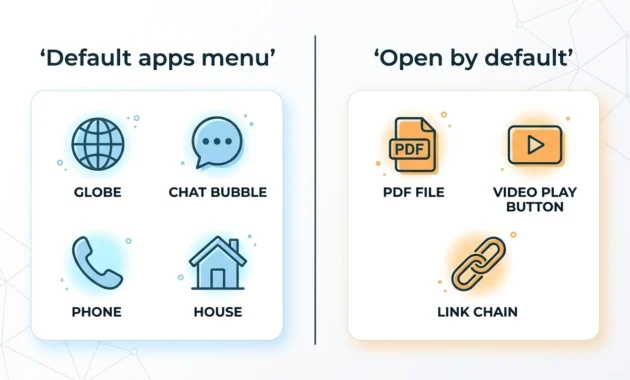
Here is something most guides never tell you. There are actually two separate default app systems on Android, and they work completely differently. Most people only know about the first one—the Default apps menu in Settings that handles browsers, SMS, phone calls, and launchers. But there is a second system that controls which app opens a specific file type or link, and that second system lives somewhere else entirely.
More than half of Android users do not even know that different apps on their phone can use different browsers depending on where a link comes from. Which explains why so many people fix their browser default and still have certain links opening in the wrong place.
The second system is called Open by default, and you access it through the individual app’s settings, not through the main Default apps menu. That distinction matters. If you are trying to change which app opens your PDF files or stop YouTube links from hijacking your browser, the core Default Apps menu will not help you. You need to go into the specific app that currently owns that file type or link.
And this is exactly where most people get lost.
One more thing before the steps. If you are looking for that old “Open with” prompt when tapping a web link, you will not find it on modern Android. Android 12 removed the browser selection dialog for web links when a default browser is already set. Older tutorials that tell you to tap a link and choose your browser are describing behavior that no longer exists. The way to change which browser handles your links now is through the steps below, not by tapping and waiting for a prompt.
How to Stop a Link From Always Opening in the Wrong App
To change which app handles a specific link type or file type on Android, go into the app info screen of the app that currently owns that default and clear it from there.
Here is the path:
- Open Settings and tap Apps
- Tap See all apps and find the app that is currently opening your links or files
- Tap that app to open its app info screen
- Tap Open by default
- Tap Clear defaults
After you clear the default, open that same type of link or file again. Android will ask you to choose a new app this time. Select your preferred app and tap Always to set it as the new default going forward.
For apps like YouTube, Instagram, or WhatsApp that automatically claim their own links through what Android calls supported links, there is an extra step. Inside the same Open by default screen, look for the Supported links toggle and turn it off. That stops the app from automatically intercepting links that belong to its domain without asking you.
Link handling on Android is app-by-app. Which means if three different apps each claim different link types, you manage each one separately through that app’s own info screen. Not ideal. But that is how the system works
How to Change the Default PDF App on Android
To change the default PDF app on Android, the fastest method is to open a PDF file directly and use the chooser that appears.
Here is how:
- Open your Files or Downloads app and find any PDF
- Tap the PDF to open it
- If a chooser appears asking which app to use, select your preferred PDF app and tap Always
- If the PDF opens directly in the current default app, go to Settings > Apps > find that app > Open by default > Clear defaults
- Once the default is cleared, open the PDF again, and the chooser will appear
- Select your preferred app and tap Always to set the new file association
Adobe Acrobat and the Google Drive PDF viewer are the two most common choices. Adobe Acrobat handles complex PDFs and forms better. The Google Drive viewer is lighter and fine for reading standard documents.
The step most people skip is step four. If a PDF app is already set as the default, tapping a PDF goes straight there without showing any chooser at all. You have to clear the existing default first before Android will ask again. Skipping that step and wondering why nothing changes is the most common mistake I see with this process.
Also, do not confuse Clear defaults with clear data on that same app info screen. Clear defaults removes the app’s file association only. Clear data wipes the app’s saved settings, login sessions, and stored information. Always use clear defaults first. Clear data is a much bigger action and almost never what you actually need here.
Always vs. Just Once — The Default App Mistake Almost Everyone Makes
Almost every default app problem I have ever seen traces back to the same moment. A dialog box appeared, someone tapped a button quickly without reading it, and now a specific app opens every single time without asking.
That dialog is the always vs. just once prompt. And understanding what each button actually does would have prevented the problem entirely.
When Android does not have a default set for a particular action, it shows you a list of apps that can handle it and asks which one you want. At the bottom of that screen are two buttons. Just once and always.
Just once means Android uses that app for this one action and forgets the choice immediately afterward. The next time you open the same file type or tap a similar link, the prompt appears again. No permanent change. Nothing saved.
Always means Android sets that app as the permanent default for that action right then and stops asking. Every future link, file, or action of that type goes directly to that app without showing the prompt again.
Neither choice is wrong on its own. The problem is that it always gets tapped by accident constantly. The dialog appears unexpectedly, someone taps the first button they see to dismiss it, and then they spend the next week wondering why everything keeps opening in the same app.
If that has already happened, the fix is straightforward. Go to Settings, tap Apps, find the app that is incorrectly set as the default, tap Open by default, and tap Clear defaults. That removes the permanent assignment immediately. The next time you open that file type, Android will ask again using the Android open with prompt, and you can choose properly this time.
Always is reversible. Every time. No exceptions.
So if you are not completely sure which app you want as a permanent default, tap just once. You can always come back and set a permanent default later once you have decided. But undoing an accidental Always takes a few extra steps that most people do not know about until they are already frustrated.
Can’t Change Default Apps on Android? Here’s What’s Actually Going On
Most default app problems are not random. Every time I work through one of these issues, there is a specific cause behind it. The phone is not broken. The setting is not missing. Something identifiable is blocking the change, and once you know what it is, the fix becomes obvious.
Here are the four most common scenarios and exactly what to do for each one.
The Default App Option Is Grayed Out or Does Nothing
This one is frustrating because the setting looks available. You go to Default apps, tap Phone app, select a different dialer, and nothing changes. The old app is still the default. Or the option to change it is grayed out entirely.
On certain Android 13 and 14 devices with carrier-branded software, some carriers restrict the default Phone app at the software level. The menu option appears in Settings because Android requires manufacturers to show it. But selecting a different app has no real effect because the carrier has locked that category.
This is a carrier restriction. Not a phone fault. Not something you did wrong.
Your options are limited here. You can contact your carrier and ask if they allow third-party dialer defaults. You can wait for an OEM or carrier software update that may lift the restriction. Or you can check whether your device model has an unlocked firmware version available, though that is a path for advanced users who are comfortable with the technical side of things.
My Default Keeps Resetting — How to Make It Stick
If you successfully change a default app and it reverts back after a day or two, there are three likely causes.
The first is battery optimization. Android’s battery management sometimes restricts background activity for apps it considers inactive, and on some devices this can interfere with default assignments. Go to Settings > Apps > find your preferred default app > Battery > and turn off battery optimization for that specific app.
The second cause is the old default app still having Supported links turned on. If the previous default app is still registered to handle the same link types, it can quietly reassert itself. Go into that old app’s Open by default screen and check whether Supported links is still active. Turn it off.
And if you never use that old app anymore, you can skip the toggle and delete apps on Android that you no longer need. Some preinstalled apps only allow disabling, not full removal.
The third cause is resetting app preferences after an update. Some OEM skins quietly reset app preferences during system updates. If this keeps happening, check your software update history and see if the reverting lines up with an update.
What is “Reset App Preferences”? Actually Does (Your Data Is Safe)
This is the fix that solves almost everything else, and most people are afraid to use it because the name sounds destructive.
Reset app preferences does not delete your photos. It does not delete your app data. It does not remove your login sessions or wipe anything personal from your phone. Google’s own Android documentation and the Android Open Source Project both confirm this explicitly. The word “reset” here refers only to app behavior settings, not to anything personal.
Here is exactly what resetting app preferences actually changes:
- Apps that were disabled get re-enabled
- Notification settings for apps get restored to default
- All default app assignments get cleared
- Background data restrictions get removed
- App permission restrictions get reset
That is the complete list. Your messages, photos, contacts, downloaded files, and app accounts are completely untouched.
To use it, go to Settings > Apps > tap the three-dot menu in the top right corner > Reset app preferences. After the reset, go back through the Default Apps menu and set your preferred defaults again manually.
If nothing else has worked, this is the step that usually fixes it. The fear around resetting application preferences is understandable given the name. But the actual scope of what it touches is much narrower than most people assume, and knowing that makes it a lot easier to use it confidently.
Android 14 and 15 Added New Default App Categories—Here’s What Changed
If you open your Default Apps menu and see options that no tutorial you have found actually mentions, you are not imagining things. Android 14 and 15 both added new default app categories, and most guides were written before those Android versions existed. So the screen you are looking at has more options than anything written two or three years ago will cover.
Here is what those new categories are and what each one actually controls.
Android 14 — Default Notes App
Android 14 added a Notes role to the Default apps menu. This controls which notes app launches when you use the lock screen shortcut for quick note-taking. Before Android 14, there was no system-level way to set a default notes app at all. If you have been telling people for years that Android cannot do this, that changed with Android 14.
To set your preferred notes app, go to Settings > Apps > Default apps > Notes app and select the app you want. Google Keep, Samsung Notes, and any other installed notes app will appear as options.
Android 15—Wallet Replaces NFC Payment
Android 15 renamed the default payment category. If you are searching your Settings for something labeled “NFC payment” and cannot find it, that label no longer exists on Android 15 devices. The category is now called Wallet.
The Wallet role controls which app handles contactless payments and digital wallet functions. Google Wallet, Samsung Wallet, and any installed banking apps that support this role will appear in the list. The path is Settings > Apps > Default apps > Wallet app.
Trevor Nace’s recent tutorial on Android default apps confirms the Digital Wallet category is visible as a standard option in the Default apps menu on current devices, which lines up with what Android 15 rolled out officially.
One More Change Worth Knowing
Android is also rolling out a browser and search service selection screen that appears after system updates on Android 15 devices. The idea is that after a major update, your phone proactively asks which browser and search service you want to use rather than quietly keeping whatever was set before. This is a significant shift from how Android has historically handled browser defaults. Check your Android version in Settings > About phone to see if your device has received this yet.
Older guides that show a default apps menu with only three or four categories are not wrong for older Android versions. But if your phone is running Android 14 or 15, your menu has more options than those guides account for.
How to Clear a Default App Without Resetting Everything
Sometimes only one app has a wrong default, and you do not want to touch anything else. That is exactly what the single-app clear method is for.
Long-press the app icon on your home screen or app drawer. Tap App info. Scroll down and tap Open by default. You will see which file types and link types that app is currently set to handle. Tap Clear defaults to remove all of those assignments at once.
That is the surgical option. One app, one action, nothing else changes.
After you clear the default, open the same file type or link that was going to the wrong app. Android will show the Android open with chooser and ask you to pick again. Select your preferred app and tap Always to lock in the new choice.
The moment where people go wrong on this screen is confusing two options that sit close together in the app info menu. Clear defaults and clear data are not the same thing. Not even close.
Clear defaults removes only the app’s default assignments. The app itself stays fully intact with all its data, settings, and login sessions completely untouched.
Clear data wipes everything the app has stored. Saved preferences, login credentials, downloaded content—all of it gone. That is a much bigger action and almost never what you actually need when fixing a default app problem.
If you know exactly which app is causing the issue, use Clear defaults on that specific app. If the problem is more widespread and you are not sure which app owns what, the full Reset app preferences option covered in the previous section handles everything at once. But start here first. Clearing one app’s defaults takes thirty seconds and fixes most problems without touching anything else.
Quick Summary — Change Your Android Default Apps in Under Two Minutes
If you skipped straight to the bottom, here is everything condensed into one place.
Find Default Apps on Your Phone
| Phone Brand | Path |
|---|---|
| Samsung Galaxy | Settings > Apps > three-dot menu > Choose default apps |
| Google Pixel | Settings > Apps > Default apps |
| Xiaomi / Redmi | Settings > Apps > Manage apps > Default apps |
Can’t find it on any brand? Open Settings, tap the search icon, and type “Choose default apps.” Your phone will take you there directly.
Fix a Wrong Default
Clear one app only: Long-press the app > App info > Open by default > Clear defaults.
Reset all defaults at once: Settings > Apps > three-dot menu > Reset app preferences
Key Things to Remember
- Install the app you want first. It will not appear as an option until it is on your phone.
- Always sets a permanent default. Just once uses the app once and asks again next time.
- Changing your browser does not change your search engine. That is a separate setting inside the browser.
- Android 14 added a Notes app default. Android 15 renamed NFC payment to Wallet.
None of these steps delete your photos, app data, or personal files. Every change you make here is reversible, including the ones that sound permanent.
FAQs
Why isn’t my preferred app showing up in the Default apps list?
The app has to be installed on your phone before Android will list it. Install it from the Play Store, then go back to Settings, Apps, and Default Apps and pick it from the category.
Will resetting app preferences delete my photos or app data?
No. Resetting app preferences leaves your photos, videos, documents, and app data alone. It only resets disabled apps, notification settings, default app choices, background data limits, and permission settings.
How do I change my default browser on a Samsung Galaxy?
Go to Settings, Apps, tap the three-dot menu at the top right, then choose Default apps and Browser app. Select your browser from the list, and install it first if it is missing.
Why does my default app keep changing back to the original?
The old app usually still has its defaults set, so Android keeps sending links and files back to it. Open that app’s app info, tap Open by default, then Clear defaults and turn off Supported links if it is on.
Can I change my default Phone app to a third-party dialer?
On most Android phones you can. Go to Settings, Apps, Default Apps, and Phone app. Some carrier-branded phones block the change, so if nothing happens after you select a new dialer, the restriction likely comes from your carrier.
How to change default apps Android phones use for links, files, and texts?
Open Settings, tap Apps, then Default Apps, choose a category like Browser app or SMS app, and pick the app you want. On Samsung phones, the Default apps option may sit behind the three-dot menu, and the app must already be installed to show up.
2 comments