
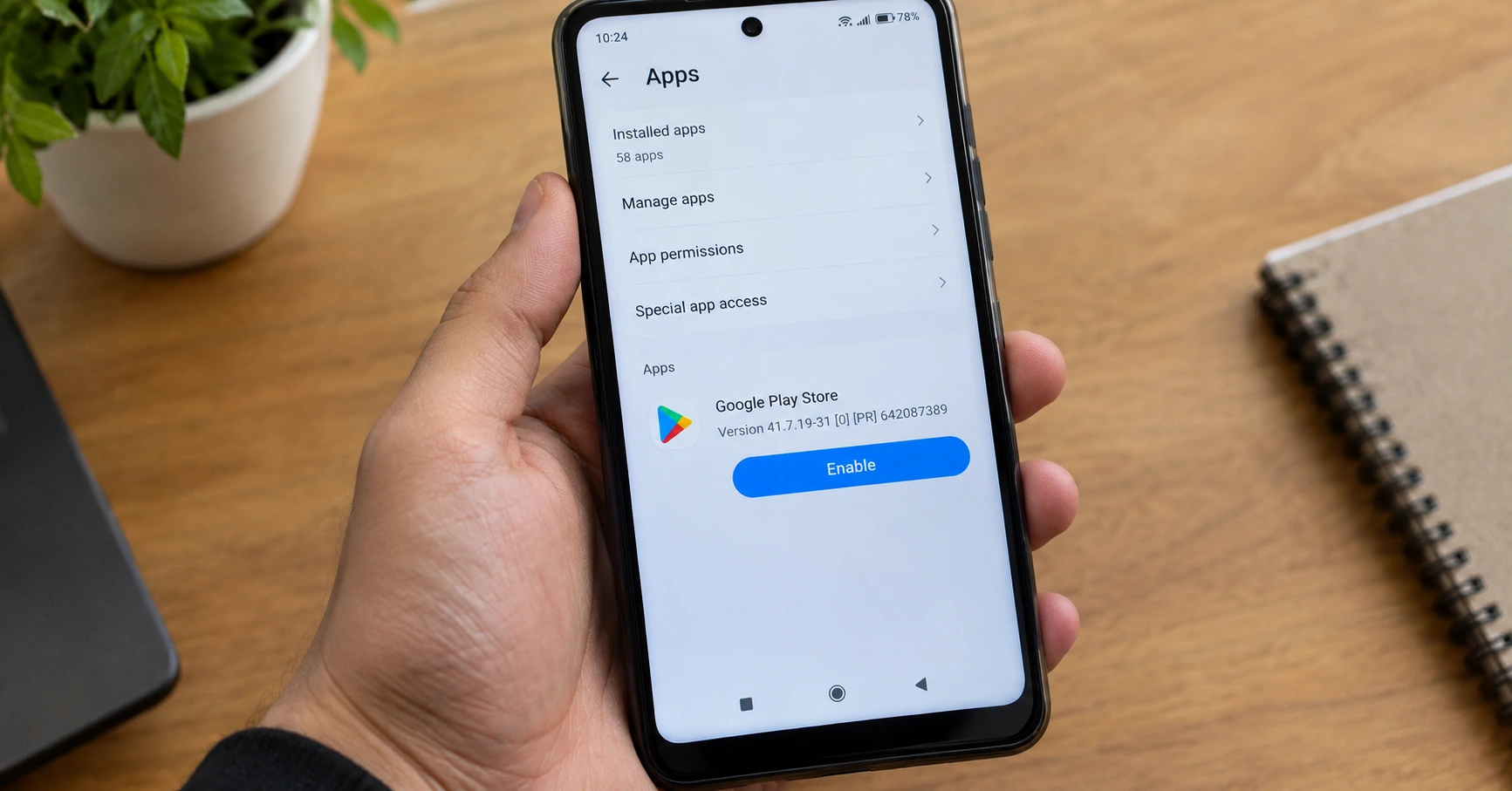
Why Is My Google Play Store Missing?
I know the feeling. You unlock your phone, look for the Play Store, and it’s just… gone. No icon. Nothing.
And the first thought that hits is usually panic. Did I delete it? Did someone mess with my phone? Can I even fix this?
Here’s the thing. You didn’t delete the Google Play Store. That’s not actually possible on a standard Android device unless you rooted it or did something really technical with developer tools. What happened is almost always one of three simple things, and none of them are as serious as they feel right now.
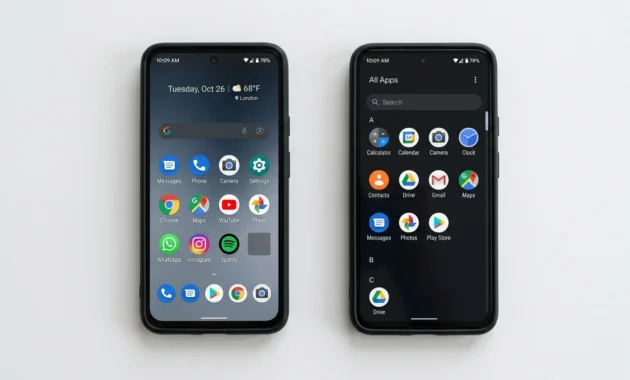
The most common scenario is that the icon got removed from your home screen. Not the app itself. Just the icon. The Play Store is still sitting in your app drawer waiting for you to find it again. This happens more often than you’d think, especially if someone was swiping around on your phone or if you were rearranging apps and tapped the wrong thing.
The second possibility is that Play Store got disabled in your settings. Android lets you disable system apps even though you can’t uninstall them. Once disabled, the app stops working and the icon disappears completely. Sometimes you do this by accident. Sometimes a kid playing with your phone does it. And sometimes, Android itself does it automatically.
That last part surprises people. Newer Android versions have a feature that auto-disables apps you haven’t used in a long time. If you’re the type who rarely opens the Play Store directly because your apps update on their own, Android might assume you don’t need it and turn it off to save resources. Annoying, but reversible.
The third scenario is less common but still happens. On Samsung devices specifically, there’s something called Secure Folder. It’s a hidden, locked space where you can move apps. If Play Store ended up in there somehow, it won’t show up in your normal app list or home screen. It’s not missing. It’s just hiding.
Here’s what you need to understand. The Google Play Store is what’s called a system app. It came pre-installed on your phone when you bought it, and Android treats it differently from apps you download yourself. You can’t just long-press it and hit “uninstall” like you would with a game or a social media app. The option doesn’t exist. It’s baked into the operating system.
So when you’re searching “how do I reinstall Google Play Store,” what you’re really asking is how to make it visible and functional again. And that’s actually easier than reinstalling would be.
Most of the time, this takes about 60 seconds to fix once you know where to look. The app is still there. You just need to wake it back up or pull it back out of wherever it wandered off to.
Can You Actually “Reinstall” Google Play Store?
No, you can’t reinstall the Google Play Store the way you’d reinstall a regular app. The word “reinstall” doesn’t really apply here, even though that’s what everyone searches for when this problem happens.
Here’s what I mean.
When you install an app from the Play Store, say Instagram or Spotify, you can uninstall it completely. Gone. Removed from your phone. Then you can go back to the Play Store, download it again, and reinstall it from scratch. That’s the normal install and uninstall cycle most people are familiar with.
The Google Play Store doesn’t work that way. It’s what Android calls a system app, which means it came built into your phone from the factory. You didn’t download it. You can’t remove it. And you can’t reinstall it like a normal app because there’s no official “uninstall” option in the first place.
If you open your phone’s settings right now and go to the app list, then find Google Play Store and tap on it, you’ll notice something. There’s no big “Uninstall” button like you’d see for other apps. That button doesn’t exist for system apps. What you’ll see instead is “Disable” or maybe “Uninstall updates,” but never a full uninstall option.
Google designed it this way on purpose. The Play Store is part of the core Android system, and removing it would break a lot of other things that depend on it running in the background. So Android protects it from accidental deletion.
But here’s where the confusion comes in. When people ask how to reinstall the Google Play Store, what they actually need is one of three things. Either they need to re-enable the app if it got disabled, or they need to reset it back to the original factory version, or in rare cases they’re looking at downloading an APK file to manually install it.
That last option is where things get messy. I’ve seen a lot of guides online that tell you to download a Google Play Store APK file from random websites and install it yourself. And technically, yes, that works in some situations. But here’s what most of those guides don’t tell you. Google doesn’t officially distribute the Play Store as a downloadable APK file. At all. The only official way to get Google Play Store on your phone is through the manufacturer pre-installing it or through automatic system updates that happen in the background.
So when you download an APK file from a third-party site, you’re trusting that site to give you a clean, unmodified version of the app. Some sites are trustworthy. Most aren’t. And the risk isn’t worth it when there are safer official methods that work just as well.
What you actually need to do is one of two things. If the Google Play Store is disabled, you just need to re-enable it in your settings. If it’s misbehaving or stuck after a bad update, you can uninstall updates to roll it back to the factory version, and then it’ll update itself automatically once it’s working again.
Both of those options are built into Android. No downloads. No APK files. No risk.
And that’s the honest answer to the question. You’re not really reinstalling anything. You’re either turning the app back on or resetting it to an earlier working version. The app never actually left your phone.
How to Get Play Store Back When the Icon Disappears
This is the easiest fix, and honestly, the most common reason people think their Play Store is gone.
The app didn’t go anywhere. The icon just got removed from your home screen. That’s it. Google Play Store is still installed on your Android device, still working perfectly fine, just not visible where you expect to see it.
Here’s what usually happens. You’re rearranging apps on your home screen, or someone else is using your phone, and you accidentally long-press the Play Store icon. A menu pops up. Instead of tapping something harmless, you tap “Remove” or “Remove from home screen.” The icon vanishes. And because most people don’t realize there’s a difference between removing an icon and uninstalling an app, panic sets in.
But removing an icon from your home screen doesn’t delete the app. It just hides the shortcut. The actual app is still sitting in your app drawer, which is the full list of every app installed on your phone. Think of your home screen as a favorites list and your app drawer as the complete library. Removing something from favorites doesn’t erase it from the library.
This is the first thing I check whenever someone tells me their Play Store disappeared. And nine times out of ten, this is exactly what happened. The app is fine. The icon just needs to be put back.
The good news is this takes about 30 seconds to fix once you know where to look.
Step-by-Step: Restore Play Store Icon to Home Screen
Here’s exactly how to get Play Store back on your home screen.
Step 1: Open your app drawer. On most Android phones, you do this by swiping up from the bottom of your home screen. On some older devices, you tap an icon that looks like a grid of dots. Either way, you’re opening the full list of apps.
Step 2: Find the Google Play Store. Scroll through the list, or use the search bar at the top if your phone has one. Type “Play Store” and it should pop up immediately. If you see the icon here, that confirms the app is still installed. It was never deleted. Just hidden from your home screen.
Step 3: Press and hold the Play Store icon. Keep your finger on the icon for about two seconds. A menu will appear with several options.
Step 4: Tap “Add to Home” or “Add to Home Screen.” The exact wording depends on your Android version and phone manufacturer, but the option is always there. Tap it.
The Play Store icon will instantly reappear on your home screen, usually on the first available empty spot. You can then drag it wherever you want it to sit permanently.
That’s the whole process. No settings to dig through. No technical steps. Just find the app in your drawer and put the icon back where it belongs.
And if you don’t see Play Store in your app drawer at all, even after searching for it, then the app is actually disabled, not just hidden. That’s a different problem with a different fix, which I’ll cover in the next section.
Enable the Google Play Store in Settings (The Official Fix)
If the Play Store isn’t in your app drawer at all, it’s disabled. Not deleted. Not broken. Just turned off.
This is the official fix that works on nearly every Android device, and it takes less than a minute once you know where to tap. I’ve walked through this process more times than I can count, and it solves the problem almost every single time without needing anything more complicated.
Here’s the thing most people don’t realize. Android can disable apps automatically. If you haven’t opened Play Store in a while because your apps update on their own in the background, Android might decide you don’t need it and turn it off to save battery or storage space. Or sometimes you tap “Disable” by accident when you’re poking around in settings. Either way, the result is the same. The app stops working, and the icon disappears completely.
But re-enabling the Google Play Store doesn’t delete anything. Your apps stay exactly where they are. Your downloaded games, your purchased content, and your login info—all of it stays untouched. You’re not reinstalling the app. You’re just flipping a switch to turn it back on.
And here’s what makes this the right fix to try first. This is what Google Support recommends as the official solution when the Play Store goes missing. Not downloading files from the internet. Not factory resetting your phone. Just going into Settings and enabling the app again.
The steps are simple, but the exact menu names and button placements change depending on which Android version you’re running and which phone brand you have. Samsung phones look different from Xiaomi phones, which look different from stock Android. So I’ll cover the core steps that work everywhere, then point out the small differences you might see.
This is what Google Support recommends as the official solution when Play Store goes missing. Not downloading files from the internet. Not factory resetting your phone.Just going into Settings and enabling the app again. If you want to read Google’s own guidance on this, you can find it on the Google Play Help page.
Step-by-Step: Re-Enable Play Store on Any Android Device
Here’s how to enable the Google Play Store in Settings on any Android phone.
Step 1: Open your Settings app. You’ll find the Settings icon either on your home screen or in your app drawer. It usually looks like a gear or a set of sliders.
Step 2: Find the Apps section. On most phones, you’ll see an option called “Apps” or “Apps & notifications” or “Application manager.” Tap on it. On Android 14 and 15, it’s usually just labeled “Apps” near the top of the Settings menu.
Step 3: Open the full app list. Some phones show all your apps immediately. Others make you tap “See all apps” or “Manage apps” or “App list” to see the complete list. Look for a link or button that says something like that and tap it.
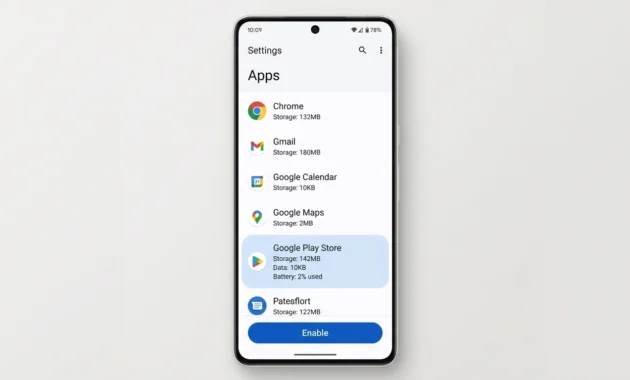
Step 4: Scroll down to Google Play Store. The list is alphabetical, so scroll down to the G section. You’re looking for “Google Play Store,” not just “Play Store.” When you find it, tap on it.
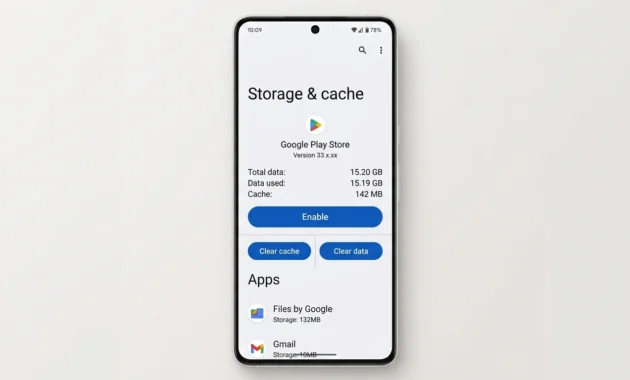
Step 5: Look for the Enable button. This is where things vary by device. On some phones, you’ll see a big “Enable” button at the bottom of the screen. On others, the button sits at the top right. On a few devices, it’s in a menu you access by tapping three dots. But the button is always there if the app is disabled. Just look for the word “Enable.”
Step 6: Tap Enable. That’s it. The app turns back on instantly. You don’t need to restart your phone, though some people do it anyway just to be sure everything refreshes properly.
Once you tap Enable, go back to your home screen or app drawer. The Play Store icon should be back. If it’s not on your home screen, check your app drawer first. Sometimes the icon appears in the drawer, but you still need to manually add it back to your home screen using the method I described in the previous section.
One small note. If you don’t see an Enable button, that means the app isn’t disabled. It might be hidden somewhere else, or the problem is something different entirely. But if the button is there, this fix works.
And yes, this really does solve the problem in the vast majority of cases. I’m talking about a success rate high enough that this should always be your first attempt before trying anything more complicated or risky.
Samsung Devices: Check Secure Folder First
If you’re using a Samsung Galaxy phone, there’s one more place Play Store might be hiding before you even get to the enable step.
Samsung has a feature called Secure Folder. It’s a locked, private space on your phone where you can move apps and files you want to keep separate from everything else. And sometimes, either by accident or on purpose, apps end up in there.
Here’s the problem. Apps inside Secure Folder don’t show up in your normal app drawer. They don’t appear in your regular app list in Settings either. They’re completely hidden unless you open Secure Folder and look inside.
So if you’ve checked your app drawer, searched for Play Store, and still can’t find it anywhere, this is the next thing to check on a Samsung device.
Go to Settings, then tap “Security and privacy.” Scroll down until you see “More security settings” and tap that. You’ll see an option for “Secure Folder.” Open it. If you’ve set up Secure Folder before, you’ll need to unlock it with your PIN or fingerprint.
Once you’re inside, look through the apps. If Google Play Store is sitting in there, you can either use it from inside Secure Folder or move it back out to your main system. To move it out, press and hold the Play Store icon, tap the menu, and select “Remove from Secure Folder.”
Not every Samsung user will have this issue. But if you do, this is the only place you’ll find the app. And once you know Secure Folder exists, it’s easy to check.
How to Reinstall Google Play Store Using Uninstall Updates
If Play Store is enabled but still acting weird, crashing when you open it, or showing error messages every time you try to download something, this is the fix you need.
Uninstalling updates is the closest thing to a true reinstall that Android allows for system apps. And it’s the official method Google recommends when Play Store is misbehaving after a bad update.
Here’s how it works. Every Android phone ships with a basic factory version of the Google Play Store already installed. Over time, that version gets updated automatically in the background to add new features and fix bugs. But sometimes an update goes wrong. Maybe it conflicts with something on your phone. Maybe the update file got corrupted during download. Either way, Play Store starts crashing or refusing to work properly.
When you uninstall updates, you’re rolling Play Store back to that original factory version that came with your phone. You’re not deleting the app. You’re just removing all the updates that were added after you bought the device. Once that’s done, Play Store opens the factory version, which is usually stable and works without issues. Then it automatically downloads and installs the latest updates again, but this time cleanly.
This method resets Play Store without you needing to download anything from the internet. No APK files. No sketchy third-party websites. No risk. It’s built into Android specifically for situations like this.
And here’s what a lot of people don’t know. This is actually what you should do when someone says “reinstall Google Play Store.” You can’t uninstall the app completely and reinstall it from scratch like you would with a regular app. But you can reset it back to its original state using this method, which accomplishes the same thing.
I use this fix whenever the Play Store is stuck in a loop, throwing errors like “Unfortunately Google Play Store has stopped,” or refusing to open at all. It works on every Android version, from older devices running Android 10 all the way up to the newest Android 15 phones.
Step-by-Step: Uninstall Play Store Updates
Here’s exactly how to uninstall updates and reset Google Play Store to its factory version.
Step 1: Open Settings. Tap the Settings app on your home screen or in your app drawer.
Step 2: Go to Apps. Look for “Apps” or “Application Manager” or “Apps & Notifications,” depending on your device. Tap it.
Step 3: Find the Google Play Store. Open the full app list if you need to, then scroll down to “Google Play Store” and tap on it.
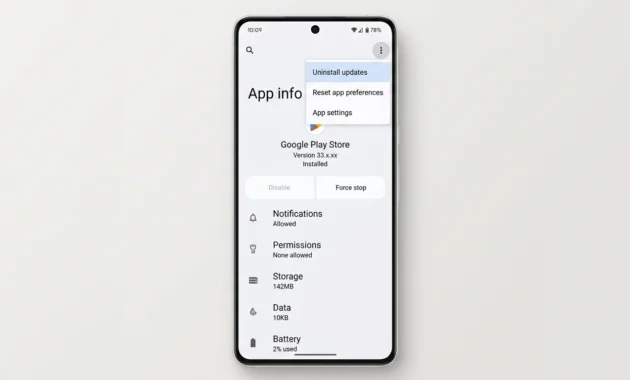
Step 4: Tap the three-dot menu icon. On most phones, you’ll see three vertical dots in the top right corner of the screen. Tap those dots to open a menu.
Step 5: Select “Uninstall updates.” This option appears in the menu. Tap it. You’ll see a confirmation message asking if you’re sure you want to uninstall updates and restore the app to its factory version.
Step 6: Confirm. Tap “OK” or “Uninstall” to confirm. The process takes just a few seconds. Play Store will revert to the version that originally came with your phone.
Step 7: Open the Play Store. Once the process finishes, tap “Open” or go back to your home screen and launch Play Store manually. It should open without issues now. The factory version is usually very stable, even if it looks a little outdated.
Step 8: Let it update itself. Within a few minutes, sometimes even seconds, Play Store will detect that it’s running an old version and automatically download the latest updates in the background. You don’t need to do anything. Just use Play Store normally, and it’ll update itself without interrupting you.
This method works when Play Store is crashing, frozen, showing constant errors, or stuck on a loading screen. If the problem started right after an automatic update, this is almost always the fix. You’re removing the bad update and giving Play Store a fresh start.
And no, this won’t delete your apps or mess with anything else on your phone. Your installed apps, your downloads, your Google account—all of that stays exactly the same. You’re only resetting the Play Store itself.
What to Do If Play Store Still Won’t Work (Troubleshooting Checklist)
If you’ve tried re-enabling the Play Store, uninstalling updates, and checking for the icon in your app drawer, but Google Play Store is still not working, there are a few more things to try before giving up.
Most of these fixes take less than two minutes. And the first one on this list, clearing cache and data, solves the problem in the vast majority of cases where the earlier methods didn’t work. I always start there because it’s quick, safe, and almost always effective.
The key is doing these steps in order. Start with the simplest, least invasive fix first. If that doesn’t work, move to the next one. Don’t skip ahead to something drastic like a factory reset until you’ve tried everything else, because you probably won’t need it.
Clear Play Store Cache and Data (Fixes 95% of Crashes)
This is the single most effective troubleshooting step when Play Store won’t open, keeps crashing, or shows error messages like “Unfortunately Google Play Store has stopped.”
Cache is just temporary data that apps store to load faster. Over time, that data can get corrupted or outdated, especially after a system update or when the Play Store itself updates. When the cache goes bad, Play Store starts misbehaving. Clearing the cache wipes out all that temporary junk and forces the app to rebuild it from scratch.
Here’s what people worry about. Will clearing cache delete my apps? No. Will it log me out of my Google account? No. Will I lose my downloads or purchases? Also no. Cache is throwaway data. Nothing you care about is stored there. You’re just wiping temporary files that Play Store can regenerate in seconds.
Here’s how to clear the Play Store cache and data.
Step 1: Open Settings and go to Apps. Find the Google Play Store in your app list and tap on it.
Step 2: Tap Storage or Storage & Cache. The exact label depends on your Android version, but you’re looking for the section that shows how much storage space the app is using.
Step 3: Tap Clear cache. This deletes the temporary files. You’ll see the cache size drop to zero instantly.
Step 4: Restart your phone. This step matters. A lot of people skip it, and then the fix doesn’t take. Restarting makes sure the changes actually apply, and the Play Store starts fresh when it opens again.
Step 5: Open the Play Store. Try using the app now. In most cases, this fixes crashes, freezing, and error messages immediately.
If clearing the cache alone doesn’t fix the problem, go back to the same Storage section and tap Clear data. This goes one step further and resets Play Store completely, like you just installed it for the first time. You might need to accept terms of service again when you open the app, but your apps and purchases stay untouched.
And here’s the thing. This method works so consistently that if it doesn’t fix your problem, the issue is probably something outside of Play Store itself. Maybe your internet connection. Maybe your Google account. Maybe a bigger system issue. But the app itself is likely fine at this point.
Other Quick Fixes to Try
If clearing cache and data didn’t solve the problem, work through this checklist one step at a time.
Force Stop Play Store. Go to Settings > Apps > Google Play Store and tap Force Stop. This shuts down the app completely, even if it’s running invisibly in the background. Then open the Play Store again. Sometimes the app just gets stuck in a loop and needs to be fully stopped and restarted.
Check your internet connection. Play Store won’t open, won’t load content, or will throw connection errors if your Wi-Fi or mobile data isn’t working. Open a web browser and try loading any website. If the website doesn’t load, your internet is the problem, not Play Store. This is actually one of the most common reasons Play Store appears broken when the app itself is perfectly fine. If your phone shows it is connected to Wi-Fi but nothing loads, you likely have a connection issue rather than a Play Store issue. I have a full guide on fixing that exact problem if you are connected to your network but still have no internet access.
Check your Google account. Go to Settings > Accounts or Settings > Passwords & Accounts and make sure your Google account is still listed and active. If it’s missing or showing an error, sign out and sign back in. The Play Store needs an active Google account to work.
Make sure you have enough storage space. If your phone’s internal storage is completely full, Play Store can’t download updates or cache data properly. Go to Settings > Storage and check how much space you have left. If it’s under a gigabyte, delete some files or apps to free up room.
Restart your phone. Yes, again. Sometimes you need to restart after clearing cache, and sometimes restarting alone fixes random glitches that popped up for no clear reason.
Check for a system update. Go to Settings > System > System update and see if there’s a pending Android update. Sometimes Play Store stops working properly after a major Android version update until you install the latest patch.
Known 2025 Issues and Fixes
There are a couple of specific issues that started popping up in early 2025 that affect the Google Play Store on certain devices.
In February 2025, a Play Store update caused widespread “account not working” errors for users across multiple regions. If you’re seeing an error message that says your Google account isn’t set up correctly or Play Store can’t verify your account, this is likely the cause. The fix is the same one I mentioned earlier. Clear the cache and data for both the Google Play Store and Google Play Services, then restart your phone. That resolves the account error in most cases.
Android 15 also introduced some compatibility quirks with the Play Store on older devices that upgraded from Android 13 or 14. If Play Store started acting weird right after you upgraded to Android 15, and clearing cache didn’t help, check for a system update. Google usually releases patches within a few weeks to fix upgrade-related bugs.
And if you’re running an older phone that’s still on Android 10 or 11, some newer Play Store features might not work properly or might cause the app to slow down. There’s not much you can do about that other than sticking with the factory version of Play Store by uninstalling updates, which I covered earlier.
The troubleshooting steps I listed here cover the overwhelming majority of Play Store problems. If none of them work, the issue is either something very specific to your device, or there’s a deeper system problem that might need professional help or a factory reset. But most of the time, you won’t get that far. Clearing the cache alone fixes most crashes and errors without needing anything else.
Reset App Preferences to Restore Play Store
Most guides skip this method entirely. That’s a mistake, because it’s one of the cleanest fixes available when the standard enable method doesn’t work, and it takes about 30 seconds.
Resetting app preferences doesn’t delete anything from your Android device. No apps get removed. No personal data gets wiped. No photos, messages, or downloads disappear. What it does is reset all the behind-the-scenes default settings that Android uses to manage your apps, including which apps are enabled, which apps handle which tasks, and which notifications are allowed.
Here’s why that matters for Play Store specifically. When an app like the Play Store gets disabled, Android updates its internal preferences to treat that app as “off.” Sometimes those preferences get stuck or corrupted, and simply tapping Enabling in settings doesn’t fully fix them. Resetting app preferences clears all of that and tells Android to start fresh with everything set back to factory defaults.
And here’s the part I find genuinely useful about this method. It doesn’t just fix Play Store. It restores every system app that got disabled at the same time. So if Play Store isn’t the only thing acting strangely on your phone, this one action fixes all of it in a single step. You might find that other apps you didn’t even realize were broken start working again too.
I’d try this before even thinking about downloading APK files from the internet. It’s an official Android feature, it’s completely safe, and it works on every Android version without any extra tools or technical knowledge.
Step-by-Step: Reset App Preferences
Here’s exactly how to reset app preferences on your Android device.
Step 1: Open the Settings app. You’ll find the Settings app on your home screen or in your app drawer. Tap on it to open it.
Step 2: Go to Apps. Scroll down until you see “Apps” or “Application manager” or “Apps & notifications,” depending on your phone. Tap on it.
Step 3: Open the full app list if needed. On some phones you’ll see all apps immediately. On others you need to tap “See all apps” or “Manage apps” first.
Step 4: Find the three-dot menu. Look for three vertical dots in the top right corner of the screen. Tap those dots to open a small menu.
Step 5: Tap Reset app preferences. You’ll see this option in the menu that appears. Tap it.
Step 6: Confirm the reset. A popup will appear explaining what gets reset. It will specifically say that no app data gets deleted. Tap Reset or Reset Apps to confirm.
Step 7: Check the Play Store. Go back to your home screen or app drawer. In many cases, Google Play Store will reappear immediately. If the icon still isn’t on your home screen, open the app drawer and look for it there. Then press and hold the icon and tap Add to Home to put it back where it belongs.
If Play Store is still missing after this, the Enable method described in the previous section is the next step to try. These two methods work well together because they fix different underlying causes of the same problem.
Reinstall Google Play Store APK (Last Resort Only)
Before anything else, I need to be direct about something most guides won’t tell you.
Google does not officially distribute the Google Play Store as a downloadable APK file. Not on their website. Not through any official download link. The only official way to get Play Store on an Android device is through the manufacturer pre-installing it when the phone is built or through automatic background updates that happen through the system itself.
So when you see articles telling you to “just download the Play Store APK,” they’re pointing you toward third-party files that Google never officially released. That’s worth understanding before you decide whether to go this route.
That said, there are specific situations where downloading a Google Play Store APK file is genuinely the only option. If you’re running a custom ROM that didn’t come with Play Store pre-installed, or if Play Store was removed from your device using developer tools like ADB, none of the Settings-based fixes I described earlier will work. The app simply isn’t there to enable or reset. In those cases, an APK installation is the path forward.
But if you’re reading this because Play Store disappeared from a normal phone you bought from a store, stop here and go back to the earlier sections. The enable method or the uninstall updates method will fix your problem without any of the risks that come with APK installation. Every video guide I’ve seen on this topic, from real people demonstrating real fixes on real phones, shows the Settings-based method. Not a single one downloads an APK file. That tells you something.
If you’ve confirmed you’re in a genuine edge case and you do need an APK, here’s what you need to know before downloading anything.
Safety Warning: Verify APK Sources
The biggest risk with any Google Play Store APK download is that you have no way of knowing whether the file has been tampered with unless you use a source that verifies it.
Most sites that offer APK downloads do zero verification. They host whatever file gets uploaded and call it safe. That creates an obvious problem. A file that looks exactly like the Google Play Store on the surface could contain additional code that you’d never know about just by looking at it.
APKMirror is the most widely trusted source in the Android community for verified APK files. What separates APKMirror from random download sites is that APKMirror checks the cryptographic signature of every APK file against Google’s official signature. If the signature doesn’t match exactly, the file gets rejected. This means the APK file you download from APKMirror is byte-for-byte identical to what Google actually built, with nothing added or changed.
Even with a trusted source, you still need to enable “Install unknown apps” or “Unknown sources” in your Android settings before the installation will work. Go to Settings, then find the option for installing apps from unknown sources, which is usually under Security or Privacy depending on your Android version. Enable it only for the specific app you’re using to install the APK, whether that’s your browser or a file manager, and disable it again immediately after the installation finishes.
Leaving unknown sources enabled permanently is the mistake I see most often. Once you’re done installing, turn that setting off.
Play Store Requires These Components to Work
Here’s something almost every APK guide skips completely, and it’s the reason a lot of people install the Play Store APK successfully and then watch it crash the moment they open it.
The Google Play Store doesn’t work on its own. The app depends on three other Google components running in the background, and if any of them are missing or disabled, Play Store will crash or show errors even after a clean APK installation.
The four components Play Store needs are Google Play Store itself, Google Play Services, Google Services Framework, and Google Account Manager. These aren’t optional extras. Google Play Services handles authentication, app updates, and background syncing. Google Services Framework manages the communication layer between your device and Google’s servers. The Google Account Manager handles your login. Without all four working together, Play Store has nothing to connect to.
If you’re installing Play Store on a device that doesn’t have these components already present, like a Chinese market device or a tablet that shipped without Google apps, you need to install all four components in the correct order. Install Google Services Framework first, then Google Account Manager, then Google Play Services, and finally Google Play Store. Installing the Play Store first and hoping the rest appears won’t work.
And once everything is installed, restart your phone before trying to open Play Store. The components need to initialize properly before Play Store can connect to them, and a restart is the cleanest way to make that happen.
Device-Specific Instructions (Samsung, Xiaomi, Others)
One of the most common reasons people get stuck following Play Store guides is that their Settings menu looks completely different from the instructions. They open Settings, go looking for “Apps,” and find something labeled “Application manager” or “Installed apps” or “Manage apps” instead.
That’s not a mistake on your end. Android is an open platform, and every manufacturer customizes the interface their own way. Samsung’s Settings menu looks different from Xiaomi’s, which looks different from a basic Android phone. The underlying steps are the same, but the labels and menu locations change depending on who made your device.
This is exactly where generic guides fall apart. They write one set of steps and assume everyone’s phone looks identical. It doesn’t. So here’s what the process looks like on the two most common Android brands where people run into confusion.
Samsung Galaxy Devices (One UI)
Samsung runs its own interface called One UI, currently on version 6 for newer Galaxy devices. The Settings menu is organized slightly differently from stock Android, but the path to fix Play Store is straightforward once you know where Samsung puts things.
To re-enable the Play Store on a Samsung device, open Settings, then tap Apps. You’ll see your app list directly without needing to tap through an extra screen. Scroll to the Google Play Store and tap it. The Enable button sits at the bottom of the screen on most Samsung phones running One UI.
But before you do any of that, there’s one thing worth checking first on Samsung specifically. Open Settings and tap Security and privacy. Scroll down to More security settings and tap it. You’ll see Secure Folder listed there. If you have a Secure Folder set up, open it and check whether Google Play Store somehow ended up inside. Apps inside Secure Folder are completely invisible to your normal app list and won’t appear even if you search for them. This trips up a lot of Samsung users who can’t figure out why their app seems to have vanished off the face of the earth.
If Play Store is in Secure Folder, press and hold the icon, tap the menu option, and select Remove from Secure Folder. The app will move back to your main system where it belongs.
Xiaomi Devices (MIUI)
Xiaomi phones run MIUI, currently on MIUI 14 for most recent devices. The Settings path on Xiaomi is a little different from what most guides describe.
Open Settings, then tap Apps. On MIUI you’ll see Manage apps as a subsection. Tap that to get to your full app list. Find the Google Play Store, tap on it, and look for the Enable button. On some MIUI versions the button appears at the bottom of the screen. On others it shows near the top. If you don’t see it right away, scroll the page up and down before assuming it isn’t there.
Huawei devices follow a similar path through Settings and then Apps, though Huawei’s AppGallery replacing Play Store on newer models means the process can vary significantly depending on when your device was manufactured and which Android version it runs.
For any other Android brand not listed here, the safest approach is to search inside your Settings app for the word “Play Store” directly. Most modern Android phones have a search bar inside Settings. Type Play Store there, and it will show you the exact menu path your specific device uses to reach the app settings.
Factory Reset as Last Resort (When Nothing Else Works)
The short answer to “Do I need to factory reset my phone?” is almost certainly no.
I want to be clear about this because factory reset gets recommended way too casually in tech forums and comment sections. People see it listed as a troubleshooting step and assume it’s a normal thing to try. It isn’t. A factory reset wipes your Android device completely. Every photo, every downloaded file, every app, every saved password, every text message—gone. The phone goes back to exactly the state it was in when it left the factory, which means you lose everything that wasn’t backed up somewhere.
For a Play Store problem specifically, I have never seen a situation where someone actually needed a factory reset after genuinely trying everything else in this guide. Re-enabling the app fixes it. Uninstalling updates fixes it. Clearing the cache and data fixes it. Resetting app preferences fixes it. Between those four methods, the problem almost always resolves.
But very occasionally, something goes wrong at a deeper system level. A corrupted system file. A failed Android version upgrade that broke core components. Something that none of the standard fixes can reach. In those cases, factory reset becomes a real option.
Not your first option. Your last one.
Before you even consider a factory reset, take your phone to a professional repair shop or contact your phone manufacturer’s support line. A trained technician can run diagnostics that might identify a fixable problem you would never find on your own. That visit could save you from losing everything on your device. And if the deeper issue turns out to be a hardware problem rather than a software one, the symptoms often show up in other ways too. Random shutdowns, a device that won’t power on properly, or apps crashing across the board are signs the problem goes beyond Play Store. If your device is also having trouble starting up at all, it might be worth reading through why your device won’t turn on before deciding whether a factory reset is the right next move.
If you do reach the point where factory reset is genuinely necessary, back up everything first. Use Google’s built-in backup in Settings, back up your photos to Google Photos, and write down any account credentials you might need afterward. Then and only then proceed with the reset.
But try everything else first. Seriously. Factory reset is a last resort in the truest sense of the phrase.
Will I Lose My Apps or Data? (Common Concerns Answered)
This is the question I see behind almost every Play Store problem. People know the fix probably exists, but they hesitate because they’re scared of making things worse.
So let me answer it directly. For every official fix covered in this guide, your installed apps, your downloaded files, and your purchased content stay completely safe. The fear of data loss is what stops most people from trying the simple fixes first, and in almost every case, that fear is unfounded.
Here’s exactly what happens with each method.
Re-enabling Play Store: Nothing gets deleted. You’re flipping a switch from off to on. Your apps, your data, and your Google account settings—all of it stays exactly where it was.
Uninstalling updates: Nothing gets deleted. You’re rolling the app back to an older version, not removing it. The Play Store updates itself again automatically within minutes.
Clearing cache: Only temporary files get removed. Cache is data the app creates to load faster. Clearing the cache does not touch your apps, your photos, your messages, or anything you’d actually miss.
Clearing data: This resets Play Store’s internal settings, like accepting terms of service again. Your installed apps stay installed. Your purchases stay in your account.
APK installation: Your existing apps are not affected. Installing a new version of the Play Store over the existing one doesn’t touch anything else on your Android device.
Factory reset: This one is different. A factory reset deletes everything. Every app, every file, every photo, every saved login. Nothing survives unless you backed it up beforehand. If your device reaches a point where even a factory reset does not bring it back to normal, the issue is almost certainly hardware rather than software. A screen that goes black and stays black after a reset is a hardware failure not a data problem. If you run into something like that after resetting your device, my guide on fixing a black screen issue walks through exactly what causes it and what to check first.
Here’s the key thing to understand about why your apps are safe during the first five methods. Your Google Play library isn’t stored on your phone. It’s tied to your Google account. Every app you’ve ever downloaded, every purchase you’ve ever made, lives in your account history on Google’s servers. Even if you switched to a brand new phone tomorrow, you could sign into your Google account and reinstall every app you ever bought or downloaded for free.
So the apps aren’t going anywhere. They’re attached to your account, not your device.
Don’t let the fear of losing data stop you from trying a fix that takes 60 seconds. The worst case with any official method is that you need to log back into the Play Store. That’s it.
Frequently Asked Questions
Can I actually delete the Google Play Store from my phone?
No, you cannot delete the Google Play Store on a standard Android phone without root access. Google Play Store is a system app, which means Android protects it from being fully uninstalled, and you can only disable it or uninstall its updates.
How do I reinstall the Google Play Store on Android?
Go to Settings, then Apps, and find Google Play Store, and tap Enable if the app is disabled. If Play Store is already enabled but misbehaving, tap the three-dot menu and select Uninstall Updates to reset it to the factory version.
Will re-enabling the Play Store delete my apps?
Re-enabling the Play Store does not delete any apps, files, or personal data on your device. Your installed apps and purchases are tied to your Google account, not to the Play Store’s enabled or disabled status.
Why did Google Play Store disappear from my phone?
The most common reason is that the app got disabled in Settings, either accidentally or by Android’s auto-disable feature for unused apps. The icon may also have simply been removed from your home screen while the app itself remains fully installed in your app drawer.
How do I get the Play Store back on my home screen?
Swipe up to open your app drawer, find the Google Play Store icon, press and hold it, then tap Add to Home Screen to restore the shortcut to your home screen.
1 comment