
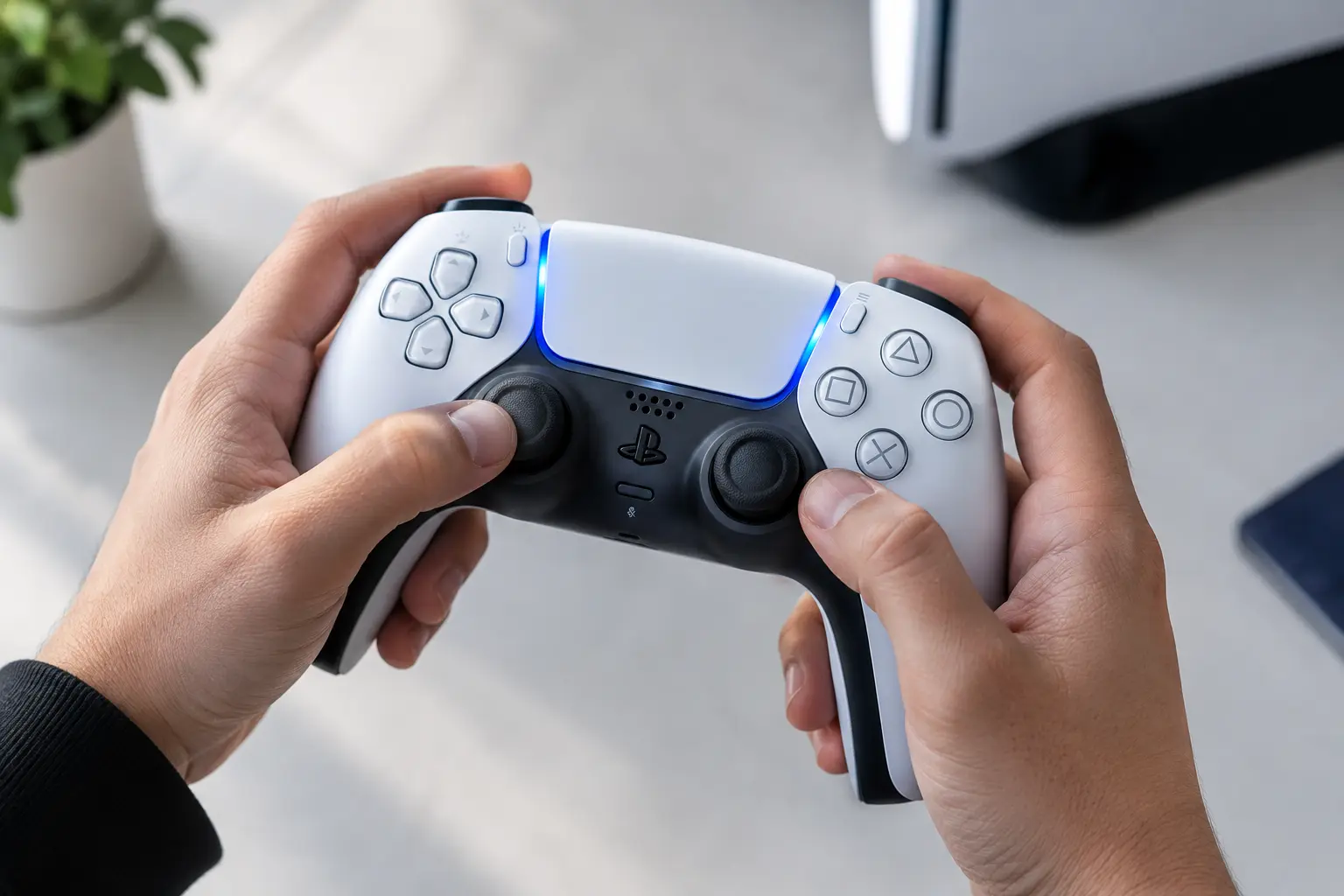
What Pairing Mode Actually Does on a PS5 Controller
Most people search for “how to put PS5 controller in pairing mode” and immediately start pressing buttons. That’s usually why it doesn’t work.
Pairing mode is the state where your DualSense controller stops talking to any device it knows and starts broadcasting a Bluetooth signal that nearby devices can detect. Think of it like raising your hand in a room full of people. The controller is saying “I’m here, who wants to connect?” Your phone, PC, or PS5 console can then see it and complete the connection.
The PS5 DualSense controller enters pairing mode through a specific button combination. There is no dedicated pairing button on the controller. None. This surprises a lot of people because most Bluetooth headphones and speakers have a single button you hold to activate pairing. The DualSense doesn’t work that way.
And this is exactly where most guides fail you. They jump straight to steps without explaining one critical thing: the controller has to be completely off and unplugged before pairing mode will activate. If even one player indicator light is on, the controller is still in an active state and the button combination either won’t respond or will do something else entirely.
Once the controller is in pairing mode, the light bar around the touchpad starts flashing blue rapidly. That blinking blue light is your confirmation. No blink means pairing mode didn’t activate.
This works the same way on the standard DualSense and the DualSense Edge. Both use identical pairing logic.
One more thing worth knowing before you start pressing buttons. As of 2026, the PS5 controller actually supports two types of pairing: standard Bluetooth pairing for a single device, and a newer multi-device method that lets the controller remember up to four devices. Both start from the same pairing mode state. I’ll cover the new multi-device method separately in its own section since the button combinations are different and confusing them is a common mistake.
If you’re new to the DualSense controller entirely, PlayStation’s official support documentation covers the full range of features including haptic feedback, adaptive triggers, and built-in microphone capabilities that make this controller different from previous generations. Understanding what your controller can do helps you get the most out of every gaming session.
Before You Start: Three Things to Check First
Before you touch the Create button or the PS button, check these three things. I’m not exaggerating when I say that skipping this step is the reason pairing fails for most people. Not a broken controller. Not a Bluetooth problem. Just missed preparation.
1. Make sure the player indicator lights are completely off
This is the first thing I check every single time. If the player indicator lights on your DualSense controller are on, even just one light, the controller is still in an active state. And an active controller won’t enter pairing mode properly when you press the button combination.
To turn it off, hold the PS button for about 10 seconds until the lights go out. If the controller is being stubborn and won’t power down through the normal method, hold the PS button for around 13 seconds. That forces a manual shutdown. I learned this from watching someone troubleshoot live on video and it works every time.
2. Disconnect any USB-C cable
The PS5 DualSense controller won’t respond correctly to the pairing button combination while a USB cable is connected. The cable takes priority. PlayStation’s official documentation actually states this explicitly, and yet almost no guide mentions it upfront.
Unplug the cable completely before you try anything else.
3. Disable Bluetooth on any device the controller was previously paired to
This one catches a lot of people off guard. If your controller was last connected to your phone or PC, and that device’s Bluetooth is still active nearby, the controller will try to reconnect to the old device the moment it powers on. It won’t sit in pairing mode waiting for something new.
Go to the Bluetooth settings on your phone or computer and either turn Bluetooth off entirely or find the wireless controller in the saved devices list and select “Forget.” Once that old connection is cleared, your DualSense can actually look for something new.
Three checks. Two minutes. And most pairing problems disappear before you even get to the button combination.
How to Put Your PS5 Controller in Pairing Mode (Step-by-Step)
Here is the exact process to put a PS5 DualSense controller in pairing mode. This is the standard Bluetooth pairing method and it works whether you’re connecting to a PC, phone, tablet, or PS5 console.
Find the two buttons first.
The Create button sits at the top left of the touchpad. It’s the small button with three horizontal lines. The PS button is the PlayStation logo in the center of the controller, between the two thumbsticks. You need both of these.
The steps:
- Make sure your controller is off and unplugged (covered in the previous section)
- Press and hold the Create button and the PS button at the same time
- Keep holding both buttons until the light bar starts blinking blue
- Once you see the blue blinking light, release both buttons
- Your controller is now in pairing mode and ready to connect
That’s it. No menus. No settings to change on the controller side.
One thing I want to clear up before you try this.
A lot of guides say “hold for 5 seconds.” That figure is not accurate for standard pairing. The correct instruction is to hold until the light bar blinks, not for a specific number of seconds. In practice this usually takes somewhere around 3 to 5 seconds, but you’re watching for the blink, not counting time. The 5-second figure actually applies to a completely different method introduced in 2026 for multi-device pairing, and I’ll cover that separately in its own section.
Pro tip worth knowing:
If your controller is off and you press the Create button and PS button simultaneously, the controller powers on and enters pairing mode in the same action. It does not turn on your PS5 in the process. This is genuinely useful if you’re trying to pair to your phone or PC and don’t want your console waking up across the room.
And if pressing just the PS button alone activates your PS5 or powers the controller on normally, that’s because you’re pressing one button at a time. Both buttons have to go down together for pairing mode to activate.
How to Tell When Pairing Mode Is Active
The light bar is the strip of light that runs along the edges of the touchpad on your DualSense controller. When pairing mode is active, the light bar flashes blue rapidly. Not a slow pulse. A fast, repeating blink.
That blinking blue light means the controller is broadcasting and discoverable. Any nearby device with Bluetooth open will be able to see it.
Once a device connects, the light bar stops blinking. If you’re connecting to a PS5 console, the light bar will stay lit in a color that corresponds to your player number. If you’re connecting via Bluetooth to a phone or PC, the light turns a solid orange. That solid orange is your confirmation that the Bluetooth connection is live.
If the light bar stops blinking on its own before you connect anything, pairing mode timed out. The controller gave up waiting. Just run through the button combination again and open your device’s Bluetooth settings a little faster this time.
The Faster Way — Connect via USB Instead of Bluetooth
If you’re connecting your PS5 controller to the console itself, the wired method is almost always the better choice. No pairing mode required. No button combinations. Just plug in a USB-C cable and press the PS button, and the controller syncs immediately.
This is also the method I’d recommend for first-time setup, or any time Bluetooth keeps giving you trouble. Two seconds and it’s done.
The steps for wired connection:
- Plug one end of a USB Type-C cable into your DualSense controller
- Plug the other end into a USB port on your PS5
- Press the PS button on the controller
- The controller pairs and connects automatically
For the PS5 console specifically, the back USB-A ports tend to be more reliable than the front port for initial syncing. Worth trying the back if the front gives you any trouble.
Now here’s the part almost nobody talks about.
Not all USB-C cables actually work for this. There are two types of USB-C cables: ones that carry both power and data, and ones that only carry power. They look completely identical from the outside. You cannot tell the difference by looking at them.
A charge-only cable will power your controller and the charging light will come on, so everything looks like it’s working. But the controller won’t sync. It just charges and sits there.
The cable that came in the box with your PS5 controller is a data-capable cable and will always work. The cable that came with your Android phone or a cheap third-party charger you bought separately might not be. I’ve seen people spend twenty minutes troubleshooting a “broken” connection when the only issue was the cable.
If you’re not sure about a cable, swap it for the included one first before trying anything else. That single swap fixes the problem more often than people expect.
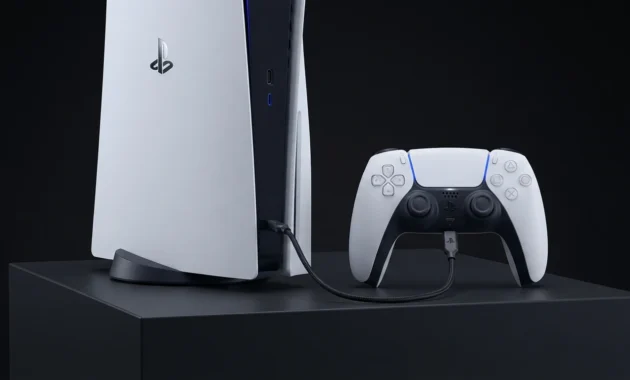
New in 2026 — Pair Your PS5 Controller with Up to 4 Devices
For most of the PS5’s life, switching your controller between devices was genuinely annoying. You’d use it on your PC, then want to play on your console, and you’d have to go through the full pairing process all over again. Every single time.
That changed with a PS5 system update released in September 2026. The DualSense controller can now remember up to four separate device pairings at once. You assign each device to a slot, and switching between them takes about three seconds. No menus. No re-pairing. Just a button hold.
Most articles and guides online still say you have to re-pair every time you switch devices. That was true before September 2026 It is not true anymore.
How to set up multi-device pairing
Before you start, make sure your DualSense firmware is updated to the latest version. This feature requires the firmware that came with PS5 system update 25.05-12.00.00 or later. If the firmware is outdated, the steps below won’t work.
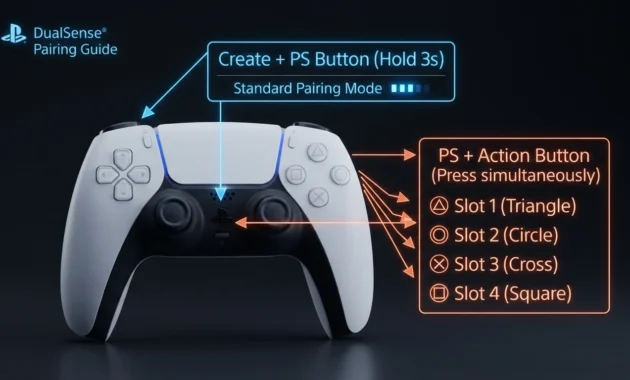
Each of the four pairing slots corresponds to one of the action buttons on your controller:
| Slot | Button Combination | Player Indicator |
|---|---|---|
| Slot 1 | PS button + Triangle | One light |
| Slot 2 | PS button + Circle | Two lights |
| Slot 3 | PS button + Cross | Three lights |
| Slot 4 | PS button + Square | Four lights |
To register a device to a slot:
- Disconnect any USB-C cable and make sure the player indicator lights are off
- Press and hold the PS button plus your chosen action button for over 5 seconds
- The light bar and player indicator will flash twice. That double flash is your confirmation that the controller entered multi-device pairing mode
- Turn on Bluetooth on the device you want to pair and select your controller from the list
- Once connected, the player indicator lights will blink according to the slot number you chose
How to switch between paired devices
Once your devices are registered to slots, switching is simple. Hold the PS button and the action button for that slot for about 3 seconds. When the light bar and player indicator blink, release both buttons. The controller connects to whichever device is assigned to that slot.
And if you press just the PS button while the controller is off, it reconnects to the last device you used automatically.
Standard Pairing vs Multi-Device Pairing — Which One Do You Need?
This is where a lot of people get confused, and honestly the confusion makes sense because both methods involve holding the PS button.
Here’s the clearest way I can put it:
Use standard pairing (Create + PS) when:
- You’re setting up Bluetooth for the first time on any device
- You only use the controller with one device and don’t need slot memory
- You’re pairing to a device that doesn’t support the multi-device slot system
Use multi-device pairing (PS + action button) when:
- You want to register a second, third, or fourth device to a memory slot
- You want to switch between your PS5, PC, and phone without re-pairing each time
- You already have standard pairing set up and want to add more devices
The Create button plus PS button combination puts the controller into standard discoverable mode. The PS button plus an action button combination registers that connection to a specific numbered slot in the controller’s memory.
Using Create plus PS when you’re trying to register a multi-device slot won’t activate the new feature. The controller will just enter regular pairing mode. If you want the slot system to work, you need the PS plus action button combination held for over 5 seconds.
One quick way to remember it: if you’re starting fresh with a new device, use Create plus PS. If you already have one device paired and want to add more with quick switching, use PS plus your chosen action button.
How to Connect Your PS5 Controller to Specific Devices
The controller side of this process is identical no matter what device you’re connecting to. Press and hold Create plus PS until the light bar flashes blue. That part never changes.
What changes is what you do on your device after that. Each platform has a different Bluetooth menu path, and that’s where people get stuck. So here’s exactly where to go on each one.
Before you check the steps below, verify your device meets the minimum requirements. According to official PlayStation documentation, the DualSense wireless controller is compatible with Windows 10 (64-bit) and Windows 11, macOS Big Sur 11.3 and later, iOS 14.5 and later, iPadOS 14.5 and later, and Android 12 and later. If your device runs an older version than what’s listed, the controller may not pair correctly or at all.
How to Put PS5 Controller in Pairing Mode on PC (Windows)
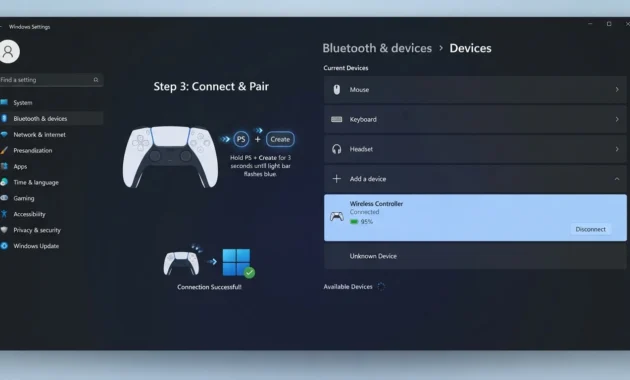
Put your DualSense in pairing mode first using the Create plus PS button combination. Then on your Windows PC:
- Open the Start menu and go to Settings
- Select Bluetooth and Devices
- Make sure Bluetooth is turned on
- Click Add Device
- Select Bluetooth from the options
- Wait for “Wireless Controller” to appear in the list and click it
- The pairing completes automatically
One thing worth knowing for PC specifically: do not press the PS button alone while Windows is active. Windows treats that button press as a system command in some configurations. Put the controller into pairing mode before you open the Bluetooth settings on your PC, not after.
If you use Steam, go to Steam settings and look for Controller, then General Controller Settings. Enable PlayStation Configuration Support so Steam recognizes the DualSense correctly. Without this, some games may not map the buttons properly.
For competitive gaming or anything where input lag matters, I’d recommend the USB wired connection over Bluetooth on PC. The wired method gives you zero input lag and also enables the full range of DualSense features including adaptive triggers and haptic feedback, which Bluetooth on PC doesn’t always support depending on the game.
If your Windows PC is experiencing performance issues while gaming with your PS5 controller, the controller connection itself might not be the problem. Slow performance, stuttering, or input lag can stem from your PC’s overall system health. Before assuming your controller pairing is faulty, check if your PC is running slower than usual and address any underlying performance bottlenecks first.
your DualSense.
How to Connect PS5 Controller to iPhone, iPad, or Android
The DualSense works well on mobile. I’ve connected it to both iPhone and Android phones for remote play and mobile gaming, and the process is straightforward once you know where to look.
Put the controller into pairing mode first using Create plus PS. Then:
On iPhone or iPad (iOS 14.5 or later required):
- Open Settings on your iPhone or iPad
- Tap Bluetooth and make sure it’s enabled
- Under “Other Devices,” wait for “DualSense Wireless Controller” to appear
- Tap it to connect
On Android (Android 12 or later required):
- Open Settings on your Android device
- Tap Connected Devices
- Select Pair New Device
- Wait for “Wireless Controller” to appear in the available devices list
- Tap it to pair
On both platforms, once the connection goes through, the light bar on your DualSense stops blinking blue and turns a solid orange. That orange light is your confirmation that the Bluetooth connection is live and active. If the light goes back to off or keeps blinking without connecting, the pairing timed out and you need to enter pairing mode again.
For connecting your PS5 controller to an iPad, the steps are identical to iPhone since both run iPadOS and iOS respectively, and both support the DualSense from version 14.5 onward.
Bluetooth connectivity problems with your PS5 controller often share root causes with other wireless connection issues. If your controller shows in the Bluetooth device list but won’t actually connect, or if it connects but drops repeatedly, the problem might be your device’s network adapter or wireless drivers rather than the controller itself. Wireless connectivity issues affect Bluetooth and WiFi simultaneously in many cases.
How to Switch Your Controller Back to PS5 After Using It on Another Device
You used your controller on your phone or PC last night. Now you’re sitting in front of your PS5 and the controller won’t connect. The PS button does nothing, or it connects back to your phone instead of the console.
This is one of the most common PS5 controller frustrations I see, and the reason is straightforward. The DualSense wireless controller remembers the last device it was paired to and tries to reconnect there first. If your phone’s Bluetooth is still active nearby, the controller finds that connection before it even looks for the PS5.
Here’s how to fix it.
Method 1: USB cable (fastest)
Plug a data-capable USB-C cable into your controller and connect the other end to a USB port on your PS5. Then press the PS button. The console recognizes the controller immediately and syncs it back. Once it’s connected, you can unplug the cable and play wirelessly as normal.
This takes about ten seconds and works every time.
Method 2: Wireless reconnect through Bluetooth settings
If you don’t have a cable nearby, this is the wireless path. But you need either a second controller or another way to navigate the PS5 menu. More on that in a moment.
The key step here is one most people miss entirely. As one creator from YourSixStudios explained after testing this himself: if you try to connect wirelessly while the controller is still listed under Registered Accessories on your PS5, it will simply reconnect to your phone instead. You have to remove the old registration first.
Using a secondary controller, navigate to Settings then Accessories then General then Bluetooth Accessories. Find your DualSense wireless controller under Registered Accessories, select it, and choose Delete. Once it’s removed, put the controller into pairing mode using the Create plus PS button combination and re-add it from the Accessories Found list.
No cable and no second controller? Try your TV remote.
Most people don’t know this exists. If your TV has HDMI-CEC enabled, which most modern TVs do by default, your TV remote can navigate the PS5 interface. Use the TV remote to open Settings, go to Accessories, then Bluetooth Accessories, and follow the same steps above to delete and re-add the controller.
It feels strange the first time, but it works.
The long-term fix
If you switch your controller between devices regularly, setting up multi-device pairing through the September 2026 update removes this problem entirely. Once your PS5 is registered to a slot, you hold PS plus Triangle for about 3 seconds and the controller switches straight back to your console. No menus, no deletions, no cables required.
PS5 Controller Not Going Into Pairing Mode? Fix It Here
When the Create plus PS button combination doesn’t put your controller into pairing mode, the problem is almost always one of three things: the controller isn’t actually off, something else is interfering with the Bluetooth signal, or the controller has a temporary glitch that needs clearing.
I’m going to walk through each scenario by symptom. Find the one that matches what you’re seeing, and that will tell you which fix to try first.
The Controller Light Won’t Blink — Try This First
If you press Create plus PS and nothing happens, no blinking light at all, start here.
Check if the controller is actually off. Look at the player indicator lights near the touchpad. If even one light is on, the controller is still in an active state. Hold the PS button down for about 10 seconds until all lights turn off. If that doesn’t work, hold it for around 13 seconds to force a manual shutdown. Once the lights are completely off, try the pairing button combination again.
Make sure the battery has charge. A completely dead controller won’t enter pairing mode. Plug it in and let it charge for at least 15 minutes, then try again.
Disable Bluetooth on any device the controller was previously paired to. If your phone or PC is nearby with Bluetooth active, and the controller was last connected there, the controller may be trying to reconnect to that device instead of entering pairing mode. Go into the Bluetooth settings on your phone or computer and either turn Bluetooth off entirely or find the wireless controller in the saved devices list and select forget device. Then try pairing mode again.
Most “controller won’t enter pairing mode” problems come down to one of these three causes.
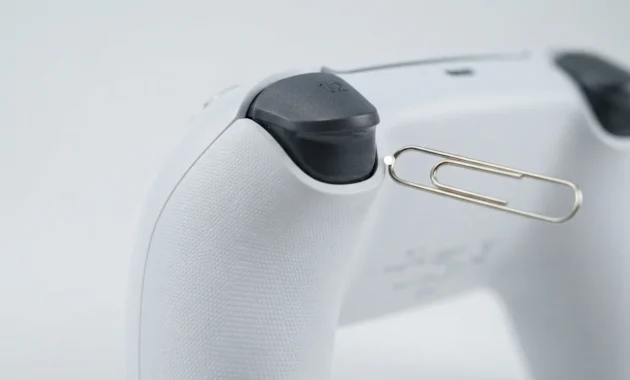
seconds to clear connection glitches.
How to Reset a PS5 Controller (And What It Actually Does)
A lot of people avoid resetting their controller because they think it will wipe all their pairings and settings. That is not what happens.
According to official PlayStation documentation, the hard reset does not reconfigure the controller or affect pairing settings. What the reset actually does is clear temporary connection glitches. Saved pairings stay in memory.
There are two types of reset. The soft reset happens when you hold the PS button through the controller settings menu on your console. The hard reset uses the physical reset button.
For the hard reset, flip the controller over and look for a small pinhole on the back near the L2 button. Use a paperclip or pin to press the button inside that hole and hold it down for at least 5 seconds. The controller will power off. Wait a moment, then try pairing mode again.
I use the hard reset when nothing else works. It clears stuck connections and Bluetooth memory conflicts without erasing anything permanent. If you’ve been hesitating to reset because you’re worried about losing your setup, you won’t.
Check for Firmware Updates When Nothing Else Works
Firmware updates for the DualSense controller are not automatic. You have to check manually.
On your PS5, connect the controller via USB and go to Settings, then Accessories, then Controller under General, then DualSense Wireless Controller Device Software. If an update is available, the console will prompt you to install it. Let it finish.
Outdated firmware causes known pairing bugs, especially with newer devices or after system updates. Sony releases firmware patches specifically to fix compatibility and connection issues. If your controller is running old firmware and you’ve tried everything else on this list, the update is what usually fixes it.
You can also update the firmware using a Windows PC. Download the Firmware Updater for DualSense Wireless Controller from Sony’s official support site, install it, connect your controller via USB, and run the tool. The process takes a few minutes.
Quick Answers to Common PS5 Controller Pairing Questions
Does the PS5 controller have a pairing button?
No. The DualSense has no dedicated pairing button like most Bluetooth devices. You activate pairing mode by holding the Create button and PS button together until the light bar blinks blue.
Why won’t my PS5 controller go into pairing mode?
The three most common causes are a USB cable still connected, the player indicator lights still on (controller not fully off), or another device with Bluetooth active trying to reconnect. Disconnect the cable, hold the PS button for 10 seconds to fully power down, and disable Bluetooth on other nearby devices before trying again.
Can I use my PS5 controller on multiple devices without re-pairing every time?
Yes, since the September 2026 PS5 system update. The DualSense can now remember up to 4 device pairings in slots, and you switch between them by holding PS plus the assigned action button for about 3 seconds.
Can I pair Bluetooth headphones to my PS5?
No. The PS5 supports Bluetooth for controllers only because the DualSense already uses most of the available Bluetooth bandwidth, leaving no room for audio without latency issues. Use a USB wireless headset or 2.4GHz dongle instead.
Does resetting my PS5 controller delete my Bluetooth pairings?
No. The hard reset clears temporary connection glitches but does not erase pairing data or reconfigure the controller. Official PlayStation documentation confirms this explicitly, so you can reset without losing your saved pairings.
1 comment