
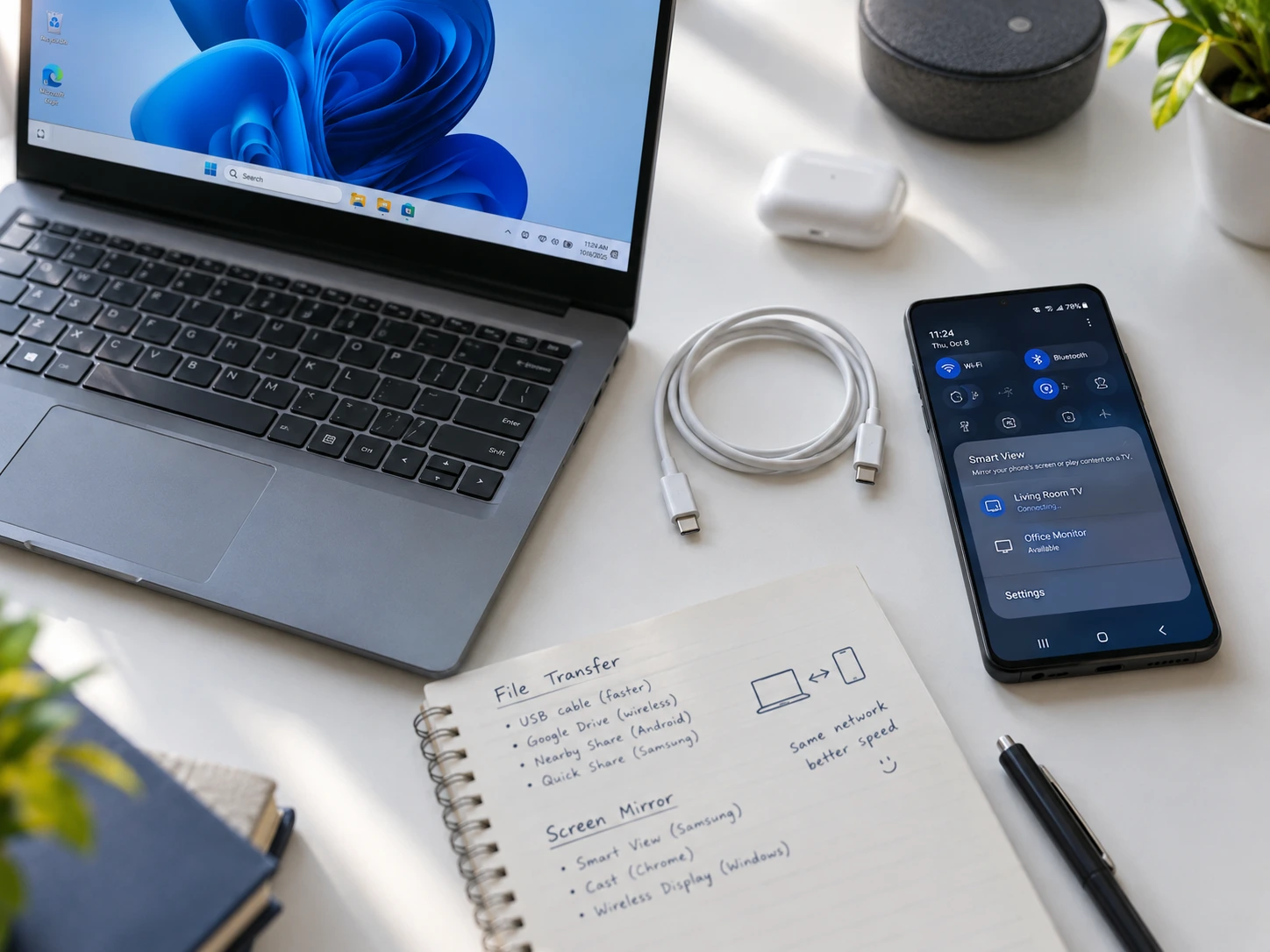
I’ve connected more phones to laptops than I can count, for work presentations, backing up photos before a trip, and more than a few late nights trying to figure out why a brand new phone just would not show up on my PC. If you’re looking for how to connect phone to laptop, you’ve got more options than most guides tell you about, and picking the right one depends entirely on what you’re actually trying to do.
Want to mirror your screen for free? There’s a built in Windows feature for that. Need to text from your laptop while your phone charges in another room? Phone Link handles that. Just moving a folder of vacation photos? A USB cable will beat every wireless method, every time.
I’ll walk you through each method the way I actually use them, including the mistakes that trip people up and the stuff nobody warns you about until it’s too late.
Wireless Display: The Easiest Way to Connect Phone to Laptop (Free Built-In Method)
If you just want to see your phone screen on your laptop without installing anything extra, Wireless Display is the fastest path there. It’s a feature baked directly into Windows 10 and Windows 11, and it lets you mirror an Android phone to your laptop over Wi-Fi with zero third party apps involved.
I use this one constantly for quick things. Showing someone a photo without passing my phone around. Running through a mobile app design on the big screen during a work call. Watching a video that’s stuck on my phone because I forgot to download it anywhere else.
Here’s the thing most people get wrong, though. They skip a setup step, assume their laptop “just doesn’t support this,” and give up. It almost always does. You just have to turn the feature on first.
Prerequisites: What You Need Before Starting
Before touching any settings, both your laptop and your phone need to be connected to the exact same Wi-Fi network. Not just any Wi-Fi. The same one.
I learned this the hard way once at a coworking space with two separate guest networks. My phone kept searching and never finding my laptop, and I spent ten minutes convinced something was broken before realizing we were on different networks entirely.
You’ll also need Windows 10 or Windows 11 on your laptop. Most phones released in the last several years support screen casting out of the box, so your phone side is rarely the problem.
Step 1: Install the Wireless Display Optional Feature
Open Settings on your laptop, head to Apps, then Optional Features. Look for Wireless Display in the list. If it’s already there, you’re set. If not, click Add a Feature, search “Wireless Display,” check the box, and install it.
This step is the one everyone skips. And it’s the single biggest reason screen mirroring fails on the first attempt. Without this feature installed, your laptop will never show up as an option on your phone, no matter how many times you swipe down and search for it.
The install itself takes under a minute. It’s tiny, barely over a megabyte, so there’s no reason to put it off.
Step 2: Configure Windows Projection Settings
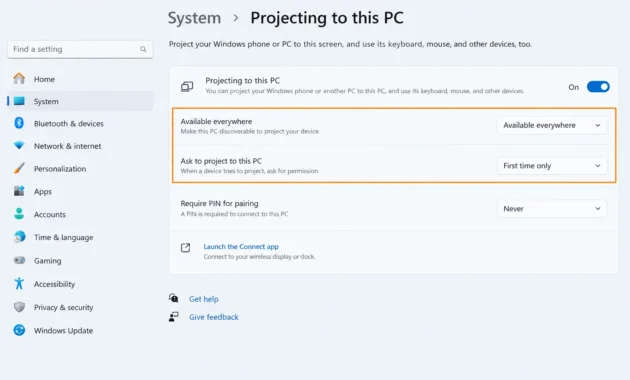
Once Wireless Display is installed, go back into Settings, then System, then find Projecting to this PC. You’ll see two dropdown menus here that matter a lot.
Change the first one from “Always Off” to “Available everywhere” (or “available everywhere on secure networks,” depending on your Windows version). Change the second dropdown to “First time only,” so you’re not approving every single connection attempt going forward.
I always get asked why these settings matter. Think of it this way: the optional feature is the engine, but these two settings are what actually turn the key. Skip this part and your laptop stays invisible to your phone even with Wireless Display fully installed.
Step 3: Launch the Connect App
Search for “Connect” in your Windows search bar, or click the blue link inside the Projecting to this PC settings page that says “Launch the Connect app.” Either way gets you to the same place.
A full screen window will pop up showing your laptop’s name and a message confirming it’s ready to receive a connection. This is your signal that everything is set up correctly on the PC side.
Leave this window open. Your phone needs to actually find this screen before mirroring can happen.
Step 4: Enable Screen Casting on Your Phone (Brand-Specific Names)
Swipe down from the top of your Android phone to open Quick Settings. Somewhere in there is a casting option, and here’s where things get genuinely confusing for a lot of people.
Different phone brands call this exact same feature by completely different names. Samsung calls it Smart View. Stock Android and Google phones usually call it Cast or Screencast. Xiaomi, Poco, and Redmi phones label it Wireless Display or Screen Cast. Huawei, Honor, Vivo, and Oppo phones often use Multi-Screen Interaction or Mirroring.
| Phone Brand | Casting Option Name |
|---|---|
| Samsung | Smart View |
| Google / Stock Android | Cast or Screencast |
| Xiaomi / Poco / Redmi | Wireless Display or Screen Cast |
| Huawei / Honor / Vivo / Oppo | Multi-Screen Interaction or Mirroring |
I bring this up because I’ve seen people assume their phone doesn’t have the feature at all, simply because they were searching for “cast” when their phone only shows “Smart View.” It’s the same feature underneath. Just a different label depending on who made your phone.
Tap whichever option applies to you, wait a second while your phone scans for nearby devices, then select your laptop’s name from the list that appears.
What You Can Do Once Mirrored
Once connected, your phone’s entire screen appears live on your laptop. Open an app, scroll through photos, start a video, and it all plays out on your laptop display in real time.
This happens fast too. Within a few seconds of tapping your laptop’s name, the mirroring kicks in, and whatever you’re doing on your phone shows up on screen with barely any lag. It’s one of those features that feels almost too simple once you see it working, especially compared to Phone Link, which has a much larger user base (well over 100 million people use it monthly) but a heavier setup process to match.
Using Microsoft Phone Link to Connect Phone to Laptop (Advanced Features & Full Integration)
Phone Link is Microsoft’s official tool for connecting an Android phone or iPhone to a Windows laptop, and it does a lot more than just mirror your screen. Texts, calls, notifications, and recent photos can all flow between your phone and your laptop without ever touching a USB cable.
I’ll be upfront about something most articles gloss over. Phone Link is genuinely useful, but it’s not the all access pass to your phone that it sounds like. It has real limitations, and in some cases, real risks. I want to walk you through both the good and the parts nobody mentions.
Prerequisites for Phone Link
You’ll need Windows 11, or Windows 10 with the May 2019 Update or later, since Phone Link comes preinstalled only on Windows 11. Your Android phone should be running Android 7.0 or newer, though Android 10 and up gives you the full feature set.
The one requirement that trips people up most is the Microsoft account. You have to be signed into the exact same Microsoft account on both your PC and your phone’s Link to Windows app. Different accounts, even by accident, and pairing simply won’t work.
Step 1: Download & Install Link to Windows App on Android
On your Android phone, open the Google Play Store and search for Link to Windows. Download it, or update it if it’s already installed. Some Samsung phones and newer Android devices have this built in under Connected Devices in settings, so check there first before downloading anything.
Step 2: Initiate Pairing with QR Code (Modern Method)
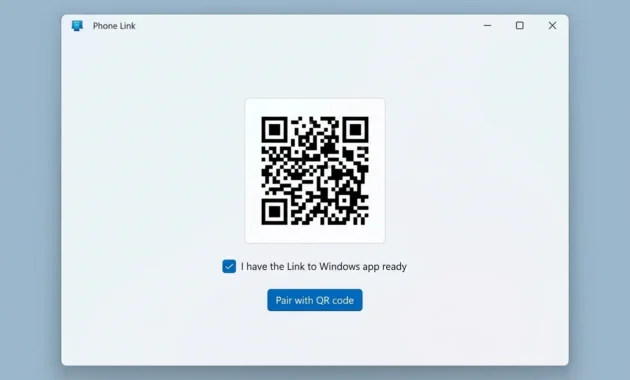
Open Phone Link on your PC and select Android as your device type. Check the box that says “I have the Link to Windows app ready,” then click Pair with QR Code.
A unique QR code will appear on your laptop screen. This is Microsoft’s current recommended pairing method, and it’s genuinely faster than the older manual code entry process some older guides still describe.
Step 3: Scan QR Code on Your Phone
Open the Link to Windows app on your phone and tap Continue. This opens your camera as a scanner. Point it at the QR code on your laptop screen, and the pairing process kicks off automatically.
Step 4: Grant Required Permissions
Your phone will ask for several permissions: Calls, SMS, Notifications, Contacts, and Photos. Grant all of them.
I know permission requests always feel a little uncomfortable, especially this many at once. But here’s the reality. Without these permissions, the features simply don’t function. Skip granting access to SMS and you won’t see a single text message on your PC. Skip Photos and transferring pictures becomes impossible through this method.
For the most up-to-date information about Phone Link compatibility and system requirements, Microsoft maintains detailed documentation on their official support pages. If you’re troubleshooting connection issues or want to verify whether your specific device supports all Phone Link features, the Microsoft Phone Link support documentation provides the authoritative resource, including detailed FAQ sections addressing the exact problems mentioned in this guide.
What Phone Link Actually Does (Real Capabilities)
Once paired, you can view and dismiss phone notifications directly from your Windows desktop. Text messages can be sent and received using your laptop’s keyboard. Phone calls route through your laptop’s microphone and speakers via Bluetooth. And recent photos appear almost instantly, ready to drag onto your desktop without a cable in sight.
On certain supported Samsung and select Android devices, you even get full app mirroring, letting you open and interact with mobile apps directly from your laptop screen.
That said, Phone Link only exposes your most recent photos, roughly the last 2,000 images, not your entire camera roll. If you’re trying to dig up a photo from two years ago, this is not the tool for that job.
Phone Link Limitations & Performance Reality
Here’s where I have to be honest with you. Phone Link is convenient, but it is not fast. File transfers through Phone Link clock in around 13 MB per second in most real world tests, which is noticeably slower than a basic USB cable, capable of 30 to 80 MB per second depending on the cable and port.
If you’re moving a handful of photos, you won’t notice the difference. If you’re trying to move a folder of videos, you absolutely will.
There’s another issue worth mentioning. Some users have reported Phone Link consuming an unusual amount of system memory in the background, occasionally climbing into the tens of gigabytes during heavy use. It’s not something that happens to everyone, but if your laptop feels sluggish after setting up Phone Link, this is worth checking in Task Manager.
Why Phone Link Has Security Risks (And How to Stay Safe)
This part doesn’t get talked about enough. Because Phone Link bridges your phone’s SMS messages directly to your Windows PC, it creates a new point of access that didn’t exist before. Security researchers have identified malware specifically designed to exploit this bridge, using it to intercept text messages and one time passwords that are meant to protect your accounts.
That’s a real concern, not a theoretical one. SMS based two factor authentication relies on your messages staying private, and Phone Link, by design, puts those same messages on your Windows desktop too.
My recommendation here is simple. Keep Windows updated, since security patches address these kinds of vulnerabilities as they’re discovered. Only grant Phone Link the permissions you’ll actually use, and if you’re in a work environment handling sensitive information, it’s worth asking your IT team whether Phone Link should be enabled at all.
Transferring Files via USB Cable (Fastest & Most Reliable Method)
If speed and reliability matter more than convenience, a USB cable wins every time. No wireless hiccups, no app permissions, no pairing codes. Just plug in and go.
I default to USB whenever I’m moving anything larger than a handful of photos. It’s not close. USB 3.0 cables transfer data at 30 to 80 MB per second, which makes them anywhere from two to six times faster than Phone Link, and noticeably quicker than Wi-Fi Direct too.
What Type of USB Cable Do You Need?
Not every cable that charges your phone can also transfer files, and this trips up more people than you’d expect.
| Cable Type | Speed | Phone Types | Notes |
|---|---|---|---|
| USB 3.0/3.1 | 30 to 80 MB/s | Android | Fastest option |
| USB 2.0 | 10 to 15 MB/s | Android | Older phones |
| USB-C (modern) | 10 to 50 MB/s | Modern Android | Newer standard |
| Lightning | 10 to 30 MB/s | iPhone | Apple standard |
Check your phone’s USB-C port and make sure the cable you’re using actually matches what came in the box, or buy one explicitly labeled for data transfer, not just charging.
Android File Transfer Setup (Step-by-Step)
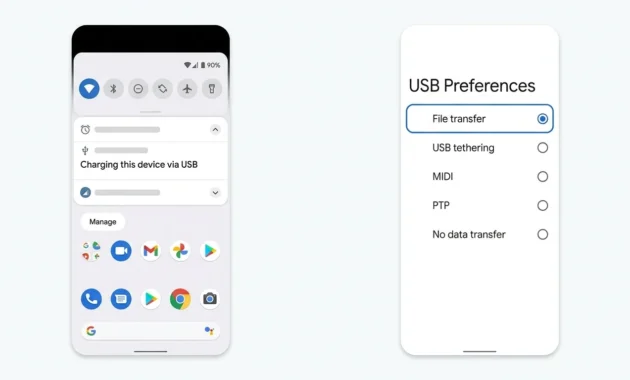
Plug the cable in, unlock your phone, then look at the notification that pops up. Tap it, and select File Transfer (sometimes labeled MTP). From there, open File Explorer on your PC, and your phone should appear as a drive you can browse.
That one tap matters more than you’d think.
Android 14+ MTP Block: Why Your Phone Won’t Show Up
If you’re on Android 14 or newer, there’s a change that’s caught a lot of people off guard.Android 14 blocks MTP mode by default now, which means your phone will charge just fine over USB, but it won’t automatically offer file access the way older Android versions did. This is part of Android’s broader push toward better security defaults—if you’re also interested in managing which apps have default permissions on your phone, our guide on how to change default apps on Android covers these important Android 14+ settings in detail.
You have to manually select File Transfer mode every single time you plug in. This isn’t a bug. It’s a deliberate security change, and most guides online haven’t caught up to it yet. If your phone used to show up instantly and suddenly stopped, this is almost certainly why.
iPhone File Transfer Setup
Plug your iPhone into your Windows laptop, unlock it, and you’ll see a prompt asking if you trust this computer. Tap Trust. Depending on your Windows version, you may also need the Apple Devices app, available through the Microsoft Store, before File Explorer will recognize your iPhone properly.
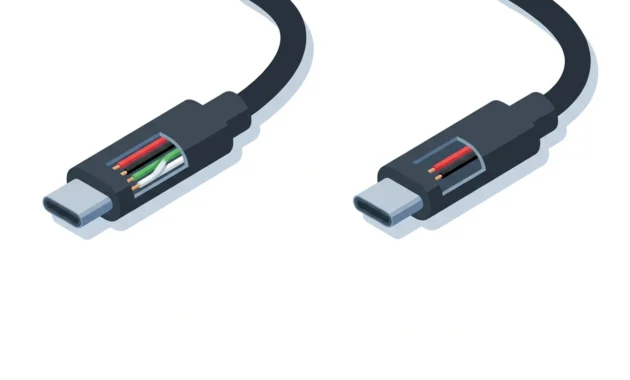
The Charge-Only Cable Trap (Why Your Phone Doesn’t Connect)
This one catches more people than almost anything else on this list. A lot of USB cables are built strictly for charging. They look completely identical to data capable cables from the outside, same connector, same color, same everything. But internally, they’re missing the wires needed to transfer data.
Plug one of these in, and your phone charges perfectly fine. Your laptop, though, never sees it as a device at all. No notification, no File Explorer entry, nothing.
If you’ve tried everything else and your phone still won’t show up, swap the cable before you do anything else. Use the one that came in the box, or buy one specifically marketed for data transfer, not just charging speed.
Troubleshooting USB Connection Issues
If your phone still isn’t recognized after trying a known good data cable, check a few more things. Missing or outdated drivers on your Windows PC can block recognition entirely, so a quick search for your phone manufacturer plus “USB driver” usually solves it. Also try a different USB port, ideally one on the back of a desktop rather than a front panel port, which can sometimes be underpowered.
Connecting via Bluetooth Pairing (For Small Files & Contact Syncing)
Bluetooth works for connecting your phone and laptop, but I want to set realistic expectations before you get too excited about it. It’s convenient. It’s also slow enough that I’d never recommend it for anything beyond small files or syncing contacts.
How to Pair Devices via Bluetooth
Turn on Bluetooth on both your phone and your laptop. On your laptop, search for nearby devices, select your phone from the list, and confirm the pairing code that appears on both screens.
When to Use Bluetooth (& When NOT To)
Bluetooth 5.3, the current standard, transfers data at roughly 3 MB per second in real world conditions. Compare that to Wi-Fi Direct’s 25 MB per second, or USB 3.0’s 80 MB per second, and the gap becomes obvious fast. If you’re also pairing other Bluetooth devices like gaming controllers, the same pairing principles apply—our guide on how to put your PS5 controller in pairing mode covers similar troubleshooting steps that work across different Bluetooth devices.
For a contact card or a single small document, Bluetooth gets the job done without much thought. If you’re transferring your entire contact list when setting up a new phone, however, you’ll want to use a more efficient method—check out our detailed guide on how to transfer contacts to a new phone for the fastest approach.
Try moving a folder of vacation photos over Bluetooth, though, and you’ll be sitting there for a very long time watching a progress bar crawl. I’ve done it once, just to see. Never again.
Sharing Internet: Using Your Phone’s Hotspot with Your Laptop
This is a slightly different use case than everything above, since you’re not transferring files or mirroring a screen. You’re sharing your phone’s mobile data connection so your laptop can get online.
How to Enable Mobile Hotspot
Open Settings on your phone, find Mobile Hotspot or Tethering, and toggle it on. Set a password if the option appears, which keeps strangers from hopping onto your connection uninvited.
Connecting Laptop to Phone Hotspot
On your laptop, open your Wi-Fi settings and look for your phone’s hotspot name in the list. Click it, enter the password you set, and you’re online.
Important Warnings: Data Usage & Battery
Tethering your laptop to your phone’s hotspot burns through mobile data fast, especially if you’re streaming video or uploading large files. It also drains your phone’s battery noticeably quicker than normal use. If your mobile plan has a data cap, keep an eye on it, because a few hours of laptop use over hotspot can eat through more data than you’d expect.
Connecting iPhone to Windows Laptop (Apple Device Setup)
Connecting an iPhone to a Windows laptop involves a bit more friction than Android, mostly because Apple’s ecosystem and Windows weren’t exactly designed with each other in mind.
iPhone Prerequisites & Trust Prompt
You’ll need a USB cable, ideally the one that came with your iPhone. Plug it in, unlock your phone, and tap Trust This Computer when the prompt appears. Skip this step and your PC won’t access anything on the phone, even though it’s physically connected.
Using Apple Devices App vs iTunes
The Apple Devices app is the newer, more current way to manage this connection on Windows, replacing the older iTunes approach for a lot of use cases. iTunes still works and some people prefer sticking with what they know, but Apple Devices is where Apple’s putting its current development focus.
What Works & What Doesn’t with iPhone on Windows
Basic file transfer works, though it’s more limited than what you’d get connecting an Android phone. iCloud Photos and backups sync fine if you’re set up for that. AirDrop, on the other hand, simply does not work between an iPhone and a Windows laptop. That’s an Apple exclusive feature, and no amount of fiddling with settings changes that.
Why Your Phone Won’t Connect: Troubleshooting Common Problems
Every connection method above can fail, and when it does, it’s almost never because your devices are broken. It’s almost always one of a small handful of specific, fixable causes. Let me walk through the ones I see most.
“Phone Not Showing Up” When Using Wireless Display
If your laptop never appears on your phone’s list of available devices, check two things first. Confirm the Wireless Display optional feature is actually installed, not just assumed to be there. Then double check your projection settings are set to “Available everywhere,” not left on “Always Off.”
“Can’t See Phone When Plugged Into Computer” (USB Connection)
This almost always comes down to one of three causes. First, and most common, a charge-only cable that can’t transfer data no matter how long you leave it plugged in. Second, forgetting to select File Transfer mode after connecting. Third, missing or outdated drivers on your Windows PC.
Work through these in order. Swap the cable first, since that solves it more often than anything else on this list.
Phone Link Not Connecting (QR Pairing Failure)
If the QR code won’t scan, or pairing fails after scanning, check whether you’re signed into the same Microsoft account on both devices. A mismatch here is one of the most common reasons pairing silently fails. Also confirm Link to Windows is actually installed and updated on your phone, and that both devices share the same Wi-Fi network.
Android 14+ File Transfer Not Working (MTP Blocked)
I mentioned this earlier, but it deserves its own callout here too. If your Android 14 phone charges fine but refuses to offer file access, this is the cause almost every time. You have to manually select File Transfer mode after plugging in, and you’ll need to repeat this step with every single connection going forward.
Phone Link Consuming Too Much RAM (Memory Leak)
Users have reported Phone Link’s background process occasionally consuming a disproportionate amount of system memory, sometimes severe enough to cause noticeable lag. This has been an ongoing issue reported since 2023, without an official permanent fix from Microsoft. If your laptop slows down specifically after setting up Phone Link, check Task Manager and consider disabling Phone Link when you’re not actively using it.
Drivers Missing or Outdated (PC Won’t Recognize Phone)
Some phone models need manufacturer specific drivers installed on Windows before USB recognition works correctly. A quick search for your phone’s brand plus “USB driver download” usually points you to the right file. Install it, restart your laptop, and try the connection again.
Performance Comparison: Speed & When to Use Each Method
Here’s the comparison I wish existed when I first started juggling all these connection methods. Speed varies a lot more between them than most people realize.
| Method | Speed | Setup Time | File Types | Best Use |
|---|---|---|---|---|
| USB 3.0 | 30-80 MB/s | ~1 min | All | Large files, photos |
| Quick Share | ~36 MB/s | ~10 sec | All | Medium files |
| Wireless Display | Instant | ~2 min | Screen only | Presentations, videos |
| Wi-Fi Direct | ~25 MB/s | ~2 min | All | Medium files |
| Phone Link | ~13 MB/s | ~3 min | Limited | SMS, calls, notifications |
| Bluetooth | ~3 MB/s | ~1 min | Small | Contacts, single files |
If you’re moving a 1 GB video file, USB finishes the job in roughly 15 seconds. The same file over Bluetooth could take you several minutes, easily. That gap only grows as file size increases, which is exactly why I reach for a cable whenever the stakes are higher than a few small photos.
Key Takeaways: How to Choose Your Connection Method
There’s no single best way to connect your phone to your laptop. It genuinely depends on what you’re trying to accomplish in that moment.
Need to transfer files quickly and reliably? Grab a USB cable, and make sure it’s a real data cable, not a charge-only one. Want to mirror your screen for a presentation or to watch something on a bigger display? Wireless Display gets you there for free with no account required. Looking for deeper integration, texts and calls and notifications on your desktop? Phone Link handles that, as long as you’re comfortable with its performance tradeoffs and security considerations. Need internet on your laptop when you’re away from Wi-Fi? Your phone’s hotspot covers that, with an eye on your data plan.
Pick based on the task in front of you, not habit. That one shift in thinking saves more frustration than any single tip in this guide.
Common Questions About Connecting Phone to Laptop
How do I connect my phone to my laptop if I don’t have a USB cable?
You’ve got three solid wireless options here. Wireless Display works for free screen mirroring using Windows’ built-in feature. Phone Link gives you texts, calls, and notifications alongside basic file access. Bluetooth works too, though it’s best reserved for small files or contacts rather than anything substantial.
Why doesn’t my phone show up when I try to mirror my screen?
Three causes account for almost every case I’ve seen. The Wireless Display optional feature might not be installed yet. Your projection settings might still be set to “Always Off” instead of “Available everywhere.” Or your phone and laptop simply aren’t on the same Wi-Fi network. Check all three in that order.
Can I use Bluetooth to transfer large files?
Technically, yes. Practically, I’d advise against it. Bluetooth 5.3 moves data at roughly 3 MB per second, which means a large video file could take several minutes or longer. USB or Wi-Fi based transfer methods will save you a significant amount of waiting.
What’s the difference between Phone Link, Wireless Display, and Quick Share?
Phone Link connects your phone deeply into your Windows ecosystem, syncing texts, calls, and notifications. Wireless Display mirrors your screen only, with no file transfer or messaging features involved. Quick Share focuses purely on fast file transfers between devices. Each one solves a different problem, so the “best” choice depends entirely on what you need done.
Do I need the same Wi-Fi network to connect my phone to my laptop?
For Wireless Display and Phone Link, yes, both devices need to share the exact same Wi-Fi network. USB cable connections skip this requirement entirely since they’re physical. Mobile hotspot is a different case too, since your phone creates its own network for your laptop to join.
How fast can I transfer files from my phone to my laptop?
USB 3.0 is your fastest option, reaching 30 to 80 MB per second depending on your cable and phone. Phone Link runs noticeably slower, around 13 MB per second. Bluetooth trails far behind at roughly 3 MB per second. For anything beyond a handful of small files, USB is worth the extra step of finding a cable.
Comprehensive Conclusion: Choosing Your Phone-to-Laptop Connection Strategy
After walking through every major method of connecting your phone to your laptop, the most important takeaway isn’t about which method is “best”—it’s about understanding that the best method is entirely contextual. Your phone and laptop can communicate in multiple ways, each with distinct strengths, weaknesses, and ideal use cases. The trick is recognizing which tool solves which problem, and having the awareness to pick accordingly rather than defaulting to the same method every single time.
The Reality of Phone-to-Laptop Connectivity in 2026
We live in an era where your phone and laptop can sync in ways that seemed impossible just five years ago. Wireless Display lets you see your phone’s entire screen on your computer without touching a single cable. Phone Link brings your text messages and phone calls directly to your Windows desktop. USB cables move data faster than most Wi-Fi networks. Bluetooth connects everything with zero setup friction. Your phone can become a mobile hotspot when you need internet on the go. None of these technologies are particularly new anymore, but they’re also not equally known or understood.
The frustrating part is that most people never discover these options because they’re scattered across different settings menus, named inconsistently across different devices, and rarely explained in a way that makes their strengths and tradeoffs clear. You end up defaulting to whatever worked the last time, even if it’s genuinely the wrong choice for what you’re trying to accomplish right now. That’s inefficient, and it costs you time far more often than you probably realize.
Why Method Matters More Than You Think
The difference between transferring a video file over USB versus Phone Link isn’t just a minor inconvenience. USB can move that same file in about 15 seconds. Phone Link takes several minutes. That’s not a small gap—it’s the difference between being done and grabbing a coffee while your laptop chugs away in the background.
Similarly, if you need to show someone a mobile app design during a meeting, mirroring with Wireless Display takes maybe two minutes to set up the first time and then works instantly every time after. Manually navigating on your phone while trying to present is awkward, error-prone, and makes you look less prepared. One method takes two minutes of setup. The other one makes you look unprofessional in front of other people. That’s not trivial.
Or consider security. Phone Link bridges your SMS messages directly to your Windows desktop, which is genuinely convenient until you realize you’ve also created a new access point for malware designed specifically to intercept those messages. That’s not a theoretical concern—it’s a real vulnerability that security researchers have documented. Understanding this tradeoff matters because it helps you make an informed decision about whether convenience is worth the risk in your specific situation.
The point isn’t that one method is universally superior. The point is that choosing the right method for the task in front of you saves you time, frustration, and sometimes even security headaches.
Building Your Personal Connection Toolkit
Think of these connection methods as tools in a toolkit rather than competing alternatives. A professional carpenter doesn’t own just one hammer and try to use it for every job. They own multiple hammers because different situations call for different tools. Your phone-to-laptop connections work the same way.
USB cable is your hammer. It’s the most versatile, most reliable, and fastest option for most jobs. Keep a good data cable nearby—not a charging-only cable, but a real data cable—and you’ll solve the majority of your file transfer problems faster than any wireless method. The small inconvenience of finding and plugging in a cable pays for itself in speed and reliability within seconds for anything larger than a handful of photos.
Wireless Display is your quick-and-dirty solution. When you need to show something on a bigger screen fast, or you want to reference something from your phone during a presentation, Wireless Display requires minimal setup and works reliably once that setup is done. The fact that it’s free and built into Windows makes it even more valuable. You’re not dependent on third-party apps or services. It just works.
Phone Link is your convenience tool. The ability to text from your laptop keyboard, see your phone’s notifications on your desktop, and take calls through your computer’s speakers and microphone is genuinely useful for people who juggle multiple devices all day. Just go in with realistic expectations about speed, and keep an eye on whether it’s consuming excessive system memory on your specific machine.
Bluetooth is your backup for emergencies. It’s slow enough that you shouldn’t use it for large files, but convenient enough that it’s worth having as an option when nothing else is available. A contact card, a single photo, a small document—Bluetooth handles these without requiring you to dig up a cable or set up a wireless connection.
Mobile hotspot is your lifeline. When you’re traveling, working from coffee shops, or anywhere else without reliable Wi-Fi, turning your phone into a hotspot keeps your laptop online. Just remember to monitor your data usage and expect your phone’s battery to drain noticeably faster than normal.
The Setup Cost vs. Ongoing Benefit Equation
One thing that doesn’t get discussed enough is the relationship between initial setup time and ongoing benefit. Some connection methods require more upfront work but save you time constantly afterward. Others are quick to set up but slow to use every single time.
Wireless Display is a perfect example of this tradeoff. The first time you set it up, you need to install the optional feature, configure projection settings, and launch the Connect app. That takes maybe 5 to 10 minutes of fiddling with settings. But after that initial setup, mirroring your phone screen takes literally two taps—one to open Quick Settings, one to select your laptop’s name. That speed compounds over time, especially if you’re someone who frequently presents or watches things on a bigger screen.
Phone Link has a similar setup cost. The pairing process involves QR codes, granting multiple permissions, and confirming settings. But once it’s done, texts appear on your desktop automatically, calls route through your laptop’s audio, and notifications pop up without you having to do anything. That convenience pays dividends if you’re the type of person who spends most of your day at a desk.
USB, by contrast, has minimal setup every single time. Plug in, select File Transfer mode, and you’re done. There’s no initial configuration to get right, no optional features to install, no permissions to grant. It’s just fast and reliable every single time, which makes it worth the minor inconvenience of locating a cable.
Understanding this tradeoff helps you make smarter decisions. If you only need to mirror your screen once every few months, the Wireless Display setup might not be worth it—just use Phone Link or Bluetooth and accept the slower mirroring. But if you present weekly, investing 10 minutes in proper Wireless Display setup saves you dozens of hours of friction over the course of a year.
The Mistakes That Cost the Most Time
Throughout this guide, I’ve pointed out specific mistakes that trip people up repeatedly. It’s worth circling back to these because they’re genuinely the biggest time-wasters in phone-to-laptop connectivity.
Not installing the Wireless Display optional feature. This is hands-down the #1 reason screen mirroring fails on first attempt. The feature isn’t automatically active on Windows, even though it’s available. You have to explicitly install it, and it takes under a minute. The number of people who blame their hardware or give up entirely because they skipped this one-minute step is genuinely staggering.
Using a charge-only USB cable. USB cables that can’t transfer data look identical to ones that can. They’re cheaper to manufacture, so they show up in value packs and as replacement cables more often than you’d expect. Plug one in, and your phone charges perfectly fine while your laptop sees absolutely nothing. An incredible amount of troubleshooting time gets wasted on this one simple problem that’s solved by swapping the cable.
Forgetting to select File Transfer mode on Android after plugging in. This is especially true on Android 14+, where file transfer is blocked by default for security reasons. You plug in, your phone charges, everything looks like it’s working, but no file access appears. One tap on that notification to select File Transfer mode solves it instantly, but if you don’t know about it, you’ll spend 20 minutes checking drivers and settings before figuring it out.
Not confirming same Wi-Fi network for Wireless Display and Phone Link. This one baffles people because the connection process seems to work up until the very end, when your device just… never shows up on the other device’s list. The cause is almost always a different Wi-Fi network—maybe one is on the main network while the other is on a guest network, or one accidentally connected to a different network when you weren’t looking. Confirming you’re on the exact same network beforehand saves immense frustration.
Setting up Phone Link and then forgetting about the security implications. Phone Link is convenient, but it puts your SMS messages on your Windows desktop. If your laptop gets compromised by malware, two-factor authentication SMS codes are now vulnerable to interception. This doesn’t mean you shouldn’t use Phone Link—it means you should use it consciously, keep Windows updated religiously, and consider disabling it if you’re handling particularly sensitive information.
Ignoring the performance tradeoff with Phone Link. Phone Link is slower than USB and slower than other wireless methods. If you expect it to work like a cable connection and then get frustrated when large files transfer slowly, you’re going to have a bad time. Knowing the speed limitation upfront helps you choose USB for anything large and reserve Phone Link for actual messaging and notifications, which are what it’s optimized for.
The Security Conversation Nobody Wants to Have
Security gets mentioned in tech guides usually as an afterthought, a brief warning that doesn’t really convince anyone to change their behavior. I want to be more direct about this because phone-to-laptop connectivity is one of those areas where the security implications are real and specific.
Phone Link directly exposes your text messages, which is convenient and dangerous in equal measure. Two-factor authentication relies on SMS codes staying private. Malware targeting Phone Link specifically exists. This doesn’t mean you shouldn’t use Phone Link—plenty of people do, and the actual risk depends heavily on your individual threat model. But you should use it consciously, not just because it’s convenient.
Wireless Display and USB connections don’t have this particular vulnerability because they’re not exposing your private messages. Bluetooth is similarly low-risk in this way. But all wireless connections have general security considerations—make sure your Wi-Fi network is properly secured, keep Windows updated so security patches are applied, and be cautious about trusting new devices on shared networks.
The point isn’t that these technologies are dangerous. The point is that they’re not magic. They involve real security tradeoffs, and understanding those tradeoffs is part of using them responsibly.
Future-Proofing Your Approach
Technology changes. Features get added, deprecated, or redesigned. Methods that work perfectly today might be replaced by better alternatives next year. Building the right mental model—understanding why each method works and what its tradeoffs are—matters more than memorizing specific steps, because that understanding survives changes in interface and features.
Android 14 blocking MTP mode by default is a perfect example. It’s a security improvement, but it also changes how file transfer works. If you had memorized the steps to connect via USB on Android 13, those steps are no longer complete on Android 14. But if you understand that Android 14 is being more security-conscious about file access, and that you need to manually authorize File Transfer mode for that reason, you’ll figure out the new process almost instantly.
Similarly, if Microsoft significantly overhauls Phone Link’s interface in a few years, the specific steps in this guide might look different. But the underlying concept—pairing via QR code, granting permissions, accepting the speed limitations—will likely remain the same or evolve in predictable ways. Understanding the why behind these steps keeps you adaptable even as the technology changes.
The Mindset Shift That Actually Matters
Here’s the meta-level takeaway that transcends any specific technical detail. Stop thinking about connecting your phone to your laptop as a single solved problem with one correct answer. Start thinking about it as a set of different problems, each with its own best solution.
Moving files? Use USB unless wireless is genuinely required.
Presenting or showing something on a bigger screen? Use Wireless Display.
Wanting constant synchronization of texts, calls, and notifications? Use Phone Link, eyes open about the tradeoffs.
Need internet on your laptop right now? Use your phone’s hotspot.
Everything else? Pick the method that was easiest to set up, because the setup cost probably exceeds any benefit from optimizing for speed.
This framework makes decision-making fast. You don’t agonize over which method is “best”—you pick based on the specific task and move on. That one shift in thinking saves more time over the course of a year than any individual technical tip possibly could.
Conclusion: Your Phone and Laptop Are a Team
Your phone and your laptop aren’t competitors. They’re tools that work better together than either one works alone. The key to making that partnership actually work is understanding what each connection method does well and being deliberate about choosing the right one for the job in front of you.
You’ve now got the knowledge to do that. You know what each method can do, what its limitations are, what common mistakes trip people up, and how to troubleshoot when things go wrong. You understand the security implications and the performance tradeoffs. You know which cable to grab and which settings to check.
The last step is just doing it. Pick a method that matches your current task. Try it. Notice how it works and how it feels. Build habits around the ones that genuinely save you time, and drop the ones that just add friction. Your individual workflow is unique—what works perfectly for someone else might be completely wrong for you, and that’s okay.
The beautiful part about having multiple connection methods is that you never have to force-fit the wrong tool to a job. You’ve got options. Use them deliberately, and you’ll find that connecting your phone to your laptop becomes something you barely have to think about, because you’re always using exactly the right method for what you’re trying to accomplish.
2 comments