
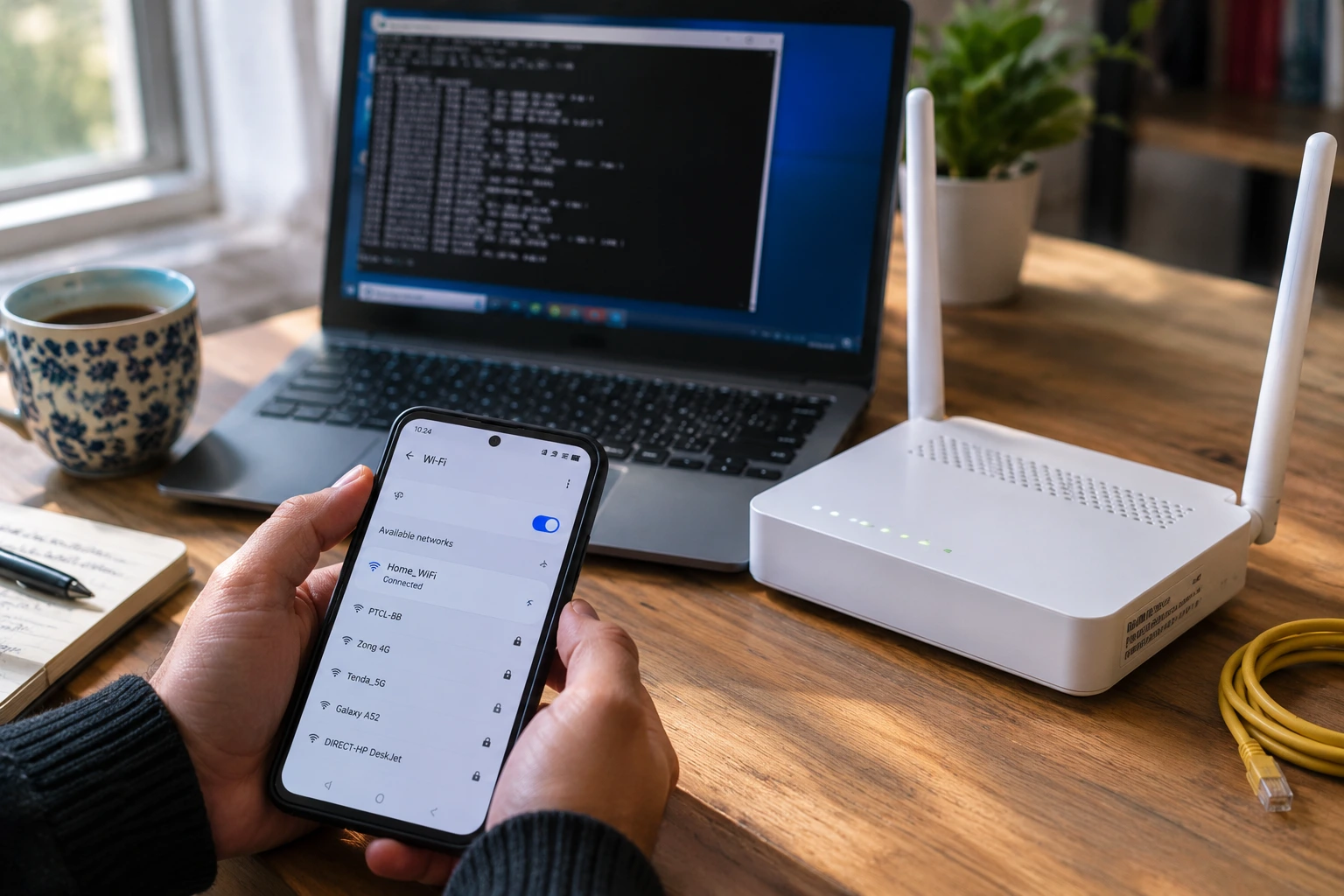
I checked my own router settings last month for the first time in probably three years. Before that, I honestly couldn’t have told you what my router’s IP address was off the top of my head. I just knew it worked, so I left it alone.
Turns out I wasn’t alone in that habit. A 2025 academic study presented at a major computing conference found that 91% of home routers are still running on whatever settings came straight out of the box. Not tweaked. Not customized. Just sitting there exactly as the manufacturer shipped them.
That number stuck with me because it explains so much about why people struggle with this specific task. It’s not that finding a router’s IP address is genuinely difficult. It’s that most people have never had a reason to try, so when they finally do need to, every method feels foreign and a little intimidating.
Here’s the good news. You don’t need to be technical to do this. I’ve tested every method below myself, across different devices and different operating systems, and I’m going to walk you through what actually works, starting with the fastest option and moving through what to do when something doesn’t go as planned.
By the time you finish reading this, you’ll have your router’s IP address in hand, you’ll know exactly what to do with it, and if something goes wrong along the way, you’ll already know why and how to fix it.
The Fastest Way First: Check Your Router’s Physical Sticker
Flip your router over right now. Seriously, go grab it. Look at the bottom panel or the back, wherever the manufacturer decided to stick the label.
Most routers have a small sticker printed with a default IP address, usually something like 192.168.1.1 or 192.168.0.1. That same label typically lists a default username and password too, along with the router’s exact model number. Some stickers even include a QR code these days that links directly to a setup app.
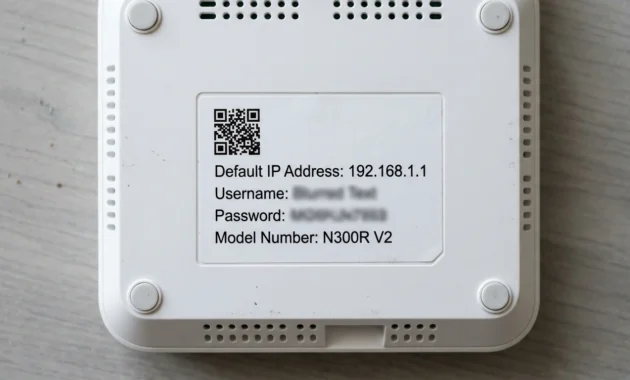
This is the method I always recommend trying first, and honestly, I think most online guides bury it under paragraphs of technical instructions when it should be step one. It takes about ten seconds. There’s no command prompt involved, no digging through settings menus, and nothing technical required. You just read a label.
I get why people skip this step. The command prompt feels more “official” somehow, like it’s the real way tech people do things. But if the answer is sitting on a sticker you can see with your own eyes, why would you open a terminal window first?
That said, this method only works under one condition. Nobody can have ever changed the router’s settings before you. If someone, maybe your internet installer, a previous tenant, or even you a few years back, logged in at some point and modified the default IP address, the sticker becomes outdated information. It’ll still be printed there, but it won’t actually connect to anything anymore.
Newer routers and mesh systems sometimes skip the sticker entirely too. They lean on a companion app instead, which handles setup and configuration without ever showing you a raw IP address. If you’ve got one of those modern mesh setups, this physical sticker trick might not apply to you at all.
So flip your router over, check the label, and if the number printed there loads your router’s login page when you type it into a browser, you’re done. Genuinely, that’s it. If it doesn’t load anything, or the sticker is worn off, missing, or just not there, keep reading. The next few sections cover exactly what to do.
What’s a Default Gateway? (It’s Just Your Router’s IP Address)
A default gateway and a router IP address are the exact same thing. Different name, same number. I wish someone had told me this plainly the first time I ran into the term, because it would have saved me a solid ten minutes of confused Googling.
I get why this trips people up. “Default gateway” sounds technical, almost like it’s describing something separate and more complicated than your router. It isn’t. It’s just jargon that stuck around from early networking documentation and never got simplified for everyday users.
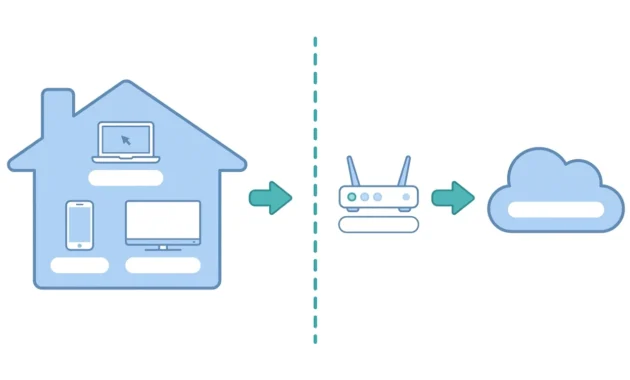
Think about it this way. Every device connected to your home network needs an exit point to reach the wider internet. Your laptop, your phone, your smart TV, and even your smart fridge—if you’ve got one of those—all of them need somewhere to send data that’s headed outside your home network. That exit point is your router.
The term “default gateway” literally refers to the default path your data takes to leave your local network. It’s the default because, without any other specific instructions, that’s where everything gets routed first. Manufacturers use this phrase, Microsoft’s own documentation uses it, and every networking textbook uses it the exact same way. There’s no secret second meaning.
This matters practically because when you run a command like ipconfig or open your network settings on any device, you’ll often see the exact phrase “Default Gateway” labeled right next to a number. That number is what you’re after. Not your device’s own IP address, which will be a different but similar-looking number. Not your DNS server, which handles a completely different job. Just the gateway.
I’ll be honest, the first time I saw multiple IP-looking numbers stacked on top of each other in a command prompt window, I had no idea which one I needed. Now I know to scan straight for the words “Default Gateway” and ignore everything else on the screen until I find that exact line.
Your Router Has TWO IP Addresses; Here’s Which One You Actually Need
Your router actually has two separate IP addresses, and mixing them up is probably the single biggest source of confusion I run into when people ask me about this topic.
The first one is your local IP address, sometimes called your private IP. This is the familiar 192.168.x.x style address that only works inside your own home network. Think of it like a house number on a street that only exists within your neighborhood. It means nothing to anyone outside that neighborhood, but it’s exactly what you need to find a specific house once you’re inside it.
The second one is your public IP address. This gets assigned to you by your internet service provider, and it’s the number that websites see when you browse online. It changes periodically, sometimes every time you restart your modem, sometimes only every few months depending on how your provider manages things.
Here’s where I see people get genuinely stuck, and it’s a totally understandable mistake. Someone searches “what is my IP address” because that’s the most natural phrase to type into Google. Google shows them their public IP, something like 73.142.xxx.xxx. They copy that number and paste it into their browser’s address bar, expecting to reach their router’s login page, and nothing happens. Or worse, they get an error that makes them think their internet is broken.
It can’t work, though, because that public address isn’t local to their home network at all. It’s the number your router uses to communicate with the outside world, not the number your own devices use to communicate with the router itself.
| IP Type | What It’s For | Example Format |
|---|---|---|
| Local IP (Private) | Accessing router settings | 192.168.1.1 |
| Public IP (External) | What websites are seen online? | 73.142.xx.xx |
To log into your router’s admin panel, you need the local IP. Always. Every single time. The public IP serves a completely different purpose and will never get you into your router’s settings page, no matter how many times you try it.
I think this confusion exists partly because most people genuinely believe “IP address” is one singular thing they own, like a home address. In reality, your network setup involves multiple addresses doing different jobs simultaneously, and nobody really explains that distinction unless you go looking for it.
How to Get Your Router IP on Windows
On Windows, the fastest way to find your router’s IP address is through Command Prompt using the ipconfig command. I use this method personally because once you’ve done it a couple times, it’s quicker than clicking through any settings menu.
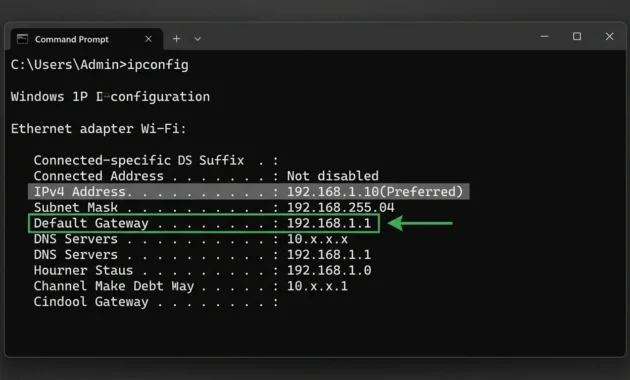
Open Command Prompt, type ipconfig, hit enter, and look for the line that says “Default Gateway.” That number is your router’s IP address. It really is that straightforward once you know exactly where to look, though the first time can feel overwhelming because of how much text appears on screen.
Using Command Prompt (Fastest Method)
Press the Windows key plus R together. A small Run dialog box pops up. Type “cmd” into that box and press enter, or click OK. A black window opens up, which is Command Prompt. This exact process works identically on both Windows 10 and Windows 11, despite how different those two operating systems look everywhere else.
Once the window is open, type ipconfig and press enter. You’ll see a decent chunk of text appear, broken into sections based on your different network adapters. Scroll until you find your active connection, labeled either “Wireless LAN adapter Wi-Fi” if you’re on wireless or “Ethernet adapter Ethernet” if you’re plugged in directly.
Right below that heading, look for the line that reads “Default Gateway.” The number sitting next to it, something like 192.168.1.1 or 192.168.0.1, is your router’s IP address. Write it down somewhere, or just select and copy it directly from the window so you don’t risk a typo later.
Using Windows Settings (Most Visual)
If the command prompt feels intimidating or just isn’t your thing, there’s a completely visual alternative built into Windows itself. Open Settings, go to Network and Internet, click on your active connection, and then scroll down until you reach the connection properties section.
Your router’s IP address shows up here too, sometimes labeled “Default Gateway” directly, other times tucked under a slightly different label depending on which Windows version you’re running. Windows 11 rearranged a handful of menu locations compared to Windows 10, but the information itself lives in roughly the same general area either way.
Personally, I lean toward the command prompt method because once you’ve memorized the steps, it’s faster than navigating through several layers of settings menus. But if clicking through a visual interface feels more comfortable to you, this path works exactly as well and gets you the identical answer.
Common Mistakes When Reading ipconfig Output
This is the part where I see people mess things up constantly, and it’s an easy mistake to make if nobody warns you about it beforehand. The ipconfig output displays multiple different addresses all at once, and it’s surprisingly easy to grab the wrong one if you’re skimming quickly.
Your “IPv4 Address” is your computer’s own unique address on the network. It is not your router’s address, even though it often looks nearly identical at a glance. Your “Default Gateway” is the specific line you actually need.
These two numbers look similar because they’re usually sitting in the same address range, something like 192.168.1.5 for your computer versus 192.168.1.1 for your router. But typing your own device’s IP into a browser won’t open your router’s login page. Depending on what’s running on your own computer, it’ll either throw an error or try to load something unrelated entirely.
I’ve made this exact mistake before, more than once actually, usually when I was rushing and didn’t slow down enough to read the labels properly. Now I always double check that I’m reading the “Default Gateway” line specifically before copying anything.
How to Get Your Router IP on Mac and Linux
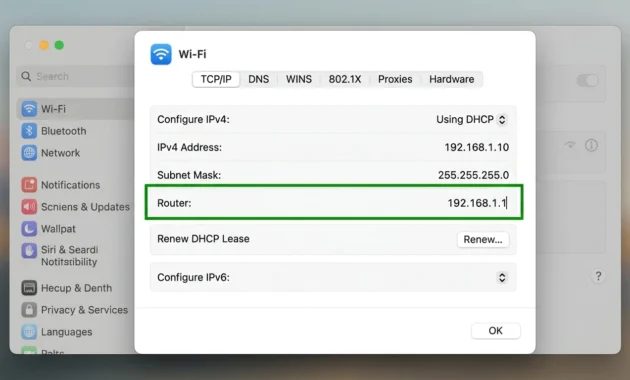
On a Mac, your router’s IP address shows up in Network settings under the TCP/IP tab, labeled simply as “Router.” Linux handles things a bit differently through the terminal, which I’ll cover separately below.
macOS Method (System Settings)
Click the Apple menu in the top left corner of your screen, open System Settings, and click Wi-Fi from the sidebar. Click Details next to your currently connected network, then select the TCP/IP tab from the options that appear.
Your router’s IP address is listed right there next to the word “Router.” It’s genuinely one of the cleaner interfaces for this task compared to some of the Windows navigation paths, mainly because Apple keeps it all in one consolidated screen rather than spreading it across multiple menus.
On older macOS versions, anything before Ventura, the exact path shifts slightly. You’d go to System Preferences instead of System Settings, then Network, click your active connection, then Advanced, then the TCP/IP tab. Same destination either way, just a slightly different route to get there depending on which macOS version you’re running.
macOS Alternative (Terminal Command)
If you’re comfortable with command-line tools, Mac offers that option as well. Open Terminal, and you can check your network’s routing information to find the router’s address listed under the default routing details.
This path makes sense if you’re already poking around in Terminal for other reasons anyway. For most people though, the System Settings route covered above gets you there just as quickly with a lot less typing involved.
Linux Method (Terminal Command)
On Linux, open your Terminal and type ip route, then press enter. Look specifically for the line that starts with “default via.” The IP address sitting right after the word “via” is your router’s address.
I want to flag something here because a surprising number of guides online get this wrong, including some fairly well known tech sites. They’ll tell Linux users to run ipconfig, expecting it to work the same way it does on Windows. It doesn’t. That command doesn’t exist on standard Linux distributions at all, and typing it just returns an error.
The correct command is ip route, or route -n if you’re working on an older Linux distribution that hasn’t updated its networking tools in a while. I mention this specifically because getting stuck on a command that simply doesn’t exist is incredibly frustrating, especially when you’re already trying to troubleshoot something.
How to Get Your Router IP on Your Phone
On your phone, your router’s IP address appears directly in your Wi-Fi settings, labeled as “Router” on iPhone and “Gateway” on Android. The exact menu path differs slightly between the two, so I’ll break down each one separately.
iPhone Method (Settings)
Open Settings, tap Wi-Fi, then tap the small blue info icon next to whichever network you’re currently connected to. Scroll down just slightly and you’ll spot “Router” with the IP address listed directly beside it.
That’s the entire process. No apps needed, no extra downloads, nothing complicated. Apple keeps this particular screen refreshingly simple compared to some of the deeper menu digging required on Android devices.
Android Method (Settings)
Android works along similar lines, but the exact wording and menu structure shifts depending on which phone brand you own. Manufacturers love customizing their Android interfaces, which unfortunately means there isn’t one single universal path that works for every device.
On a Samsung Galaxy phone, you’ll typically find this under Connections, then tap your Wi-Fi network name, then tap the small gear icon that appears. On a Google Pixel, the path runs through Network and Internet, then your Wi-Fi network name, then Advanced. Either route eventually lands you on a field labeled “Gateway,” which is exactly what you’re searching for.
If your phone is a different brand entirely, the general pattern still holds. Look for your Wi-Fi settings, tap into your connected network’s details, and search for anything labeled Gateway or Router.
Fastest Method: Use a Router Admin App
There’s also an app-based shortcut that a lot of people simply don’t know exists. A free app called Router Admin, which has racked up over 10 million downloads and sits around a 4.3 star rating, automatically detects your connected router’s IP address the moment you open it.
You tap the router icon displayed inside the app, it shows you the IP address immediately, and you tap copy. Then you open your phone’s browser, paste that address into the URL bar, and you’re sitting right at the login page.
This skips the entire process of hunting through nested settings menus, which genuinely makes it useful if you’re doing this fairly often, or if you just want the quickest possible route without thinking too hard about which menu leads where.
Which IP Should You Actually Try? Router Brands and Their Defaults
There’s no single universal router IP address that works across every brand and model. Different manufacturers default to different numbers, and trying the wrong one is probably the most common reason people assume their router is broken when it genuinely isn’t.
Here’s a quick reference table covering the major brands:
| Router Brand | Standard Default | Mesh System Default |
|---|---|---|
| TP-Link | 192.168.0.1 or 192.168.1.1 | 192.168.68.1 (Deco) |
| Linksys | 192.168.1.1 | — |
| Netgear | 192.168.0.1 | — |
| ASUS | 192.168.50.1 | — |
I find it genuinely interesting that 192.168.1.1 feels like some kind of universal standard, almost like it’s required by law or technical regulation. It isn’t. Linksys used that specific address early on, back when they were one of the first major consumer router brands available. Other manufacturers simply followed that same pattern out of habit and familiarity, not because any technical rule demanded it.
So if you type in 192.168.1.1 and absolutely nothing happens, that doesn’t automatically mean your router is broken or your internet connection has failed. It more likely just means you’ve got a brand that defaults to a different address entirely.
Check the table above first. If that still doesn’t load your login page, verify the actual address using the Windows or Mac method covered earlier in this guide. You can also cross-check with the manufacturer’s own instructions. TP-Link explains how to find your TP-Link router’s LAN IP address on every major operating system, and Linksys has a step-by-step page on looking up your router’s IP address from a phone or computer. Both are useful if your model isn’t in the table or someone changed the default address.
One more thing worth clearing up here, because I see this misunderstanding constantly. 192.168.0.1 and 192.168.1.1 are not interchangeable addresses. They’re completely different addresses sitting on entirely different subnets, even though they look almost identical at a glance. Using the wrong one won’t just connect slowly or partially. It simply won’t connect at all.
If you’d rather make router changes from a bigger screen, you can also connect your phone to your laptop and copy the router IP across instead of retyping it.
Why Can’t I Access My Router IP? 6 Troubleshooting Fixes
If your router’s IP address isn’t loading no matter what you try, the problem almost always falls into one of six specific categories. Work through these in order, starting from the top, because the earlier fixes catch the vast majority of actual causes.
Issue #1: Not Connected to the Router Network
Check your Wi-Fi connection before troubleshooting anything else. If your phone quietly switched over to cellular data because your Wi-Fi signal was weak, or if your laptop connected to a neighbor’s network instead of your own, your router’s local IP simply won’t be reachable at all.
Make absolutely sure you’re connected to the correct Wi-Fi network, double checking the name if you’ve got multiple networks nearby. If you have an Ethernet cable available, plugging in directly eliminates this entire category of problem instantly.
Issue #2: Using the Wrong Default IP for Your Brand
Go back to the brand reference table above. If you’ve been stubbornly trying 192.168.1.1 and your router actually turns out to be a TP-Link or Netgear model, that mismatch is almost certainly your issue.
Run ipconfig on Windows, or check your network settings on Mac, to confirm the actual current address rather than guessing based on what happened to work on a completely different router you owned previously.
Issue #3: VPN or Proxy Blocking Access
VPNs are genuinely sneaky about causing this particular problem. They route all of your internet traffic through an external server somewhere else, which interferes directly with local network connections like the one required to reach your router’s admin page.
Turn off your VPN temporarily, then try accessing the IP address again. If it suddenly works, you’ve found your culprit, and you’ll just need to remember to disable it whenever you need router access in the future.
Issue #4: Typing the IP into Google Search Box Instead of Address Bar
This single mistake trips up more people than almost anything else on this list. Typing an IP address directly into Google’s search box returns search results discussing that IP address. It does not, under any circumstances, take you directly to your router’s login page.
You need to click specifically into your browser’s address bar, that thin strip running along the very top of the window where website URLs normally go, and type the IP address there instead. Adding http:// directly before the number, like http://192.168.1.1, helps prevent your browser from misinterpreting it as a search query in the first place.
Issue #5: Browser Cache Serving the Wrong Page
If you’ve logged into a different router at some point in the past, maybe at a previous apartment or a friend’s house, your browser might still be loading a cached version of that old login page instead of pulling up your current router’s actual page.
Open an incognito or private browsing window and try the address again. If that resolves the issue, clearing your browser’s cache and cookies entirely will fix the problem on a more permanent basis going forward.
Issue #6: DNS or IP Configuration Corruption
Occasionally your network settings get stuck holding onto outdated or corrupted information, which blocks new connections from establishing properly. Open Command Prompt as an administrator, right click it and choose that option specifically, then run these three commands one at a time.
ipconfig /flushdns clears out any cached DNS entries sitting in memory. ipconfig /release drops your current IP assignment entirely. ipconfig /renew then requests a completely fresh one from scratch. Run them together in that exact order, and you’ve essentially reset your entire network connection from the ground up.
If you can reach your router’s login page but websites still won’t load, you’re dealing with a different problem. Your device is connected to the Wi-Fi network, yet the internet isn’t working. That issue has its own set of fixes, and our guide on connected to network but no internet access walks you through them step by step.
From IP to Router Admin Panel: How to Actually Log In
Once you’ve got your router’s IP address in hand, type it directly into your browser’s address bar with http:// placed in front of it, then press enter.
This should bring up a login screen asking for both a username and a password. If you’ve genuinely never changed these before, the defaults are commonly admin and admin, or sometimes admin paired with password. Check your router’s physical sticker if you’re unsure, since the exact default credentials vary noticeably depending on the brand and model.
Once you successfully log in, you’ll land on a dashboard containing menus for Wi-Fi settings, security configuration, and general network options. Look specifically for a section labeled Wireless or Wi-Fi Settings if your goal is changing your network name or updating your password.
Here’s something genuinely worth acting on right now, while you’re already logged in. If you’re still using the default login credentials that came with the router, change them immediately. Research shows that 81% of users never bother updating their router’s default password even once, which leaves their entire home network far more exposed than it realistically needs to be. The whole process takes maybe two minutes, and it genuinely matters more than most people realize.
Don’t Know Your IP? 3 Alternative Ways to Access Your Router
You don’t always need the exact numeric IP address anymore to reach your router’s settings page. Manufacturers have been quietly building easier alternatives over the past couple years.
Many brands now offer dedicated domain names instead. Netgear routers frequently work with routerlogin.net typed directly into any browser. TP-Link uses tplinkwifi.net for their standard router lineup, and tplinkdeco.net specifically for their Deco mesh systems. You type these in exactly the same way you would type a numeric IP address, and they lead you to the identical login page.
Mobile apps represent another genuinely useful option worth mentioning again here. The Router Admin app covered earlier automatically detects whichever router you’re currently connected to, which entirely skips the process of digging through nested settings menus looking for the right field.
Some newer router models also include a QR code, either printed directly on the device itself or displayed within a companion setup app, which links straight to the login page the moment you scan it using your phone’s camera.
These alternatives exist because manufacturers have clearly recognized that remembering a specific numeric IP address isn’t particularly intuitive for most everyday users. That said, the IP method still matters quite a bit, especially for troubleshooting purposes or if you’re working with an older router that simply doesn’t support any of these newer shortcuts yet.
Why You Actually Need to Access Your Router
Most people never touch their router’s settings again after the initial setup process finishes, and that gap in action carries real consequences for home network security that are worth understanding.
Academic research published in 2025 found that 91% of home routers are still running entirely on factory default settings. Separate survey data found that 81% of people have never once changed their router’s default admin password, and 84% have never updated their router’s firmware a single time since installation.
Put those three numbers together and you start seeing a pretty clear picture. Millions of home networks are sitting out there with publicly known default logins and unpatched security vulnerabilities, simply because nobody ever bothered logging in to address any of it.
Accessing your router’s settings lets you accomplish three things that genuinely matter for your network’s security and performance. You can update the firmware, which patches security vulnerabilities that researchers and hackers alike discover over time as technology evolves. You can change that default password, which closes off one of the single easiest entry points for anyone attempting to access your network without permission. And you can adjust your Wi-Fi settings directly as well, whether that means simply renaming your network or switching over to stronger encryption like WPA3 instead of whatever older standard came preset.
None of this actually takes very long once you’re logged in and looking at the dashboard. The genuinely hard part was never the settings themselves or making the changes. It was just finding the IP address in the first place, which is precisely what this entire guide has walked you through step by step.
Common Questions About Router IP Addresses
Is 192.168.1.1 always my router’s IP address?
No, not even close to always. That specific address is just the default for certain brands like Linksys. TP-Link, Netgear, and ASUS all default to completely different addresses instead. Check the brand table earlier in this guide, or verify your specific router’s actual address using either the Windows or Mac method covered above.
What’s the difference between my router’s IP and my Wi-Fi password?
These are three entirely separate things, and conflating them causes a lot of unnecessary confusion. Your router’s IP address is the number you type into a browser to reach the settings page in the first place. Your Wi-Fi password is what you enter on individual devices to join your home network. Your router’s admin password is what you type to actually log into the settings dashboard once you’ve already reached it using the IP address.
Can I access my router from outside my home?
Not through the local IP address, no, at least not under normal circumstances. That particular address only functions within your home network itself. Accessing your router remotely from somewhere else requires enabling a separate remote management feature, which most manufacturers disable by default specifically for security reasons.
What if I forgot my router’s admin password?
If you never actually changed it from the factory setting, try the common defaults like admin paired with admin, or check the physical sticker on your router for the exact combination. If you did change it at some point and genuinely can’t remember what you set it to, you’ll need to perform a factory reset, which wipes every custom setting back to the original defaults.
Is it safe to use domain names like tplinkwifi.net instead of the IP address?
Yes, completely safe. Domain-name access and traditional IP-based access both lead to the exact same login page every single time. The domain name option just happens to be considerably easier to remember and type correctly without making a mistake.
Why does my router IP keep changing?
Under normal circumstances, it genuinely shouldn’t change on its own at all. If it has changed, the most likely causes are a recent firmware update, a factory reset performed either intentionally or by mistake, or someone manually adjusting the network configuration settings. Run ipconfig on Windows, or check your current network settings on Mac, to confirm the present address rather than relying on whatever worked previously.
How to get my router IP address on any device?
The fastest way to get your router IP address is to check the sticker on the back or bottom of your router, which usually shows a default like 192.168.1.1 or 192.168.0.1. If the sticker is missing or outdated, look for the “Default Gateway” line by running ipconfig in Command Prompt on Windows. On Mac, iPhone and Android, open your Wi-Fi network details and read the “Router” or “Gateway” field. That number is your router’s local IP address.
Final Thoughts
I went into this thinking it would be a quick explanation. Turned out there’s more nuance here than most guides give credit for, mostly because everyone assumes router IP addresses work the same way across every brand and device. They don’t.
What surprised me most while putting this together wasn’t the technical side. It was realizing how many people genuinely never touch their router settings at all. That 91% statistic isn’t just a number I mentioned in passing. It’s basically describing most of the routers sitting in homes right now, including maybe yours before you read this.
Here’s what I want you to actually walk away with. Finding your router’s IP address isn’t the hard part anymore, not after everything covered above. You’ve got the sticker method for speed, command line options for Windows, GUI paths for Mac, and phone-specific steps whether you’re on iPhone or Android. If none of that works, you’ve got six specific troubleshooting fixes to work through instead of just guessing.
The part people skip, though, is what happens after. Finding the IP and logging in is step one. Actually changing that default password is step two, and it’s the step that matters most for keeping your network secure.
I’d encourage you to do that part today, not eventually. You already have your router’s IP address now, or you will in the next two minutes. Might as well use it for something that actually protects your home network, not just to confirm the number exists.
1 comment