
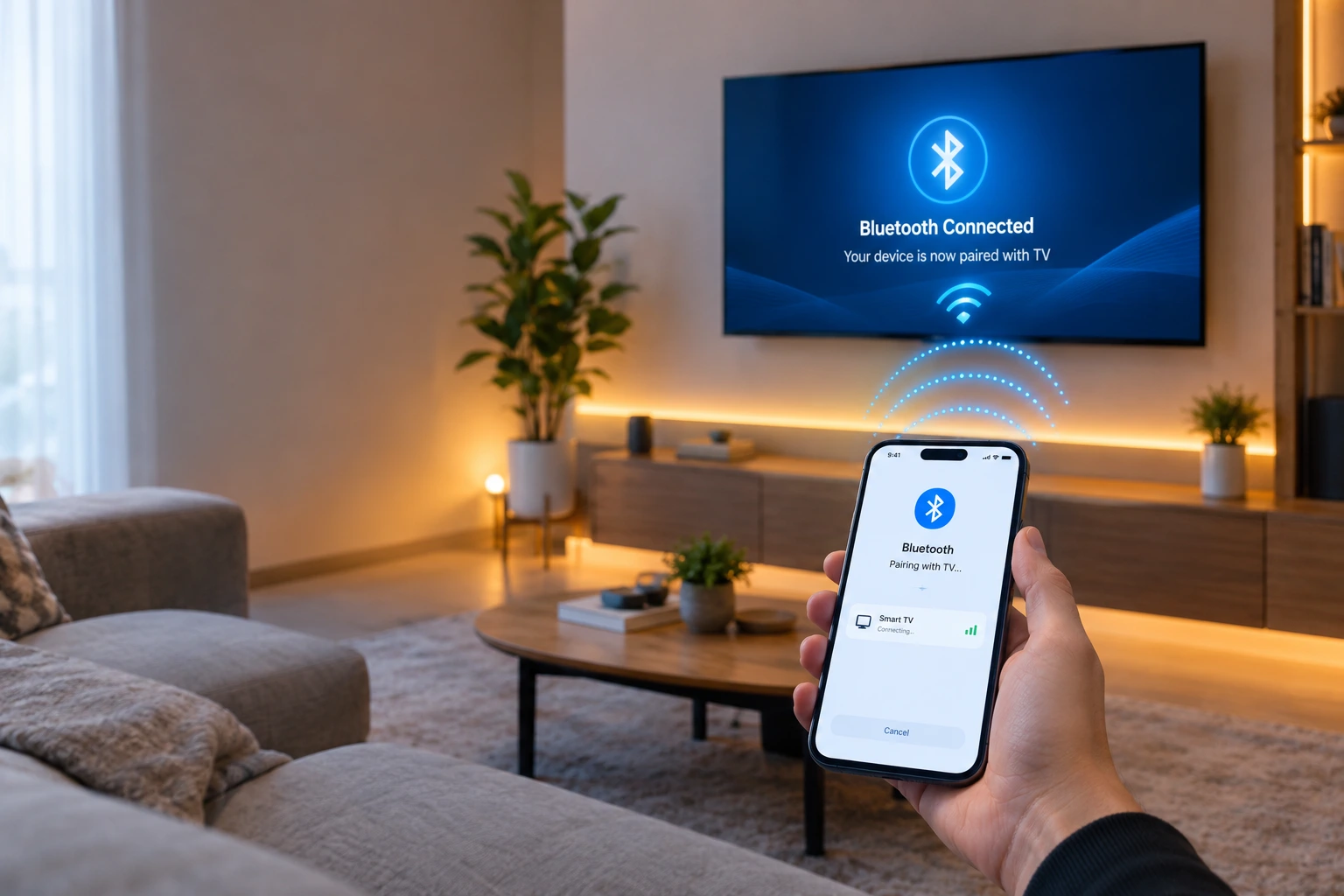
Yes, you can connect your phone to your TV using Bluetooth pairing, and I’ve done it in hotel rooms, at friends’ places, and in my own living room more times than I can count. It’s one of those features that sounds simple until you actually try it and run into a wall of confusing menus.
Here’s the thing nobody tells you upfront. Bluetooth is not screen mirroring. It won’t cast your phone’s video to the TV screen. What it will do is stream audio, let your phone act as a remote, and pair with accessories like headphones. That’s the whole deal, and once you understand that boundary, everything else makes a lot more sense.
I want to save you the hours I wasted early on trying to force Bluetooth to do something it was never built for. So let’s go through this properly, starting with what Bluetooth actually is, then the exact steps to pair your phone, the menu paths for specific brands, the mistakes that trip almost everyone up, and what to do when things go wrong.
What Bluetooth Actually Does (And Doesn’t Do)
Bluetooth on a TV exists mainly for one job: sending audio from your phone to the TV’s speakers. This runs through something called the A2DP profile, which is just the technical name for Bluetooth’s audio streaming function.
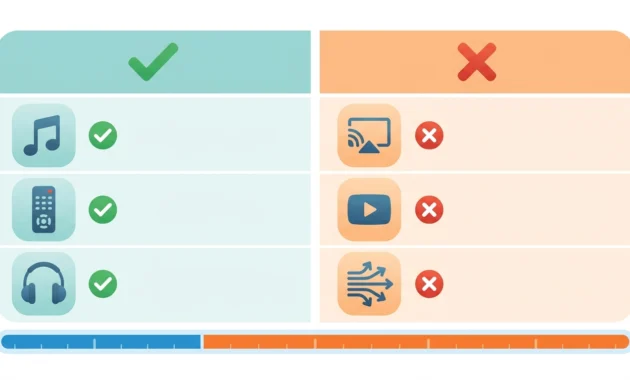
Here’s what Bluetooth can do. It streams music, podcasts, and audiobooks through your TV speakers. It lets your phone work as a basic TV remote.It pairs with accessories like Bluetooth headphones on TV, game controllers, or keyboards. If you want to try a controller with your phone, here is how to pair a PS5 controller to a phone.
Here’s what it cannot do. It cannot mirror your screen. It cannot stream video. It cannot handle anything that needs serious bandwidth.
The reason is pretty straightforward once you see the numbers. Bluetooth moves data at roughly 2 to 3 Mbps. Screen mirroring needs somewhere around 50 Mbps or more to look smooth without lag or pixelation. There’s just no way to squeeze video through that narrow a pipe. Wireless display technology built for video, like Miracast or Chromecast, uses Wi-Fi specifically because Wi-Fi can handle that kind of data load. Bluetooth was never designed to compete with that
.
Why Bluetooth Works Without Wi-Fi (This Is Its Best Feature)
Bluetooth works completely independent of your home network. This is genuinely its biggest advantage over every other wireless connection method out there.
I learned this the useful way, not the hard way. I was staying somewhere with no internet access at all, and I still managed to stream music from my phone through the TV speakers using nothing but Bluetooth. No Wi-Fi casting, no network, nothing. Just a direct wireless connection between two devices.
Chromecast needs Wi-Fi. Apple AirPlay needs Wi-Fi. Miracast, depending on setup, often needs it too. Bluetooth skips all of that. And if your Wi-Fi is acting up, our guide on fixing “connected to network but no internet access” can help.
Does Your TV Even Support Phone Bluetooth? Check This First
Your TV’s model year matters more than its brand name here. TVs released in 2016 or earlier generally don’t support Bluetooth audio connections at all, regardless of who made them.
If your TV is from 2017 or later, there’s a good chance it has Bluetooth built in. But having Bluetooth and accepting phone connections through it aren’t always the same thing. Some manufacturers deliberately lock their smart TV Bluetooth settings down to accessories only, meaning the TV will happily pair with a soundbar or a pair of headphones but completely ignore your phone when it tries to connect.
The fastest way to check is to look up your exact TV model number, either in the settings menu or printed on the back of the TV, and search it alongside “Bluetooth” to see what the manufacturer actually documents. You can also just open the TV’s Bluetooth menu directly and see what device types it lists as compatible. If “phone” or “smartphone” doesn’t appear anywhere in that menu, you’re probably out of luck for a direct phone connection, and you’ll want to look at the alternatives I cover later in this guide.
While you’re in there, check the Bluetooth version too. Older versions like Bluetooth 4.0 handle range and interference noticeably worse than newer ones. Bluetooth 5.3 is now standard on most TVs released in 2025 and 2026 and it’s a real improvement over what came before.
Before You Start: Preparation Steps That Prevent Most Failures
Most Bluetooth pairing problems happen before pairing even begins. This isn’t troubleshooting advice, it’s preparation, and skipping it is why so many people fail on their first attempt.
Clear Old Paired Devices From Your TV First
Most TVs can only hold around four or five paired Bluetooth devices before they run out of room for new ones. If your TV already has an old phone, a soundbar, a game controller, and a keyboard sitting in its memory, your new phone might never show up as an available device no matter how correctly you follow the pairing steps.
Go into your TV’s Bluetooth settings, find the paired devices list, and remove anything you’re not actively using anymore. The general path looks like Settings, then Bluetooth, then Paired Devices, then select the old device and choose Forget or Remove. This takes about two minutes. Skipping it can cost you thirty minutes of confused troubleshooting later, wondering why your phone refuses to connect to something that should be simple.
Sony TVs specifically tend to hit this four-device ceiling fast, so if you’re on one and pairing keeps failing, check this first before anything else.
Clear Your Phone’s Bluetooth Cache (Android Specific)
If you’re on Android and you’ve had Bluetooth issues before, clearing the cache gives you a clean slate. Go to Settings, then Apps, then Show System Apps, find Bluetooth, tap Storage, and clear the cache.
Android’s battery optimization settings can quietly interfere with Bluetooth over time, and this small reset often clears up weird behavior before you even start the pairing process.
Keep Your Devices Close Together
Bluetooth Class 2 hardware, which is what most phones and TVs use, has an ideal range of about 10 meters, which drops fast once walls, metal furniture, or other obstacles get involved.
Stay within about 10 feet of the TV while pairing. You can usually move further away once the connection is established, but the initial handshake needs that proximity to work reliably. I’ve seen people try to pair from across a large room and wonder why nothing shows up, when moving just a few feet closer solved it instantly.
How to Pair Your Phone to the TV: Step by Step
Here’s the exact process, broken into steps, with the confusing parts flagged so you don’t get stuck exactly where most people do.
Step 1: Put Your TV Into Pairing Mode
Your TV has to be actively looking for new devices before your phone can find it. This is called pairing mode, sometimes labeled discoverable mode, and forgetting to activate it is the number one reason Bluetooth pairing fails. The same rule applies to other gadgets, as you can see in our guide on how to put a PS5 controller in pairing mode.
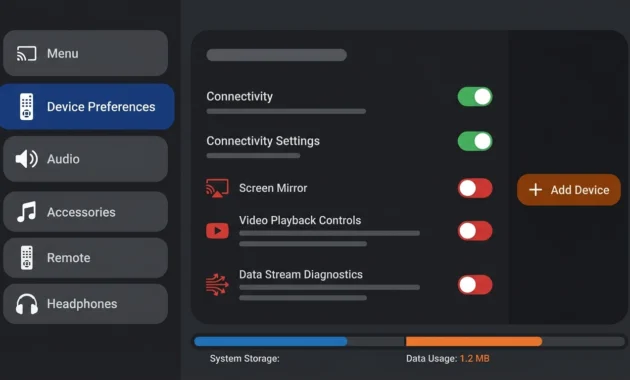
The general path is Settings, then Bluetooth, turn it on, then select Add Device or Pair New Device. On Google TV and Android TV models, including most TCL sets, this often lives under Remote & Accessories, then Add Accessory instead, and Google’s official guide to connecting Bluetooth devices to Google TV shows the same menu. Menu names vary a lot between brands, which is why I’ve broken out specific paths further down.
Once pairing mode kicks in, it usually stays active for about two to three minutes. That’s your window, so have your phone ready before you start this step.
Step 2: Turn On Bluetooth On Your Phone
Open your phone’s Bluetooth settings, whether you’re using Android or iPhone, and toggle it on. Leave that screen open while it scans, since some phones stop actively looking for available devices the moment you back out of the Bluetooth menu.
Step 3: Find Your TV In the List and Tap It
Your TV’s name should show up under available devices within about 10 to 15 seconds. Tap it once to start the pairing process.
Sometimes the name isn’t obvious. I’ve seen TVs show up under generic labels instead of their actual model name, which can be confusing if you’re not expecting it. If you’re unsure which entry is your TV, check the TV’s screen directly. It’ll usually show a connection request coming through at the same moment.
Step 4: Verify the Pairing Code
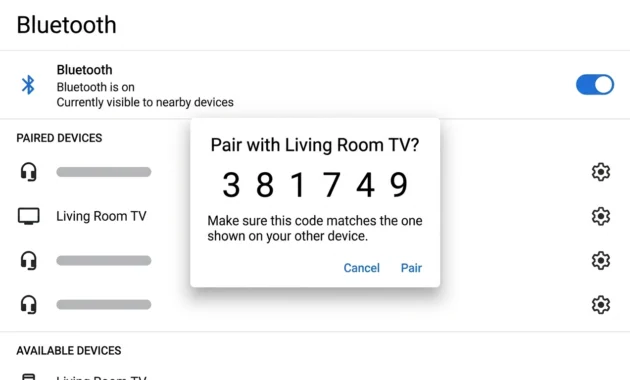
A pairing code will pop up on both your phone and TV screen at the same time. Check that the numbers actually match before confirming on either device.
This step exists purely for authentication, and rushing past it without checking is a common reason pairing fails partway through. The code is usually four to six digits long. Tap Pair on your phone, then confirm on the TV, or the reverse depending on your specific setup. Some TVs skip the code entirely and just ask for a simple yes or no confirmation, which is completely normal too.
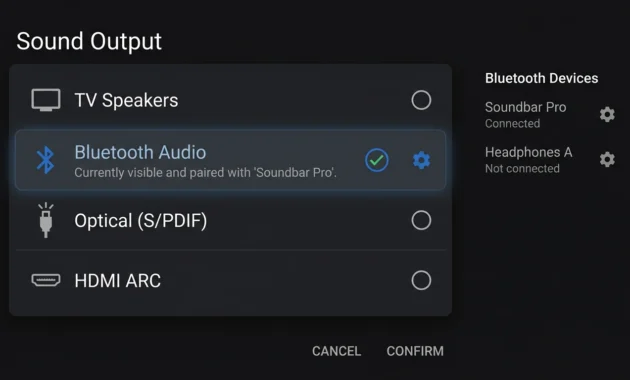
Step 5: Fix Your Sound Output Settings
This is the step almost everyone misses, and it’s genuinely the second most common mistake after forgetting pairing mode. Successfully pairing two devices does not automatically mean audio routes through that connection.
Go into your TV’s sound output settings, typically found under Settings, then Sound or Audio, then Sound Output, and manually select your phone or whatever option is labeled Bluetooth Audio. Some phones also have a separate media audio toggle hidden in their Bluetooth device settings that needs to be switched on manually. Pairing and audio routing are two separate steps. Treat them that way.
Step 6: Test the Connection Right Away
Open a music app and play something. If you hear it through the TV speakers, you’re done.
If there’s no sound, check volume levels on both the phone and the TV, since either one can silently block audio even when the connection itself looks fine. A small amount of audio delay, sometimes close to a second, is normal with standard Bluetooth and isn’t a sign anything’s broken.
Exact Menu Paths for Popular TV Brands
Menu names are where most guides fall apart because every manufacturer labels things differently. Here’s where things actually live on the most common brands.
Samsung Smart TV: The path is Home, then Settings, then Sound, then Speaker Settings, then Bluetooth Audio, then Pair New Device. Samsung’s SmartThings app also shows your paired devices automatically if you’ve got it installed, which is handy if you’d rather manage things from your phone instead of digging through TV menus.
LG TV: Go through Settings, then Sound, then Sound Out, then Bluetooth Devices. One feature worth knowing: LG TVs let you connect two Bluetooth headphones at the same time, which most other brands don’t support.
Google TV and Android TV: These share the same underlying system even though different manufacturers skin it differently. The path is Settings, then Remote & Accessories, then Pair Remote or Accessory. This applies to most TCL models too, since TCL runs Google TV under the hood.
Sony: Sony TVs running Android TV follow Settings, then Remotes & Accessories, then Pair Accessory. Keep that four-device limit in mind if pairing starts failing unexpectedly.
If your TV’s menu doesn’t match any of these paths, check the manual that came with it, or search your exact TV model number online alongside “Bluetooth settings.” If your TV was made in 2016 or earlier, there’s a real chance Bluetooth simply isn’t included at all.
The Mistakes That Cause Most Bluetooth Failures
I’ve watched people make the same handful of mistakes over and over, so let’s go through them directly.
Forgetting to put the TV in pairing mode. Just opening the Bluetooth settings isn’t enough. You have to explicitly select Add Device or Search for Devices to make the TV discoverable.
Trying to mirror your screen over Bluetooth. This is the big one. People expect Bluetooth to behave like a casting app, and it simply can’t. The bandwidth gap between Bluetooth and what video needs is too wide to bridge. If you want screen mirroring, use Chromecast, Apple AirPlay, Miracast, or a wired HDMI connection instead.
Not checking TV compatibility first. Some TVs restrict Bluetooth to accessories only. Check the Bluetooth menu before assuming your TV accepts phone connections at all.
Forgetting to fix sound output settings after pairing. I covered this above, but it bears repeating because it’s so commonly missed. Pairing is not the same as activating audio routing.
Ignoring Android’s battery optimization setting. This one’s sneaky. Android quietly puts Bluetooth to sleep to save battery, which disconnects your phone from the TV with no warning at all. Fix it under Settings, then Apps, then Show System Apps, then Bluetooth, then Battery, and set it to Unrestricted. iPhone doesn’t have this particular issue since Apple manages background processes differently.
Keeping devices too far apart during pairing. Stay within about 10 feet during the initial handshake, even if you plan to move further away later.
iPhone vs Android: Why Bluetooth Works Differently (Read This Before You Try)
Here’s something that trips up a lot of iPhone users, and honestly, most guides never mention it. Android phones can send audio to a TV through Bluetooth. iPhones generally cannot do the same thing, at least not the way you’d expect.
This isn’t a bug. It’s Apple’s design choice, and once you understand it, a lot of frustration disappears.
Why Android Phones Connect to TVs Over Bluetooth So Easily
Android lets your phone act as a Bluetooth audio transmitter to almost any receiving device, including a TV. You open the TV’s Bluetooth settings, find your Android phone in the list of available devices, pair it, and audio streams through. Simple.
This works because Android’s Bluetooth stack is open to pairing with a wide range of device types, including TVs looking for an audio source.
Why iPhone Doesn’t Work the Same Way
An iPhone is built to connect to Bluetooth accessories, not to act as an audio source that a TV can pull from. Apple’s iOS restricts the phone’s Bluetooth from functioning as a transmitter to just any device that requests it.
In plain terms: your TV can pair with an iPhone in the Bluetooth menu, and it might even show as “connected.” But audio often won’t route through, because iOS doesn’t treat the TV as a standard receiving accessory the way it would treat a pair of AirPods or a Bluetooth speaker.
I’ve tested this across a few TVs, and the pattern repeats. iPhone shows as paired. No sound comes out. This is exactly where most iPhone users give up and assume they did something wrong, when really it’s an Apple restriction, not a mistake.
What Actually Works for iPhone Users
If you’re on an iPhone, Apple AirPlay is your real answer, not Bluetooth. AirPlay is Apple’s own wireless protocol, and it’s built specifically to work between iPhone and AirPlay-compatible TVs or Apple TV boxes.
Here’s how it works: swipe down from the top right corner to open Control Center, tap Screen Mirroring or the AirPlay icon, and select your TV. If your TV supports AirPlay natively, which many Samsung, LG, and Sony models now do, audio and even full screen mirroring will work instantly.
No pairing code. No fiddling with sound output settings. It just works, because it’s built for this exact purpose.
When Bluetooth Still Works for iPhone
There’s one case where Bluetooth from an iPhone to a TV does work: if the TV itself acts as a Bluetooth accessory output, not an input. Some TVs let you pair Bluetooth headphones directly to the TV, which is a different direction entirely, TV sending audio out, not phone sending audio in.
So if you’re trying to use Bluetooth headphones on TV while watching something on the TV itself, that works fine for iPhone and Android users alike, because the TV is the transmitter in that scenario, not your phone.
Quick Comparison: iPhone vs Android Bluetooth to TV
| What You Want To Do | Android | iPhone |
|---|---|---|
| Stream phone audio to TV via Bluetooth | Works | Usually doesn’t work |
| Use phone as TV remote via Bluetooth | Works | Works |
| Mirror screen to TV | Needs separate app/Wi-Fi | Use AirPlay instead |
| Connect Bluetooth headphones to TV audio | Works | Works |
| Best overall method for TV connection | Bluetooth pairing | Apple AirPlay |
If you’ve got an iPhone and you’ve been stuck trying to get Bluetooth audio working on your TV, stop troubleshooting the pairing. Switch to AirPlay instead. It’s not a workaround, it’s literally the method Apple built for this exact situation.
Fixing Bluetooth Problems By Symptom
Random troubleshooting tips rarely fix Bluetooth issues. Matching your specific symptom to its likely cause works much better.
Your Phone Can’t Find the TV in Available Devices
This usually means the TV isn’t actually in pairing mode. Double check that you explicitly selected Add Device or Add Accessory rather than just turning Bluetooth on. Move your phone closer, remove obstacles like walls or a microwave, and if nothing changes, restart the TV completely, wait 30 seconds, then re-enable pairing mode from scratch.
Pairing Keeps Failing or Timing Out
Old pairing data is often the hidden cause here. Go into both the TV and your phone’s Bluetooth settings and forget each other’s entry, then try pairing again from a clean slate. Check that your TV’s paired devices list isn’t full. And always double check that the pairing code shown on both screens actually matches before confirming. If none of that helps, check for a pending software update on both devices, since Bluetooth bugs get patched more often than people expect.
Connected But No Audio Comes Through
This almost always traces back to sound output settings. Go into the TV’s audio menu and manually select the Bluetooth device, since pairing alone doesn’t route the audio automatically. Check for a media audio toggle in your phone’s Bluetooth settings too. Confirm volume isn’t muted or set to zero on either device. If an app still won’t play through the connection, try a different one, since not every app streams audio over Bluetooth the same way.
Connection Drops or Audio Stutters
Two things usually explain this. First, interference from Wi-Fi or a microwave, since Bluetooth and Wi-Fi share the same 2.4 GHz frequency band. Second, Android’s battery optimization setting quietly disconnecting Bluetooth in the background.
Set Bluetooth’s battery usage to Unrestricted to fix the Android issue. Move your Wi-Fi router further from the TV, and keep the microwave off during use. If problems persist, do a full reset Bluetooth connection by forgetting the pairing entirely on both devices and starting over.
TV Seems Completely Bluetooth Incompatible
If your TV was made in 2016 or earlier, it very likely doesn’t support Bluetooth audio at all, and no amount of troubleshooting will change that. Check the TV’s Bluetooth menu, and if the only listed options are things like “Headphones” or “Speakers,” it won’t accept a phone connection even if Bluetooth technically exists on the device. At that point, an alternative method makes more sense than continuing to fight a hardware limitation.
Beyond Audio: Other Things Bluetooth Can Do
Most people only know Bluetooth for audio streaming, which is useful, but there’s more to it.
Use your phone as a TV remote. This genuinely surprised me the first time I tried it. Download your manufacturer’s app, things like Samsung SmartThings or LG’s companion app, and you get full navigation, volume control, and media buttons right from your phone screen. Generic Bluetooth remote apps work too if your TV brand doesn’t offer an official one.
Connect Bluetooth headphones to your TV. Pair your headphones directly to the TV for late night viewing without disturbing anyone else in the house. Some TVs, like Samsung’s, even let you play audio through the TV speakers and headphones at the same time.
Use your phone as an audio relay. This is more of a niche setup, but you can pair headphones to the TV, then stream audio from an app on your phone through that same connection, getting your phone’s content onto the TV’s audio system without extra hardware.
Why Bluetooth Has These Limitations (The Technical Reason)
Understanding why Bluetooth behaves the way it does makes troubleshooting a lot easier, and it’s worth knowing beyond just “it doesn’t always work.”
Bluetooth operates on the 2.4 GHz frequency band, the exact same band used by Wi-Fi routers and microwaves. When your Wi-Fi network gets busy, Bluetooth signal quality can genuinely degrade because the two are fighting for the same wireless space. Bluetooth tries to compensate by hopping frequencies rapidly, as often as 1,600 times per second, but heavy interference still gets through sometimes.
Bandwidth is the other big factor. Bluetooth moves around 2 to 3 Mbps of data. Video needs 50 Mbps or more to look smooth. That gap is the entire reason screen mirroring over Bluetooth doesn’t exist and probably never will in its current form.
Range is limited too. Bluetooth Class 2 hardware reaches about 10 meters under ideal conditions, dropping to maybe 5 or 7 meters once walls and furniture get involved. And then there’s the device limit, where most TVs can only hold 4 to 5 paired devices before new connections start failing outright.
None of this makes Bluetooth broken. It just means Bluetooth was built for a specific job, audio and basic control, and it does that job well within its actual limits.
Better Alternatives If Bluetooth Doesn’t Fit Your Needs
If you need actual screen mirroring or something more than audio, here’s what to look at instead.
Chromecast (Google Cast) plugs into your TV’s HDMI port and connects over Wi-Fi, letting you cast directly from apps like YouTube, Netflix, and Spotify. It costs somewhere between $39 and $99, though a lot of newer TVs already have it built in.
Apple AirPlay comes built into every iPhone and iPad, and it works with any AirPlay compatible TV without needing extra hardware. Swipe down, tap Screen Mirroring, select your TV, and you’re connected. It’s about as simple as wireless display gets.
Miracast is a Wi-Fi based standard built into a lot of Android phones and TVs already. Enable it on the TV, tap Cast on your phone, and it works without needing a separate app. If your TV doesn’t support it natively, adapters run between $20 and $50.
A USB-C to HDMI adapter is honestly the most reliable option on this list. Plug the USB-C end into your phone, the HDMI end into your TV, select the right input, and you get a direct wired connection with zero lag and no Wi-Fi required at all. The same wired idea works for other screens too, as shown in our guide on how to connect a projector to a laptop.
A TV Bluetooth transmitter is worth mentioning for older TVs without built-in Bluetooth. These small adapters plug into the TV’s audio jack and add Bluetooth capability for somewhere between $20 and $60. It’s audio only, not video, but for a TV that otherwise has no Bluetooth at all, it’s a genuinely useful fix.
What’s Coming Next: Auracast and Bluetooth LE Audio
Bluetooth on TVs is changing, and it’s worth knowing about even if you’re not in the market for a new TV right now.
Auracast lets multiple people connect their own phones to a single TV and share audio at the same time, something current Bluetooth simply can’t do since most TVs only support one connected audio device at once. Android 16 and Android TV OS 14 already support this natively, and manufacturers including Samsung, LG, Hisense, and TCL are building it into newer TVs. It also includes hearing loop support for hearing aid users, which is a meaningful accessibility step forward.
Bluetooth LE Audio is arriving around the same time, combining the reliability of classic Bluetooth with better power efficiency and lower latency. Existing Bluetooth connections aren’t disappearing. This is an addition on top of what already works.
I wouldn’t wait for any of this though. Current Bluetooth handles everyday use just fine, and Auracast mainly matters if you specifically need multiple people listening through separate devices at the same time.
Frequently Asked Questions
Can I connect my phone to my TV by Bluetooth for watching videos?
Not for the video itself. Bluetooth only carries audio, so you’d hear sound through the TV speakers but the picture would stay on your phone. For video on the TV screen, use Chromecast, AirPlay, Miracast, or an HDMI adapter instead.
Do I need Wi-Fi for Bluetooth to work?
No. Bluetooth is a completely separate wireless protocol from Wi-Fi, which means it works fine during internet outages or anywhere a network simply isn’t available.
Why won’t my TV show up in my phone’s Bluetooth list?
Your TV almost certainly isn’t in pairing mode yet. Go into its Bluetooth settings and explicitly select Add Device or Add Accessory, since just turning Bluetooth on isn’t enough to make the TV discoverable.
How do I know if my TV has Bluetooth?
Check the Settings menu for a Bluetooth option, and look up your TV model number against the manufacturer’s spec sheet. TVs from 2017 onward usually include it, while 2016 and earlier generally don’t.
What’s the difference between Bluetooth and screen mirroring?
Bluetooth handles audio and basic control only. Screen mirroring sends your entire phone display, including video, to the TV, and that requires Wi-Fi based technology since Bluetooth doesn’t have the bandwidth for it.
Can I use my phone as a TV remote via Bluetooth?
Yes. Download your TV manufacturer’s app, like Samsung SmartThings or LG’s companion app, or use a generic Bluetooth remote app if your brand doesn’t offer an official one.
How to connect phone to TV through Bluetooth?
To connect your phone to your TV through Bluetooth, first go to your TV’s settings and enable Bluetooth, then select “Add Device” or “Pair New Device” to put the TV into pairing mode.
Next, open your phone’s Bluetooth settings and turn it on, wait for your TV’s name to appear under available devices, and tap it to connect.
A pairing code may appear on both screens, so confirm it matches, then tap Pair on both devices. Finally, go to your TV’s sound output settings and manually select your phone as the audio source, since pairing alone doesn’t always activate the connection automatically.
Final Thoughts
You now know more about connecting your phone to your TV through Bluetooth than most guides ever cover. You know what it can do, which is audio and basic control, and what it can’t, which is screen mirroring and video.
You’ve got the exact steps, the brand specific menu paths, the mistakes to avoid, and fixes for when something inevitably goes sideways. Bluetooth won’t do everything, but for streaming audio without Wi-Fi, for a quick remote replacement, for something simple that just works without fuss, it’s genuinely hard to beat.
If you ever need more than audio, you already know exactly where to look.