
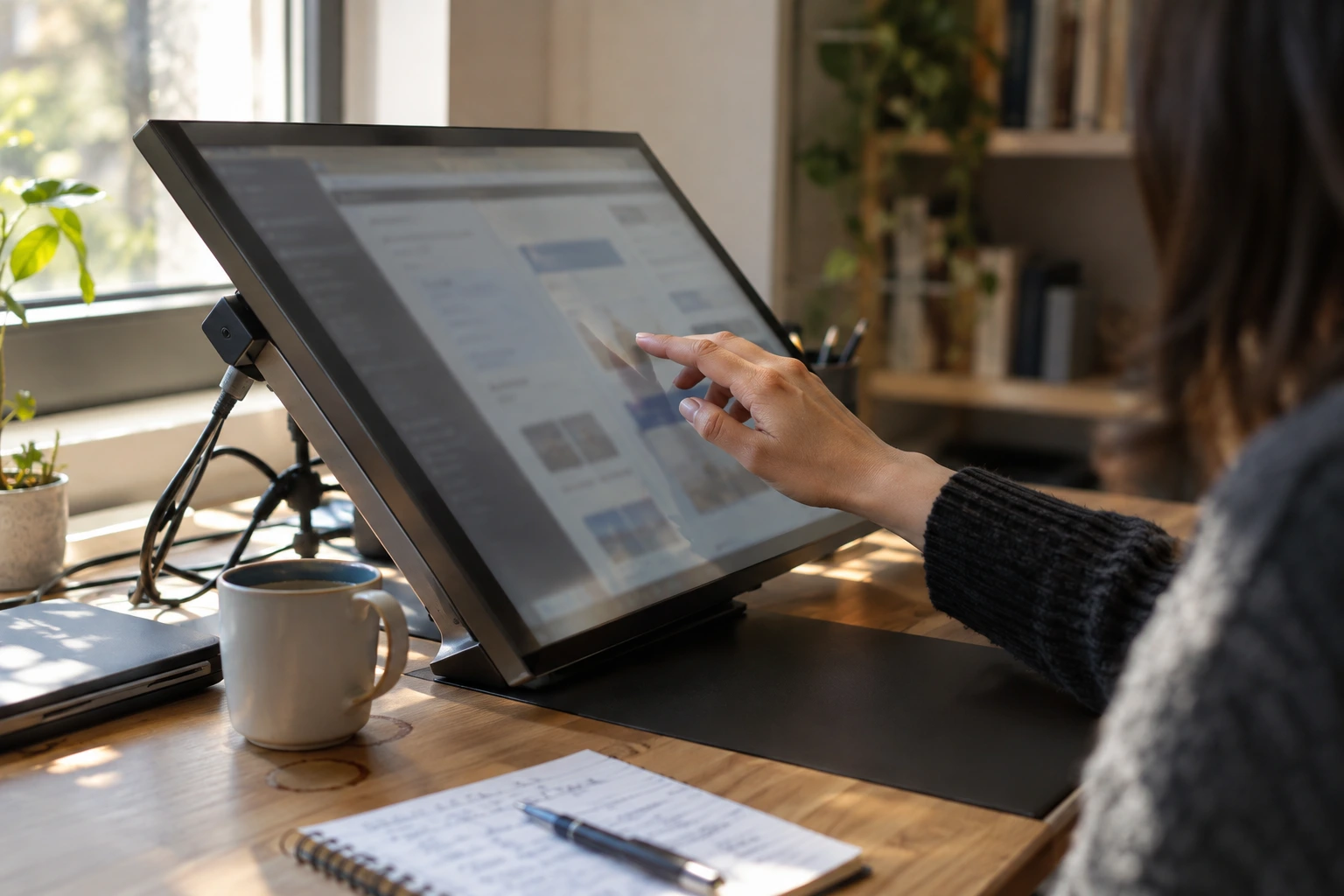
A Dell touch screen monitor does not work like a regular monitor, and that single difference causes most of the confusion I see people run into. Plug in just the video cable, the way you would with any normal display, and the picture shows up fine, but the screen will not respond to a single tap.
That is not a defect. It is just how these monitors are built. Touch and video travel through two completely separate connections, and missing that one detail is the reason so many people assume their new monitor arrived broken when it is actually working exactly as designed.
I have gone through the full lineup here, from the budget-friendly P2418HT to the current P2424HT to the massive 75-inch P7525QT built for shared spaces, along with the real setup steps, the calibration quirks nobody talks about, and the exact order to troubleshoot when touch stops responding. If you are buying one or already own one and something feels off, this covers it.
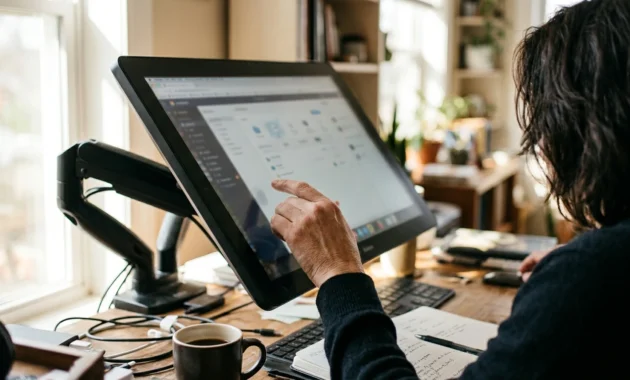
Is a Touch Screen Dell Monitor Actually Worth It?
A touch screen A Dell monitor is worth it if your work involves design software, note-taking, or any task where tapping the screen directly speeds things up. It is not the right pick if you are shopping for something to game on.
I know that sounds blunt. But it is the honest answer, and it matters before you look at a single spec sheet.
These monitors exist for a specific kind of work. Think Photoshop, Cricut Design Space, annotation-heavy workflows, or anyone who prefers tapping a button on screen instead of hunting for it with a mouse. One reviewer who actually tested the Dell P2418HT for weeks pointed out that it was built around design software and easel-style use, not competitive gaming. He also noted the color and contrast reproduction felt somewhat lackluster compared to a dedicated color grading monitor.
That is not a flaw. It is just what the monitor was built for.
A touchscreen monitor for PC use changes how you interact with your desktop in small but real ways. You stop reaching for the mouse every time you need to click something close to your hand. Touch screen display monitor setups like this work especially well if you already use a stylus or your fingers for creative work.
So before anything else, ask yourself what you actually need this for. If the answer involves design work, business presentations, or a shared workspace, keep reading. If the answer is gaming, a Dell business monitor is not going to give you what you are looking for.
The Dell Touch Monitor Lineup: Which Model Actually Fits You
Dell currently sells touch monitors across three very different tiers, and each one answers a different question rather than competing with the others.
The Dell P2424HT is the one most people land on for a personal desk. The Dell P2418HT is the older model, still widely available on the secondary market, and genuinely worth considering if budget matters more than having the newest hardware. The Dell P7525QT sits in a completely different category. It is a 75-inch interactive display built for conference rooms and classrooms, not a single desk.
Here is the part most spec sheets skip. Touchpoint count is not just a number. It determines how many people can actually use the screen at the same time. A 10-point touch monitor like the P2424HT or P2418HT is built for one person using several fingers at once. The P7525QT supports 20-point touch, which doubles that capacity and opens the door to multiple people interacting with the same screen during a meeting.
That jump is bigger than it sounds.
Dell P2424HT: The Current Desk Model
This is Dell’s current generation touch screen monitor computer for individual desks. It runs on a Full HD IPS display with 10-point touch support and connects through USB-C with 90-watt power delivery, which means one cable can carry video, touch data, and enough power to charge most laptops.
An unboxing video from Dell’s own support channel walks through exactly what ships in the box: a USB-C to USB-C cable, a USB-C to USB-A cable, a DisplayPort cable, and the power cable. That matters because it means the monitor is ready for both modern laptops with USB-C ports and older machines that only have USB-A.
Dell P2418HT: The Budget Secondary Market Option
The P2418HT came before the P2424HT, and it is mostly found used or refurbished now rather than sold new. One hands-on reviewer tested this model closely and measured brightness at around 215 nits with a 6 ms grey-to-grey response time. He called the brightness “on the lower side” but noted it was sufficient when the screen was used up close, like an easel, indoors.
If you are considering a refurbished Dell touch monitor, this is usually the model you will find. It still supports 10-point multi-touch and the same articulating stand design, just with older connectivity standards.
Dell P7525QT: Built for the Boardroom, Not the Desk
The P7525QT is a large touch screen monitor in every sense of the word. At 75 inches with 4K resolution, 20-point InGlass touch, and palm rejection, it is built for group collaboration rather than solo work.
Is it worth the price jump? That depends entirely on where it is going. For a shared conference room used daily by a team, the collaborative capability justifies the cost. For a single person’s desk, it clearly does not make sense, and nobody is suggesting it should.
What’s Actually in the Box (And How Setup Really Goes)
Setting up a Dell touch screen monitor involves more steps than a regular display, mainly because of the stand assembly and the extra cable needed for touch.
Based on the official unboxing footage, here is the real order things happen in. The stand riser slides into the rear slots on the display until it clicks into place. Then the stand base attaches to the riser, making sure the base head is fully seated. A screw handle underneath the base gets opened, turned clockwise to lock everything together, then closed again.
After that, the monitor gets laid face down so the cables can be connected before anything is powered on. The USB-C cable and the power cable both route through a cable management slot built into the stand riser, then get secured with retention clips. A cable cover snaps over the connection point to hide everything once it is done.
It sounds like a lot. In practice it takes a few minutes once you know the order.
The Articulating Stand: Tilt, Swivel, and Slant Explained
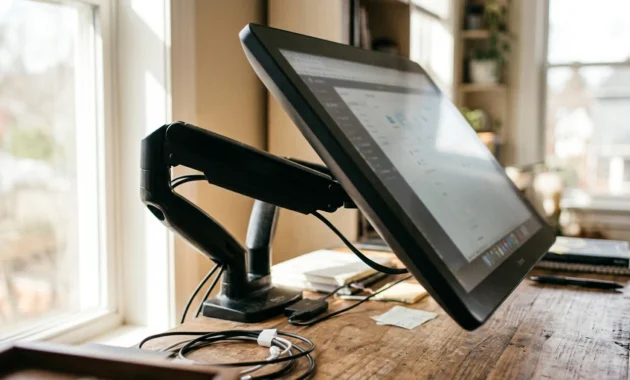
This is where the Dell touch monitor actually earns the word “touch” in its name. The stand tilts forward and backward across a wide range, roughly negative 5 degrees up to 60 degrees, according to the demonstrated range of motion, which lets the screen fold down close to flat like a drafting table. It also swivels up to 30 degrees in either direction and adjusts for slant.
One reviewer testing the older P2418HT noted a small quirk worth knowing about ahead of time. The hinges use high tension, which can cause the base to lift slightly off the desk while you are adjusting the tilt. It is not a defect. It is just how the mechanism behaves, and it stops once you let go.
The One Cable Mistake That Breaks Touch on Every Dell Monitor
If touch is not working on your Dell monitor, the most common cause is a missing USB cable, not a defective screen.
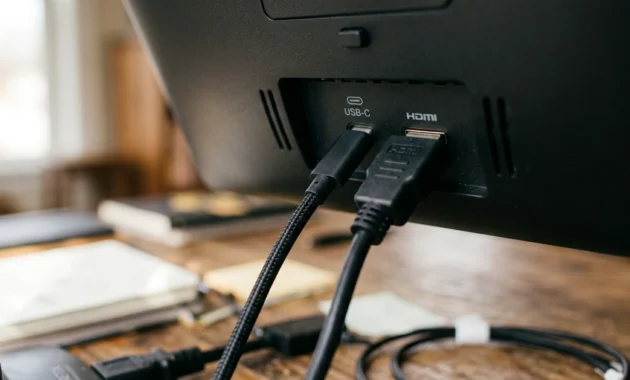
Here is why that happens. A Dell touch screen monitor actually has two completely separate jobs running through two separate connections. The video cable, whether that is HDMI, DisplayPort, or USB-C, only sends the picture. Touch data travels through a different path entirely, and that path requires its own dedicated USB connection between the monitor and your computer.
This trips up almost everyone the first time, and honestly, it makes sense why. Every other monitor you have ever owned only needed one cable. There was no reason to expect this one to be different. But it is, and once you know that, the fix takes seconds.
One independent reviewer confirmed this directly while testing the P2418HT, stating plainly that the USB upstream cable has to be connected to the PC for touch to work at all. The unboxing footage for the newer P2424HT backs this up too, showing both a USB-C to USB-C cable and a USB-C to USB-A cable included specifically so touch works regardless of what ports your computer has.
Which Connection Method Matches Your Computer
If your computer has a USB-C port, use the USB-C to USB-C cable. One cable handles video, touch, data, and laptop charging through that 90-watt power delivery I mentioned earlier. It is genuinely the cleanest option.
If your computer is older and only has USB-A ports, you will need the USB-A to USB-C cable for touch, plus a separate HDMI or DisplayPort cable for the video signal. Two cables instead of one, and no charging, but it still works fine.
How to Actually Get Touch Working After Everything’s Plugged In
If your cables are connected correctly and touch still is not responding, the next thing to check is your driver, not the cable again.
Open Device Manager on Windows and look for a device listed as a HID-compliant touch screen. If it is there, touch should already be working at a basic level. If it is missing entirely, that usually points to a driver problem rather than a hardware one.
Here is a confusion I ran into reading through real user reports on this exact issue. One person searched Dell’s support site looking for a touch driver and could only find something labeled a “touchpad driver,” which is a completely different thing used for laptop trackpads. That mismatch in naming wastes a surprising amount of time if you do not know to look past it.
For full functionality beyond basic touch, Dell’s own support documentation points to installing Dell Display and Peripheral Manager, which is separate software, not just a driver. This becomes especially relevant on larger interactive displays where more than basic single touch is expected.
Check the Monitor’s On-Screen Menu, Not Just Your Computer
Here is a step most people never think to check. On larger interactive monitors, touch sometimes needs to be manually enabled through the monitor’s own on screen display menu, separate from anything on your computer. If you have gone through every driver and cable check and touch still is not working, open the OSD menu and look for a touch setting before assuming something is broken.
How to Calibrate Your Dell Touch Screen Monitor (And Why It Sometimes Stops Working)
Touch calibration on a Dell monitor is handled through Windows itself, not through any Dell branded software.
That surprises a lot of people, myself included the first time I looked into it. You would expect a Dell product to have a Dell tool for every function, including this one. But calibration lives inside Windows settings, under Tablet PC Settings, where you can run the calibration wizard directly against your touch panel. Microsoft actually has its own official guide for calibrating touchscreen input if you want to see every step laid out directly from the source.
Now here is the part that nobody really talks about openly. Calibration on some units does not always hold permanently. Multiple long term users reported the same pattern over the years: calibration works perfectly right after setup, then starts drifting after an hour or more of use, with the cursor no longer tracking touch input accurately.
This is not something you did wrong.
If Calibration Stops Holding After a While
If you recalibrate and the problem keeps coming back within the same session, that points to a hardware issue rather than a settings problem you can fix yourself. Several users who experienced this exact pattern eventually had their monitors replaced under warranty, and the replacement units worked correctly afterward. If recalibrating stops solving the problem after a day or two of trying, contacting Dell about a warranty exchange is a more reasonable next step than continuing to troubleshoot software settings.
One more thing worth knowing. Windows updates can occasionally reset touch related software settings without warning, including small preferences like sound feedback on touch. If something that used to work suddenly stops right after an update, check your settings again before assuming the hardware failed.
Dell Touch Screen Monitor Not Working? Here’s the Real Troubleshooting Order
Start with the cable, then the driver, then the screen itself. In that order.
Check the cable first. Confirm the USB cable is connected at both ends, not just the video cable. This solves the majority of “touch not working” complaints by itself.
Check Device Manager next. Look for the HID compliant touch screen device. If it is missing, reinstall the driver from Dell’s support site, making sure you are downloading the touchscreen driver and not a touchpad driver by mistake.
Check Device Manager next. Look for the HID compliant touch screen device. If it is missing, reinstall the driver from Dell’s support site, making sure you are downloading the touchscreen driver and not a touchpad driver by mistake. If you are dealing with a different kind of touch input problem altogether, like a laptop touchpad that stopped responding entirely, the driver troubleshooting process works in a similar way, just through a different device in the same menu
Check the on screen menu. On larger monitors, confirm touch is enabled through the OSD itself.
Check for anything covering the screen. Stickers, screen protectors, or even heavy dust can interfere with how capacitive touch senses contact. The anti glare matte coating on models like the P2418HT genuinely resists fingerprints well, based on hands on testing, so a dirty screen is less likely to be the cause than on a glossy touchscreen. But it is still worth wiping clean before ruling it out.
Check what you are touching it with. Fingers always work. An unsupported hard tipped stylus might not register at all, and in some cases can scratch or damage the touch surface.
Power cycle everything as a last basic step. Turn off the monitor and computer, unplug both, wait a minute, then reconnect. It sounds too simple to matter, but it genuinely clears a surprising number of minor glitches.
If you have gone through all of this and touch still does not respond, that is when it makes sense to contact Dell support directly rather than continuing to troubleshoot on your own.
Can You Use a Stylus, and Does It Work on a Mac?
Whether a stylus works depends entirely on which Dell touch monitor you own, and using the wrong one can actually damage the screen.
Standard models like the P2424HT and P2418HT use capacitive touch, the same basic technology as a phone screen. That means fingers work perfectly, and a soft passive stylus made for capacitive screens works too. What does not work, and what can cause real damage, is a hard tipped active digitizer pen, the kind made for drawing tablets. That type of pen is built for a different technology entirely and was never meant to touch a capacitive surface.
The P7525QT is the exception. Its InGlass touch technology supports true active stylus input along with palm rejection, which is a meaningful difference from the smaller desk models.
As for macOS, touch works, but with a limitation worth knowing upfront. Basic touch functions plug and play on Windows without any extra setup. On a Mac, you get basic single touch support, but full multi touch gestures typically require a companion app like UPD Commander installed separately. If you are planning to connect a Dell touch monitor to a Mac, go in expecting to install that extra software rather than assuming it will behave identically to Windows out of the box.
As for macOS, touch works, but with a limitation worth knowing upfront. Basic touch functions plug and play on Windows without any extra setup. On a Mac, you get basic single touch support, but full multi touch gestures typically require a companion app like UPD Commander installed separately. If you are running a Mac alongside a touch monitor like this and performance feels sluggish once that extra software is installed, it is worth knowing how to clear RAM on a Mac to free up resources before assuming the monitor itself is the problem
What You’re Really Paying For: Price, Size, and the 144Hz Question
Dell touch screen monitor pricing falls into two very different tiers, and knowing which tier you need narrows the decision fast.
The desk sized models like the P2424HT sit in the low hundreds of dollars, with the older P2418HT often available for less, especially used. The P7525QT sits in an entirely different price range, close to four thousand dollars, which reflects its purpose as a shared conference room display rather than a personal monitor. Always check current pricing directly before buying, since retailer prices shift and vary by region.
Now, the two questions I see searched most often that have no real match in Dell’s lineup right now.
Is there a 144Hz Dell touch screen monitor? No. Current models run at 60Hz. That is not a limitation Dell overlooked. These monitors are built for productivity and design work, not gaming, so a high refresh rate was never part of the design goal in the first place. If a smooth 144Hz experience is what you need, a touch monitor from this lineup is not the right category of product to look at.
Is there a 32 inch or 49 inch Dell touch monitor? Not currently in the standard touch lineup. The available sizes jump from the 24 inch desk models straight up to the 75 inch large format display, with nothing in between right now.
Buying Used or Refurbished? What the Listings Don’t Tell You
Buying a used or refurbished Dell touch monitor can genuinely save money, but only if you check the right things before paying.
Used marketplace listings reveal a lot if you read between the lines. Titles mentioning phrases like “touch works in 80 percent” or “cracked screen” or “no stand” are not rare. They show up often enough that they are worth treating as warning signs rather than exceptions.
Before buying a used unit, ask the seller to confirm touch responds across the entire screen, not just in the center where it is easiest to test. Ask specifically whether the stand is included, since that is commonly missing from older listings. And confirm which cables come with it, since a used P2418HT or P2424HT without the USB cable is essentially a regular monitor until you source that cable separately.
The Dell Canvas KV2718D and older P2418HT units show up most often in the secondary market right now, simply because newer stock has moved toward the P2424HT. That is not a downside if the price reflects it fairly and the unit passes a real touch test before you buy.
Before buying a used unit, ask the seller to confirm touch responds across the entire screen, not just in the center where it is easiest to test. Ask specifically whether the stand is included, since that is commonly missing from older listings. It is also worth checking the panel itself for physical damage, since issues like a black spot or dead pixel area on the screen are easy to miss in a quick listing photo but much harder to ignore once the monitor is sitting on your desk
Frequently Asked Questions
Why is my Dell touch screen monitor not working after I plugged everything in?
Check whether you connected both the video cable and a separate USB cable, since touch requires both. If both are connected, check Device Manager for an HID compliant touch screen device, and on larger monitors, check the on screen menu for a touch toggle.
Do I need to install special software, or does touch just work automatically?
Basic touch works plug and play on Windows once the cables are correct. For full functionality on some models, Dell Display and Peripheral Manager may need to be installed separately.
How do I calibrate my Dell touch screen monitor?
Open Windows settings and go to Tablet PC Settings, then run the calibration tool from there. Calibration is handled entirely through Windows, not through any Dell software.
Can I use a stylus or pen on a Dell touch screen monitor?
On standard desk models, stick to fingers or a soft passive stylus made for capacitive screens. The large format P7525QT is the only model that supports true active stylus input with palm rejection.
Is there a 144Hz Dell touch screen monitor?
No. Current Dell touch monitors run at 60Hz, since they are built for productivity and design work rather than gaming.
Does a Dell touch screen monitor work with a Mac?
Basic touch works, but full multi touch gesture support on macOS typically requires installing a companion app like UPD Commander separately.
Final Thoughts
A touch screen Dell monitor is not complicated once you understand the one thing that trips up almost everyone. Touch and video travel through two separate connections, not one.
Miss that, and nothing works, no matter how expensive the monitor or how many drivers you reinstall. Get that right, and most of what people call a “defective” monitor turns out to be a monitor that was never fully connected in the first place.
I have walked through all three models, from the budget friendly P2418HT still floating around secondary markets, to the current P2424HT sitting on most desks right now, to the P7525QT built for rooms full of people instead of one. Each one answers a different question. None of them compete with each other.
If you remember nothing else from this, remember this order. Check the cable first. Check the driver second. Check the screen itself last. That sequence solves the overwhelming majority of problems people run into, and it works whether you just unboxed a new unit or you are three years into owning one that suddenly stopped calibrating correctly.
Buying used? Test touch across the whole screen before you pay, not just the center. Setting one up for the first time? Follow the cable order from the unboxing steps and do not skip the USB connection thinking the video cable covers it.
That is really the whole thing. Not complicated. Just a product that works differently from a regular monitor, and now you know exactly how.