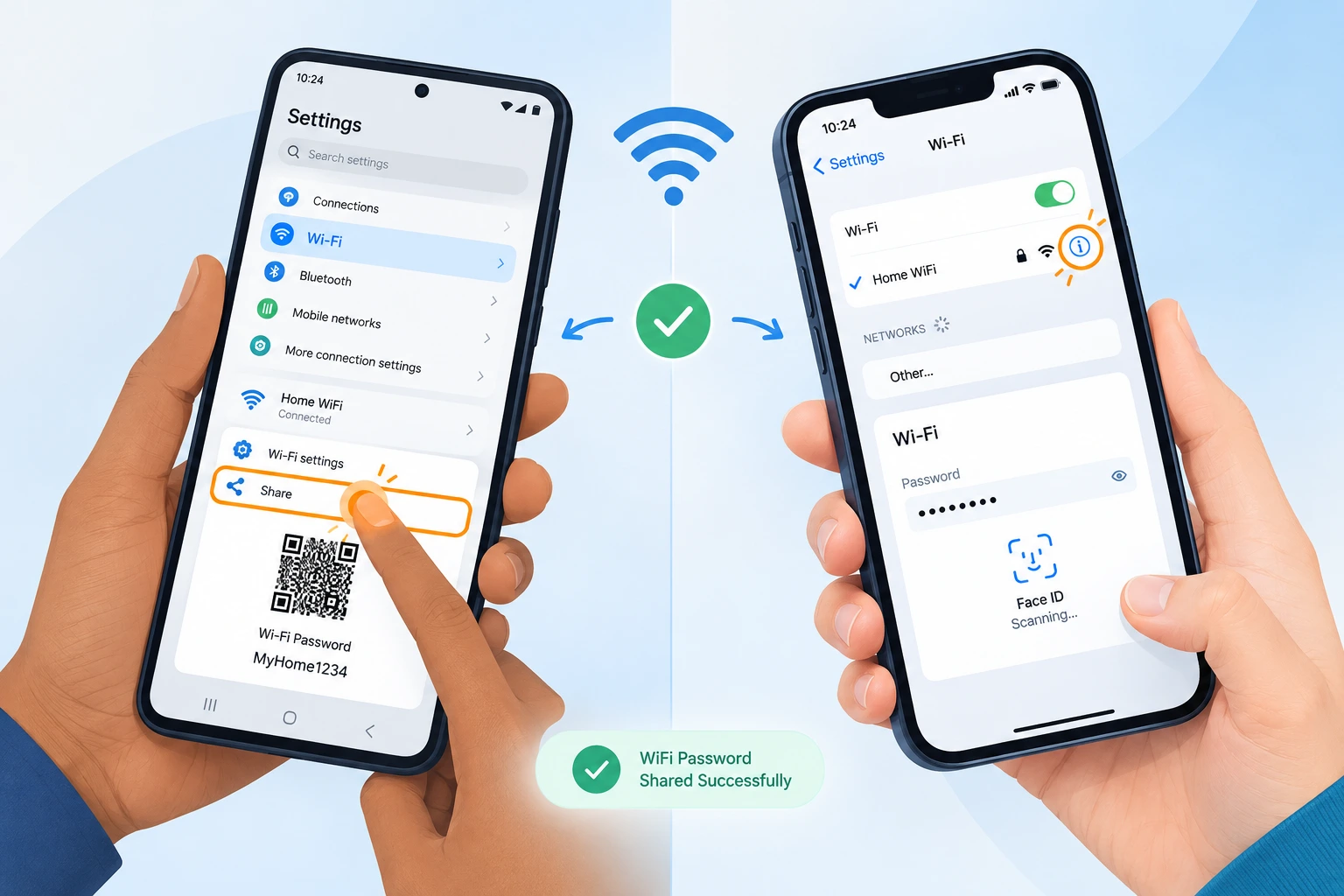
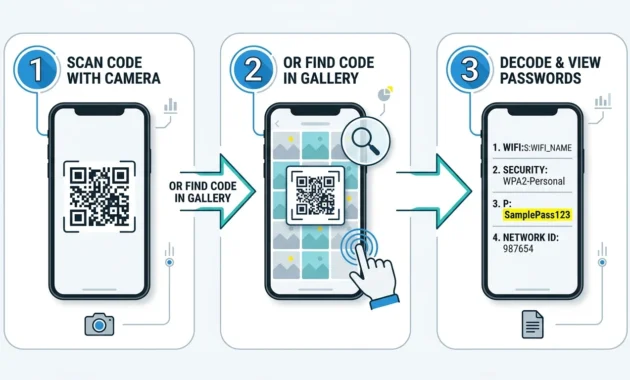
Both Android and iPhone phones now allow you to view saved WiFi passwords directly in settings. Android 10+ shows passwords below a QR code after tapping Share. iPhone iOS 16+ displays them in the password field after tapping the info icon and authenticating with Face ID or Touch ID.
How to Check WiFi Password in Phone (Android & iPhone Methods)
How to Check WiFi Password in Phone (The Quick Answer)
You can view your WiFi password directly in your phone’s settings without needing any special apps or technical knowledge. On most modern phones, it takes less than a minute.
Here’s the fastest path for your device: If you have an Android phone running Android 10 or newer, go to Settings, find Wi-Fi or Connections, tap the network you’re connected to, then tap Share. Your password will appear in plain text below a QR code. On iPhone with iOS 16 or later, open Settings, tap Wi-Fi, tap the info icon next to your network, then tap Password. You’ll need to verify with Face ID, Touch ID, or your passcode before the password shows.
Most people never realize this feature exists built into their phone. I’ve seen so many people download unnecessary apps or think they need to root their Android device when the answer was sitting right in their settings all along.
Why this matters right now. About 91% of households still use their router’s factory default password. That means if you’re trying to reconnect a device or help someone else get online, you need to know how to find this password. It’s the first thing I check whenever someone says they can’t connect a second device.
The rest of this guide covers exact step-by-step instructions for every phone type, what to do if your device is older, and how to handle situations where the simple method doesn’t work. But here’s the truth: if your phone was made in the last four or five years, what I just showed you above is all you need.
One warning before we continue. Don’t reset your router thinking you’ve lost the password forever. That wipes all your settings and won’t help you find it. Your phone already has it stored. Check your phone first.
First: Is Your Phone Android or iPhone? (Quick ID Guide)
I cannot tell you how many times someone has asked me whether they have an Android or iPhone phone. If you’re not sure, this takes thirty seconds to figure out.
Look at the back of your phone. If you see an Apple logo with a bite taken out of it, you have an iPhone. That’s it. That’s the entire test. iPhone is made by Apple and every single iPhone has that unmistakable logo.
If there’s no Apple logo, you have an Android phone. Android is the operating system used by Samsung, Google Pixel, Xiaomi, OPPO, Motorola, and dozens of other manufacturers. The phone could have any brand name on it. But if it’s not an iPhone, it’s Android.
Another way to check if you’re still unsure. Open your phone’s Settings app. Look at the very top or scroll around until you find information about your phone. If you see “iPhone” or “iOS” mentioned, it’s an iPhone. If you see “Android” or the Android version number (like Android 14 or Android 15), it’s Android.
That matters for the next sections. Android and iPhone have completely different menu layouts and different ways to view your password. Following the wrong set of instructions will waste your time.
How to Check WiFi Password on Android (Android 10+, No Root Needed)
Here’s what you need to know first. Android 10 came out in 2019 and introduced a built-in feature to view saved WiFi passwords. You don’t need to root your phone. You don’t need to download any app. It’s already there.
I mention this because the oldest articles online still talk about needing root access. That information is years out of date. Unless you have a phone from 2018 or earlier (and honestly, who does anymore), you can view your password without touching anything technical.
Step one: Open your Settings app.
Tap the Settings icon on your home screen or find it in your app drawer. Once Settings opens, look for a section called Wi-Fi, Internet, Connections, or Network & Internet. The exact name depends on your phone brand, but it’ll have one of those words in it.
Step two: Find the network you’re connected to.
You’ll see a list of WiFi networks. Tap the one you’re currently connected to. If you see a checkmark or connected status next to the network name, that’s the one.
Step three: Tap Share.
This is where most guides get vague and people get lost. Look for a button that says Share. On some phones it’s a gear icon. On others it says Share explicitly. Don’t overthink it. If you see anything that looks like it could be tapped, tap it.
Step four: Verify your identity.
Your phone will ask you to confirm it’s actually you trying to see this password. Use your fingerprint, face recognition, PIN, or pattern lock. Whatever method your phone uses to unlock normally, use that.
After you verify, your password appears in plain text below a QR code. Write it down or take a screenshot if you need to share it with someone.
That’s the entire process. Ninety seconds start to finish on most phones.
Stock Android / Google Pixel Step-by-Step
If you have a Google Pixel or any phone running pure Android without customization, the path is cleanest here.
Go to Settings → Network & Internet → Internet. You’ll see a list of WiFi networks at the top. Tap the network you’re connected to. The network details page opens. Scroll down and tap Share. Authenticate when prompted. Your password displays.
Samsung One UI: The Eye Icon Method
Samsung changed the menu names. They call it Connections instead of Network & Internet.
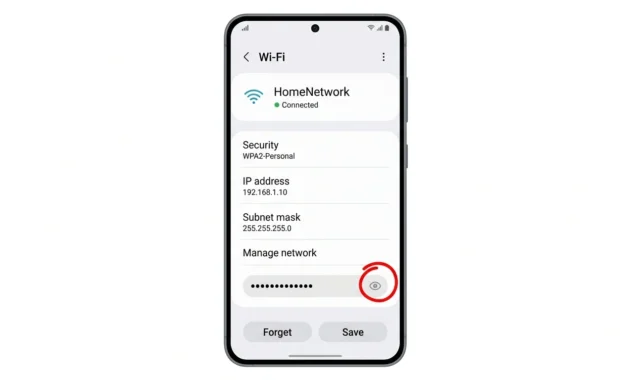
Go to Settings → Connections → Wi-Fi. Tap the gear icon next to the network you want to check. You’ll see the password field with dots covering it. Tap the eye icon to unmask the password. Verify with your fingerprint or PIN. The password shows in plain text.
I tested this on a Samsung S21 FE and it worked exactly as described. The eye icon is the key thing most people miss. It’s small but it’s right there in the password field.
On Samsung phones, tap the eye icon to unmask the saved password.
Xiaomi/Redmi Devices (Including Redmi Note 7)
Xiaomi uses their own interface called MIUI, and it’s different again.
Go to Settings → Wi-Fi. Long-press or tap the network you’re connected to. Look for an option that says Share or Tap to Share Password. On newer Redmi devices, the password displays directly in a pop-up dialog. On older versions, you get a QR code and need to extract the text from it (more on that below).
One thing to note. The Redmi Note 7 originally shipped with Android 9, which doesn’t have native password viewing. If your Redmi Note 7 hasn’t been updated to Android 10 or newer, you’ll need to use the router methods covered later in this guide.
Google Pixel vs. Samsung vs. Xiaomi: Menu Path Comparison Table
Phone Brand
Path
Password Reveal
Google Pixel
Settings → Network & Internet → Internet → tap network → Share
How to View WiFi Password on iPhone (iOS 16 or Later – Face ID/Touch ID Required)
Apple didn’t always let you view saved WiFi passwords. Before iOS 16, your iPhone just connected and kept the password hidden forever. That changed in 2022 and now you can see it, just like Android.
The requirement matters. You need iOS 16 or newer. If you updated your iPhone anytime in the last two years, you have it. Older iPhones can’t use this method. If you don’t know your iOS version, go to Settings → General → About and look at the iOS version number.
Assuming you’re on iOS 16 or later, here’s the process.
Open Settings. Tap Wi-Fi. You’ll see all the networks your phone knows about. Find the one you’re connected to. It usually has a checkmark next to it. Tap the blue information icon (it looks like a lowercase i in a circle) next to that network.
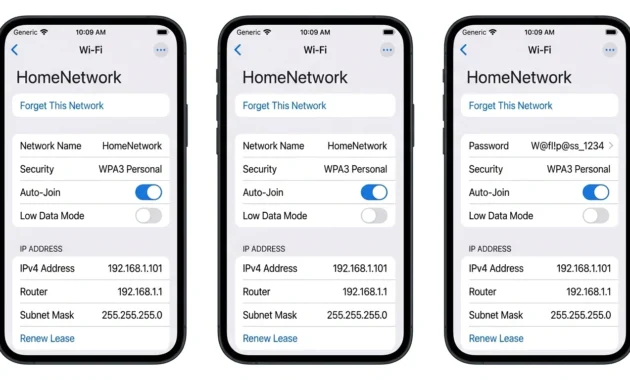
Now you’re in the network details screen. You’ll see the password field. It shows dots instead of the actual password. Tap that password field. Your phone prompts you to verify with Face ID, Touch ID, or your passcode. Complete whichever authentication method your phone uses.
The password displays in plain text. That’s it.
The authentication step exists for security. It prevents someone who temporarily grabs your unlocked phone from casually viewing all your passwords. You don’t need authentication to connect to WiFi. You only need it to see the password itself. That’s by design.
If your iPhone screen looks slightly different from the steps above, you can double-check them on Apple’s official support page, which covers finding saved Wi-Fi passwords on iPhone and iPad.
On iOS 16 or later, tap the Password field and verify to reveal it.
View Your Currently Connected Network Password
If you only need the password for the network you’re using right now, this is your fastest path.
Settings → Wi-Fi → info icon next to the connected network → tap Password field → authenticate → password shows.
Most people need this version. They forgot their password or need to give it to someone visiting.
Find Passwords for Previously Connected Networks
Maybe you want the password for a network you used once at your parents’ house or a previous job. You can find those too.
Settings → Wi-Fi. Scroll down if needed. Tap Edit in the top right corner. This shows all networks your iPhone remembers, including ones you’re not currently connected to. Tap the info icon next to any network. Same steps as above: tap Password, verify, view.
This is useful if you’re trying to reconnect to a network after traveling or if you need a password for a network that’s offline right now.
iOS 18 Update: Generate QR Codes from Passwords App
iOS 18 added something new. You can now go to Settings → Passwords → Wi-Fi Networks and see all your saved WiFi networks there. You can even generate a QR code for any of them directly from the Passwords app, not just the currently connected network.
This is convenient if you need to share multiple WiFi passwords or want everything centralized in one place.
Older Phone? iOS 15 & Android 9 Workarounds
Not everyone has a brand new phone. Some phones from 2018 and 2019 can’t use the methods above. If you tried the steps and they didn’t work, your device is probably older than the features I described.
Android 9 and below don’t have native viewing. That’s why thousands of people search for this and can’t find an answer. They follow a guide written for Android 10 and nothing matches their phone.
iPhone iOS 15 and below can’t view plain text passwords. Apple didn’t add this feature until iOS 16. If you have an older iPhone, you’re stuck.
The good news. You have options that still work. They just require a different approach.
Your Android Is Older Than Version 10? Try These Instead
Check the router sticker first. Most routers have a label on the back or bottom with the WiFi network name and default password printed on it. If you never changed your password from the factory default, that sticker solves your problem immediately.
Log into your router’s admin page. Open a browser and go to 192.168.1.1 or 192.168.0.1. You’ll need the router’s admin username and password (usually admin/admin or admin/password if you never changed it). Once you’re in, look for Wi-Fi settings or network settings. Your WiFi password is stored there and you can view or change it.
Contact your internet service provider. They can reset your WiFi password or email it to you. Takes five minutes on the phone.
I don’t recommend rooting your phone just to see a password. It’s outdated advice and roots your phone’s warranty and exposes you to security risks. The router methods work just fine.
Your iPhone Is Older Than iOS 16? Here’s Your Best Option
If you can’t update to iOS 16, you’re limited. iPhone iOS 11 through 15 can only share WiFi passwords with other Apple devices through proximity sharing. You can’t see the plain text password yourself.
The fallback is the same as Android. Check your router’s sticker. Log into the router admin page. Contact your ISP.
Honestly, if your iPhone is old enough to have iOS 15 or below, it might be time to consider updating. iOS 16 is now three years old and hardware support has moved well past it.
Your WiFi QR Code Contains Your Password in Plain Text (Here’s Why That Matters)
This is the part nobody explains when they show you how to share your WiFi password. The QR code you see in the Share menu doesn’t just contain your network name. It contains your actual password. In plain text. Not encrypted. Not hidden.
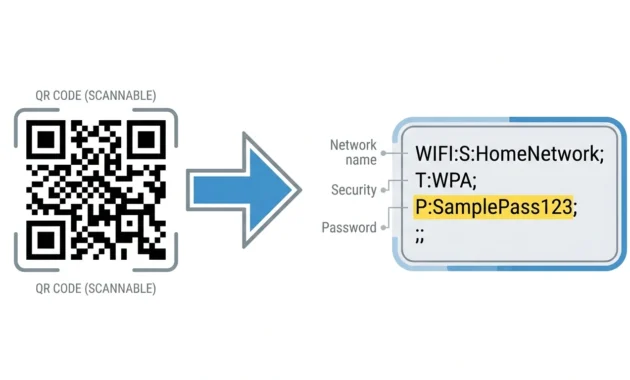
The QR code format is just text encoded as a square pattern. When someone scans it, they’re reading: WIFI:S:YourNetworkName;T:WPA;P:YourPasswordHere;;
That P: field has your actual password sitting right there. Anyone with the QR code can extract it.
A WiFi QR code stores the network name and password as plain text.
This is by design, not a bug. The whole point of QR codes for WiFi is convenience. Your guest points their phone at it and connects instantly. That convenience comes from not hiding the credentials.
The key word is trusted. It’s safe to share the QR code with someone you want to have your WiFi password. A friend visiting for the weekend. A houseguest. Someone who needs to connect at your house.
What’s not safe is posting that QR code on social media or in a public chat group. Once it’s out there, anyone who sees the image can extract your password. I’ve seen people post their WiFi QR codes in community groups thinking they’re being helpful. It’s the digital equivalent of writing your password on a whiteboard at a coffee shop.
How QR Codes Store WiFi Passwords (Technical Explanation)
If you want to understand what’s actually happening, it’s straightforward.
The QR code uses a standard WiFi format called WiFi Easy Connect. When you generate a QR code for your network, it encodes four things: the network name (SSID), the security type (usually WPA2 or WPA3), the password, and the transmit power. All of these are human readable inside the QR code. There’s no encryption layer.
That’s why Google Lens can scan a WiFi QR code and show you the password. It’s just reading the text that’s already there. Nothing is being decrypted.
Google Lens reads the text hidden inside the screenshot of your QR code.
Is It Safe? (Yes, But…)
Yes, it’s safe to scan a QR code that someone shows you. Yes, it’s safe to use QR codes to share with people you know. No, it’s not safe to leave a QR code visible in a public place or share it with strangers.
The password is as vulnerable as the QR code. Treat them the same way.
How to Share Your WiFi Safely
The best practice: Display the QR code temporarily. Have your guest scan it immediately. Then close the share screen. Don’t leave it up while they’re connecting.
For longer term guests: Set up a separate guest network with a different password. Most routers support this. Your actual WiFi password stays protected and guests get their own temporary access.
For multiple people: Don’t blast the QR code everywhere. Show it one person at a time. In person.
Things to never do: Don’t post it online. Don’t email it to a group. Don’t leave it printed somewhere. Don’t show it to someone you don’t trust completely.
How to View WiFi Password Without QR Code Display (Google Lens Method)
Some older Android devices show a QR code in the Share menu but don’t display the password text below it. If that’s what you see, Google Lens solves it.
The QR code is just text in disguise. Google Lens reads that text and shows it to you. It takes two minutes.
Step-by-Step: Screenshot QR Code
When you see the QR code on your share screen, take a screenshot. Most Android phones use Power button + Volume Down at the same time. Hold for a second and it captures. The screenshot saves to your Photos or Gallery app automatically.
You now have the QR code saved as an image file.
Step-by-Step: Scan with Google Lens
Open Google Photos or the Google Lens app directly. If using Google Photos, open the screenshot you just took and tap the Lens icon. If using Google Lens app, tap the gallery icon and select the screenshot.
Google Lens scans the image and shows you what’s encoded in the QR code. You’ll see the network name, security type, and password all displayed as text.
Find the line that says P: followed by your password. That’s the one you need. Write it down or copy it.
This works whether your phone is Android or iPhone. Google Lens is available on both.
The reason this method exists is because some manufacturers’ custom interfaces only show the QR code without the convenience of displaying the password text. Google Lens reads what’s already encoded there.
Can’t View on Phone? Check Your Router Instead (4 Methods)
If no device in your house is connected to WiFi anymore, you can’t use phone methods. But the password isn’t gone. It’s stored on your router. You just need to access it differently.
Method 1: Check the Physical Router Label
Look at the back, bottom, or sides of your router. There’s a sticker printed on it somewhere. That sticker has your network name and password right on it. Most people never look at this.
The password on the sticker is the default one from the factory. If you never changed it, this is your current WiFi password. If you did change it at some point, the sticker shows the old default, not your new one.
This is honestly my first check whenever someone needs a forgotten password. Seventy percent of the time, they find it right there without doing anything technical.
Method 2: Log Into Router Admin Page (192.168.1.1)
Your router has its own settings page that you can access from any connected device. You need to know the router’s admin username and password (not your WiFi password, the admin password).
A login page appears. Most routers use admin as the username and either admin or password as the password if you never changed them. If that doesn’t work, check the router’s sticker for the default credentials.
Once you’re logged in, look for Wireless, Wi-Fi Settings, Network, or Security. The exact name varies by brand. Your WiFi network name and password are displayed there. You can view the current password or change it if needed.
This method works even if every single device lost the WiFi connection. As long as you have one device connected by ethernet or to a different network, you can access the admin page and retrieve it.
Method 3: Contact Your Internet Service Provider (ISP)
Your internet company has records of your WiFi setup. Call their customer service or chat with them online. They can usually email your WiFi password to you after verifying your account.
This takes longer but it works and requires zero technical knowledge. They’ll verify your address and account, then send the password. Takes about fifteen minutes total.
Method 4: Factory Reset Router (Last Resort Only)
I mention this last because it comes with a major warning. Factory resetting your router erases all your settings and custom configurations. Your WiFi password gets reset to the factory default. You lose any port forwarding, custom DNS settings, parental controls, everything.
Only do this if you literally have no other option and you’re prepared to reconfigure your entire network from scratch.
To factory reset, hold the small reset button on the back of your router for ten to fifteen seconds. The lights blink and it restarts. Once it boots up, the WiFi password is the default one printed on the sticker.
You then need to log back in to the admin page and set everything up the way it was before. Unless you took notes, you’ll be reconfiguring from memory.
Don’t do this as your first option. Try the label, the admin page, or calling your ISP first. This is the nuclear option.
Can You Share WiFi from iPhone to Android? (And How to Actually Do It)
Here’s a frustration I hear constantly. Someone has an iPhone and tries to share their WiFi with an Android user sitting right next to them. They expect a pop-up to appear on the Android phone just like it does between iPhones. It doesn’t. The Android phone sees nothing.
That’s because Apple’s WiFi sharing only works between Apple devices. It’s by design, not a limitation.
iPhone proximity sharing was introduced in iOS 11 back in 2017. It works seamlessly between any two Apple devices. The original device asks permission to share, the other device accepts instantly, and everyone is connected. It’s beautiful when both people have iPhones.
But if one person has an Android phone, that system doesn’t work. Apple and Android don’t have a shared standard for this kind of proximity handoff.
The good news. You can absolutely share WiFi from iPhone to Android. You just use a different method.
Why iPhone Proximity Sharing Doesn’t Work with Android
Apple’s proximity pop-up uses Bluetooth to identify nearby Apple devices and create a secure handoff. It only recognizes other iPhones, iPads, and Macs. Android devices don’t speak the same Bluetooth language for this specific feature.
There’s nothing wrong with Android’s side. It’s that Apple’s system was built specifically for Apple ecosystems. They could make it work with Android, but they chose not to.
It’s frustrating for users who have mixed device households. But there are actual workarounds.
Method 1: Use the QR Code Instead
The simplest solution. Have the iPhone user open Settings, go to Wi-Fi, tap the info icon, tap the password to see it, or use the Share function to generate a QR code.
Have the Android user point their camera or open Google Lens and scan the QR code. Their phone automatically connects.
This takes thirty seconds and requires no passwords written down or manually typed. Both devices connect in seconds.
This is what I recommend first. It’s faster and cleaner than typing passwords.
Method 2: Manual Entry (Password Written Down)
The old fashioned way. iPhone user tells Android user the password out loud or types it for them to copy. Android user manually enters it in their WiFi settings.
This works but watch for look-alike characters. Zero and the letter O look the same. The number one and lowercase L and uppercase I all look identical in some fonts. If someone mistype by one character, they’ll get authentication failed.
Say each character carefully when spelling it out loud. “That’s the number one, not letter L. That’s the letter O, not zero.”
Method 3: iOS 17+ Shortcuts App (Generate QR Code)
If you’re on iOS 17 or newer, Apple’s Shortcuts app can generate WiFi QR codes that Android phones can scan. You can even create a custom Shortcut that generates the code instantly with one tap.
This is a bit more technical than just using the native Share function. But it works.
Open Shortcuts app. Create a new Shortcut. Search for WiFi sharing and add the action. Customize it for your network. Save it.
Now whenever you need to share with Android, open Shortcuts, tap your custom WiFi sharing shortcut, and it generates the QR code immediately.
Most people don’t need this level of automation. The built-in Share method is simpler. But if you’re sharing with Android users constantly, the Shortcut streamlines it.
Why Isn’t It Working? Troubleshooting Common Issues
You followed the steps and nothing happened. The option doesn’t show up. The password displays but looks wrong. Something’s not working the way it should.
You’re looking in the right menu but the option you’re looking for doesn’t exist.
First, confirm what device and OS version you have. Go to Settings → About (or Device Info on some phones) and check. Android 9 and below don’t have native viewing. iOS 15 and below don’t have native viewing. If that’s what you have, skip to the Router section earlier in this guide.
Second, confirm you’re in the right submenu. The menu is called Wi-Fi, Internet, Connections, Network & Internet, or Wi-Fi Networks depending on your brand. It’s not in General Settings or Display or any other section.
Third, look for the exact icon or text. On Samsung it’s called Connections, not Network & Internet. On Pixel it’s Network & Internet, not Connections. Read the label carefully.
If you still can’t find it after checking your device type and OS version and following the right path, something is genuinely different about your device. Check the brand-specific section earlier in this article or search for “[your phone brand] view saved WiFi password” with your actual model name.
Problem 2: “Authentication Failed” (Fingerprint/Face ID Didn’t Work)
You tapped the password field and your phone asked you to verify, but your authentication didn’t work.
The most common reasons: Your finger is too wet or dry, you’re not holding it at the right angle, your face isn’t in good lighting, or you entered your PIN wrong.
Try again. Dry your finger completely if it’s damp. Make sure your face is fully visible to the camera in good lighting. Enter your PIN slowly and carefully.
If it still fails, you can usually try a different authentication method. Most phones let you switch between fingerprint, face, and PIN on the fly.
If nothing works, your device might have an issue with the authentication hardware. This is rare but happens. You might need to visit a repair shop.
Problem 3: “The QR Code Won’t Scan”
You generated a QR code and tried to scan it but nothing happened.
Make sure the QR code is fully visible on your screen. Some phones crop it slightly at the edges. Tap the screen to make sure the full QR is showing.
Hold the scanning device steady. A moving camera struggles to read QR codes. Keep it pointed at the code for two to three seconds without moving.
Check the lighting. QR codes need decent light to scan. If you’re in a dark room, move to a brighter area.
If using Google Lens to scan a screenshot, make sure you cropped the image so the entire QR code is visible. Google Lens sometimes focuses only on the internal pattern. Expand the crop area to include the full square border.
Try zooming out slightly on the camera. If you’re too close to the QR code, it might be too large for the camera to process.
Problem 4: “My Phone Is Too Old”
Your device is Android 9 or older, or iOS 15 or older. These don’t have the native password viewing feature.
Go to the router methods in Section 8. Check the physical label first. That’s your fastest answer.
If you want to update to a device that supports this, Android 10 and iOS 16 are now several years old. Finding a used phone from 2019 onward costs next to nothing. Honestly that might be worth considering if you’re still on a 2018 or older device.
Frequently Asked Questions
Can I view my WiFi password on iPhone?
Yes, if you have iOS 16 or newer. Go to Settings → Wi-Fi → tap the info icon next to your network → tap Password field → verify with Face ID, Touch ID, or passcode → password displays. If you have iOS 15 or older, this feature doesn’t exist in your iPhone. Use the router methods instead.
Do I need to root my Android phone to see the password?
No. This is outdated information. Android 10 and newer have this built-in. If you’re on Android 9 or older, you can’t view passwords natively. But you don’t need root. Just use your router label or router admin page instead.
Is it safe to share my WiFi QR code?
Safely, yes. The QR code contains your password in plain text. Only display it to people you trust. Have them scan it immediately, then close the screen. Never post it online, email it to groups, or leave it visible in public places. Anyone who sees the code can extract your password.
Why does my phone ask for fingerprint/Face ID to show the password?
That’s a security feature. It prevents someone who grabs your unlocked phone from casually viewing all your saved passwords. You only need authentication to see the password itself, not to use the WiFi. It’s by design and it’s a good thing.
Can I share my WiFi password from iPhone to Android?
Not through the proximity pop-up. That’s Apple-only. But yes using QR code or manual entry. Have the iPhone user generate a QR code (Settings → Wi-Fi → info icon → Share) and have the Android user scan it with their camera or Google Lens. They connect instantly.
What if I completely forgot my password and no device is connected?
Check your router’s physical label. It has your network name and password printed on it. If you changed the password since setup, log into the router’s admin page at 192.168.1.1, contact your ISP, or as a last resort, factory reset the router. Each option is explained fully in Section 8.
The Bottom Line: You Now Know How to Check Your WiFi Password
Here’s what matters. Modern phones have this built in. No apps. No root. No technical knowledge required. If your phone was made in the last four to five years, you have everything you need right now.
Android 10 and newer. iOS 16 and newer. Just go to your WiFi settings, tap the network, and either scan a QR code or view the password directly.
Older devices need the router fallback. But most people’s phones are new enough that the phone method works instantly.
Don’t reset your router. Don’t download apps. Don’t think you’re locked out. The password is in your phone already. This guide showed you exactly where to find it.