
Stop and Check These Two Spots Before You Panic
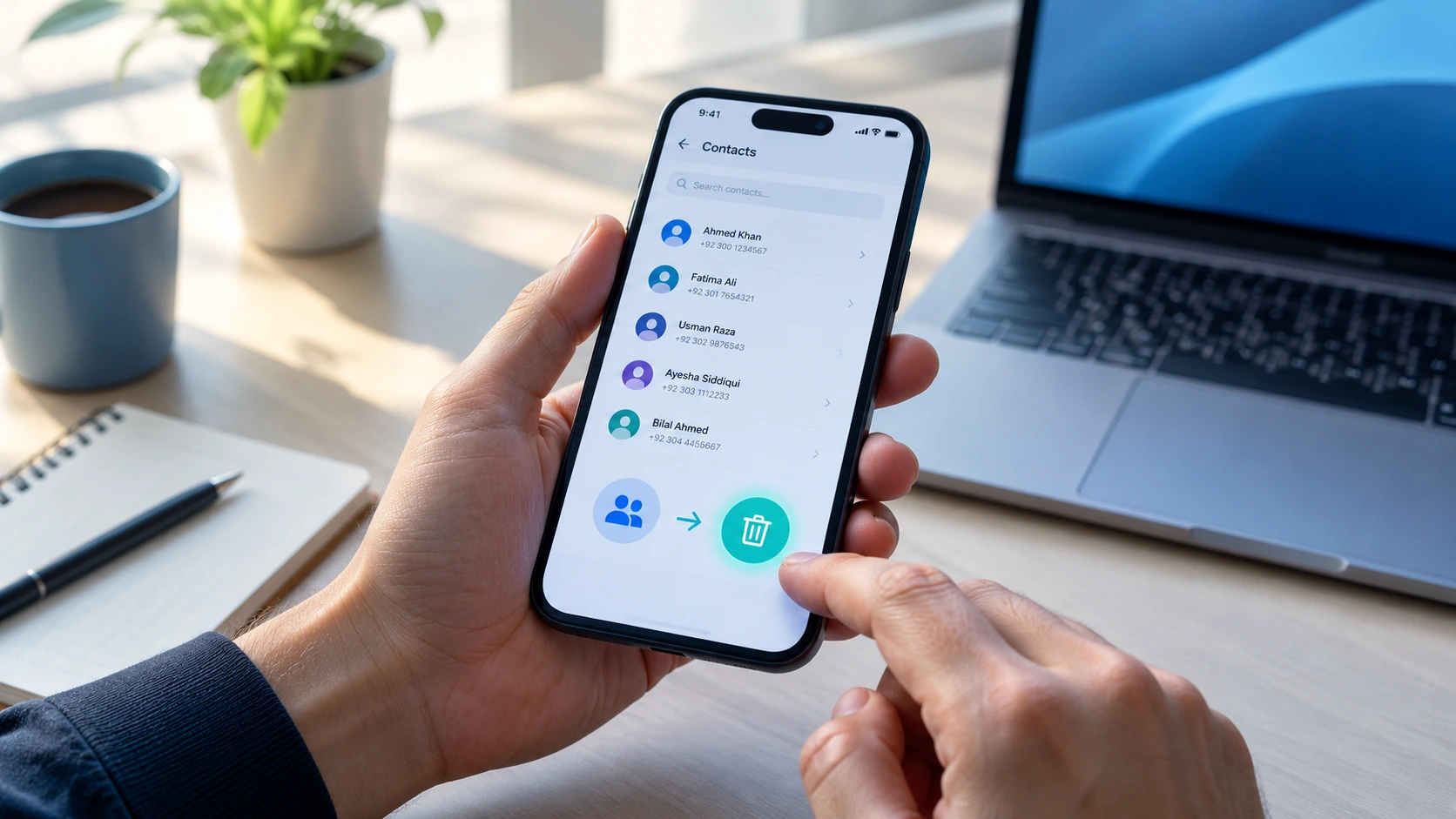
I’ve been through this exact panic moment myself. You open your contacts app expecting to call someone, and half your list is just gone. Maybe it’s one important number. Maybe it’s your entire address book. Either way, that sinking feeling hits the same way.
Here’s the short answer, and I’ll explain the reasoning behind it in a second. Check your phone’s built-in trash first, then check your Google Account’s trash. Deleted contacts usually sit in one of these two spots for a while before they’re gone for good, and most people only think to check one of them.
But before you touch anything else, stop using your phone normally. I know that sounds dramatic for something as small as a missing contact list. It isn’t.
When you delete a contact, it doesn’t vanish from your phone’s storage the instant you tap delete. The space it occupied just gets marked as available for something new. The actual data often sits there untouched for a while, which is the entire reason recovery is even possible in the first place. If you keep using your phone normally, taking photos, installing apps, backing up other files, and downloading updates, you risk writing new information right over the spot where your old contact data is still physically sitting.
This is the mistake I see people make constantly, and it’s an easy one to fall into without realizing it. They notice contacts are missing, feel a brief wave of frustration, shrug it off, and keep using their phone for hours or even days before trying to fix anything. By the time they finally sit down to recover their contacts, the window has often already closed in practice, even though the official deadline hadn’t technically passed yet.
Most platforms, whether that’s Google, Samsung, or Apple, give you roughly a month to recover deleted contacts before the system wipes them permanently from the trash. That number matters less than people think. What actually matters is how quickly you act within that window, not how close you cut it to the deadline.
So pause for a second. Put your phone down if you genuinely can, or at least avoid installing anything new or doing a big backup right this moment. Resist the urge to immediately download a recovery app, either, since even that installation writes new data to your device.
Once you’ve done that, move on to the next part. Because where your contacts actually went, and why there might be two completely different places to look, might genuinely surprise you.
One more thing worth mentioning here. If you’re reading this because someone else’s contacts disappeared, maybe a parent, a grandparent, or a less tech-comfortable family member, the same advice applies. Get their phone away from heavy use first, then start the recovery process calmly rather than rushing through it under pressure.
Where Deleted Contacts Actually Go (It’s Not Just One Place)
Here’s something nobody explains clearly enough, and it’s the single biggest source of confusion I run into when people ask me about this. Your deleted contacts don’t go to one single trash can sitting somewhere obvious. They can actually go to two completely different places, depending entirely on how your phone and your account are set up.
Think of it like having two separate filing cabinets in two separate rooms. Your phone has its own local contacts app, and that app has its own recycle bin living right there on the device. Separately, if your contacts are synced to your Google account, that account maintains its own trash too, completely independent from whatever is happening on your physical device.
This separation is exactly why checking only one spot and giving up feels like such a reasonable thing to do, but it’s actually a mistake. I’ve watched people search their phone’s recycle bin, find absolutely nothing there, and assume their contact is gone forever. Meanwhile, that same contact is sitting untouched in their Google Account’s bin the entire time, waiting patiently to be recovered with a single tap.
Why does this split even exist? Because contact deletion isn’t instant at the storage level, on either system. Deleted data gets marked as recoverable rather than being erased immediately, and that’s true on your device and in your cloud account, but as two separate processes running independently of each other. Each system keeps its own temporary record of what you removed and when you removed it.
There’s a practical reason this matters beyond just understanding the technology. If you’ve only checked one location so far, that’s almost certainly your next move, and it might solve the entire problem in under a minute. Don’t assume contacts are permanently gone just because they weren’t sitting where you first looked for them.
I’d also add this. Some phone brands layer in a third location entirely, their own manufacturer-specific cloud backup, which I’ll get into later for Samsung users specifically. So depending on your exact setup, you might have two places to check, or occasionally three.
The next section walks through exactly where to find both the device level bin and the account level bin on an Android phone, step by step, with the specific menu names you’ll actually see on screen.
How to Get Deleted Contacts Back on Android
If you’re on Android, you actually have four distinct ways to get a deleted contact back, and I want to walk through every single one. The right method for you depends partly on what you have access to right now, and partly on which bin your contact actually ended up in.
I’d recommend trying these roughly in the order I’ve listed them, since the first one is usually the fastest, but don’t be afraid to skip ahead if one doesn’t apply to your situation.
On Your Phone’s Contacts App
Open your Contacts app directly on your device. Look for either a three-dot menu in a corner of the screen or a hamburger icon made up of three horizontal lines, depending on your phone’s brand and the version of Android you’re running.
Tap that icon and look for an option labeled Recycle Bin. Some manufacturers label this slightly differently; sometimes it shows up as Trash, sometimes as just Bin, but it functions exactly the same way regardless of the wording.
Once you’re inside, long-press on the specific contact you want back. A small menu should appear with a Restore option. Tap it, confirm the action if prompted, and the contact should return to your main list almost immediately.
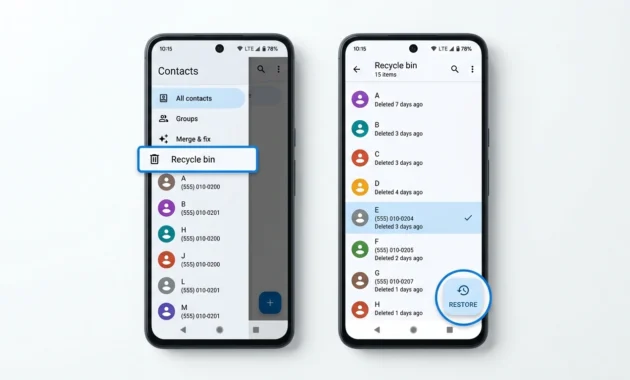
And here’s a detail that genuinely saves time if you’ve lost several contacts at once rather than just one. Look for a Restore All option inside that same bin screen. This lets you select everything sitting in the bin and bring it all back in a single action, instead of restoring contacts one at a time, which gets tedious fast if you’re dealing with a bigger loss.
Through Your Gmail App
If the local recycle bin on your device doesn’t have what you’re looking for, or if it’s empty entirely, try this route next. Open your Gmail app and tap your profile icon, usually a small circle, in the top right corner of the screen.
From the menu that appears, select Manage your Google Account. This takes you into a broader settings area tied to your account rather than just your phone.
Once there, swipe right across the top menu tabs until you land on People & sharing. Tap it, then look for Contacts within that section.
Find the hamburger icon again, this time in the top left corner of this screen, and select Bin. On newer versions you might see this labeled as Fix & Manage, followed by a separate option for Trash, depending on how recently your Contacts app has been updated. Select the specific contact you need back, tap Recover, and confirm the restoration.
Through Your Phone’s Settings
Don’t have the Gmail app installed, or do you just prefer going through your phone’s main settings menu? You’ll end up in the exact same place either way.
Go to Settings, scroll down until you find Google, and then tap Manage your Google Account. From here the steps are identical to the Gmail app method. Swipe over to People & Sharing, tap Contacts, find the menu icon, select Bin, and recover whatever you need.
I mention this separately because plenty of people don’t realize both paths lead to the same destination. If one route feels more familiar or more accessible on your specific phone, use that one. There’s no wrong choice here.
From a Computer (No Phone Needed)
This one genuinely surprises people every time I explain it. You don’t actually need your phone at all to recover deleted contacts, as long as you know your Google Account login.
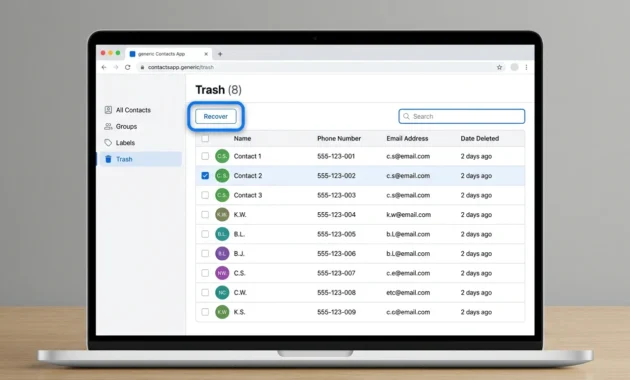
Open any web browser on any device, a laptop, a desktop, even a tablet, and go to contacts.google.com. Make sure you’re signed into the correct Gmail account, since syncing issues between accounts cause their own headaches if you’re not careful here.
Click Trash or Bin in the left hand panel of the page. Select the deleted contacts you want back, either individually or all at once, and click Recover near the top of the screen.
I’d specifically recommend this method if your phone is lost, broken, sitting in a repair shop, or just not nearby when you realize you need to fix this. It works from essentially any device with an internet connection, which makes it the most flexible option out of all four.
A small tip while I’m here. If you’re on a work computer or a shared family computer, double-check which Google Account is actually signed in before you start clicking around. I’ve seen people spend ten frustrated minutes searching an empty trash bin, only to realize they were logged into the wrong account the entire time.
The “Undo Changes” Trick Almost Nobody Uses
There’s a feature buried inside Google Contacts that almost nobody talks about, and honestly, that’s a shame because it’s genuinely useful in situations the regular trash bin can’t fully solve. It’s called Undo Changes, and it lives directly inside the Google Contacts app itself rather than in your phone’s general settings.
Here’s how to get to it. Open the Google Contacts app, tap Fix & Manage near the bottom of the screen, then head into Settings from there. Scroll down until you spot Undo Changes.
Pick the specific Gmail account your contacts are backed up to, assuming you have more than one linked to your device.
Now comes the interesting part. You choose a time frame to roll back to. Your options typically include 10 minutes ago, 1 hour ago, yesterday, one week ago, or a custom date you set yourself, as long as it falls within the standard recovery window most platforms use. Once you’ve picked your time frame, tap Confirm.
Here’s the part that matters more than the steps themselves, and it’s the part I really want you to sit with for a second before you use this feature. Undo Changes doesn’t just quietly bring back the one contact you deleted by accident. It rolls your entire contact list back to exactly how it looked at that chosen moment in time, as a complete snapshot.
That means any contacts you’ve added since that point, new coworkers, a number you just got from a new client, anyone you’ve saved in the past week, get wiped out as a side effect of the rollback.
Not deleted on purpose. Just gone, quietly, because the system is restoring everything to match that earlier moment exactly.
This is the mistake I warn people about more than almost anything else in this entire process, because the name itself is so misleading. “Undo Changes” sounds like it just reverses one small, specific thing you did wrong. It sounds targeted and safe.
It doesn’t work that way at all. Before you use this feature, I’d strongly suggest jotting down, screenshotting, or exporting any contacts you’ve added recently, just as a precaution. That way, even if the rollback wipes them out temporarily, you’ve got a record and can re-add them afterward without losing anything permanently.
Once you understand what it’s actually doing under the hood, Undo Changes becomes a genuinely powerful tool rather than a risky guess. It’s especially useful if multiple contacts went missing around the same general time, rather than just one isolated deletion, since it fixes everything from that point at once instead of forcing you to restore contacts individually.
Getting Deleted Contacts Back on an iPhone
Let me correct something right away, because it trips up more people than anything else on this entire topic. Your iPhone does not have a Recently Deleted folder for contacts.
I know that sounds confusing, and honestly, I understand exactly why. Messages has a Recently Deleted folder. Notes has one too. Photos definitely has one, and most people have used it at some point to recover an accidentally deleted picture. Contacts, for reasons that genuinely baffle me a little, works completely differently from all of those.
Why There’s No “Recently Deleted” Folder for Contacts
Apple doesn’t keep a per contact trash bin the way Google does on Android. Instead, iCloud quietly keeps archived snapshots of your entire contact list from different points in time, almost like save points in a video game. There’s no individual bin you can scroll through to pick one specific contact back out of a list of recently deleted ones.
This single structural difference trips up more people than anything else in this whole process, and I genuinely don’t blame anyone for getting stuck here. They go looking for a trash folder that simply doesn’t exist on iPhone for contacts specifically, click around in frustration for a while, and eventually assume something on their phone is broken or that the feature has been removed.
It hasn’t been removed. It was just never built that way in the first place.
Restoring From iCloud (and What You’ll Lose If You Do)
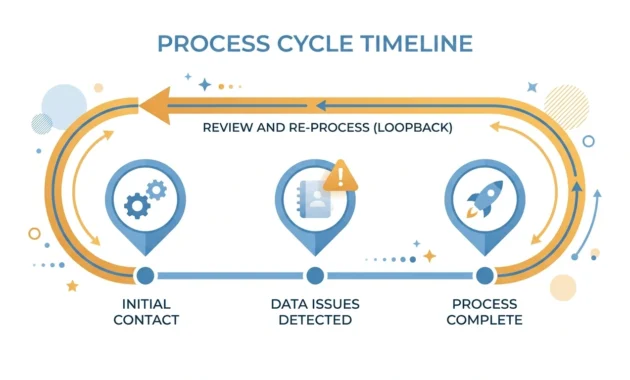
To actually get your contacts back on iPhone, you’ll need to use iCloud’s Data Recovery tool, which you access through a web browser at iCloud.com rather than from an app on your phone itself. From there, you can browse through archived versions of your contact list and choose one to restore.
Here’s the warning that matters more than any of the actual steps. This restoration replaces your entire current contact list, on every single device signed into that Apple Account, not just the specific phone you happen to be using at the moment. It isn’t selective in any way, shape, or form.
If you’ve added new contacts since the archive date you choose to restore from, those new contacts will disappear once the restore finishes processing. Every single one of them, gone, the moment you confirm that restore.
My advice here is simple, and I’d really encourage you to actually follow it rather than skip this step out of impatience. Before you restore anything from iCloud, export your current contact list first if you possibly can. That way you’ve got a backup copy of your newer contacts sitting safely elsewhere, even if the restore process temporarily wipes them from your active list.
The good news, and there genuinely is some here, is that this whole process has gotten noticeably less painful over the past several years. It used to require wiping your entire device completely just to pull off a contact restore from an iCloud archive. That’s no longer the case, which is a meaningful improvement if you’ve read older advice online that still insists on a full reset.
How to Get Contacts Back on iPhone If You Have a Recent Backup
If you regularly back up your iPhone through iCloud or through a computer using Finder or iTunes, there’s actually a more targeted option worth considering before you go the full archive restoration route. Restoring your entire phone from a recent backup brings everything back, contacts included, exactly as it was at that backup’s timestamp.
This approach makes the most sense if the contact loss happened recently and your last backup was taken close to that same time. The closer your backup date is to when you lost the contacts, the less you’ll lose in terms of anything added afterward.
I’d personally reserve a full phone restore for situations where the iCloud archive approach specifically failed, since restoring an entire device is a bigger undertaking than just pulling a contact archive.
What If You Gave Away, Reset, or Switched Phones?
Here’s a scenario that catches people completely off guard, and I’ve watched it play out almost exactly this way more than once. Someone gets a brand new phone, and in the excitement of switching over, hands their old phone to a friend or family member without properly signing out of their Google Account first.
The new owner starts using the old phone like it’s their own. They see a bunch of contacts that mean nothing to them, people they’ve never met, numbers they don’t recognize, and start deleting things to clean it up. Perfectly reasonable from their perspective.
Except here’s the part that nobody expects. Because that Google Account is still actively synced across every device tied to it, those deletions ripple across the entire account. The original owner’s brand new phone, a device that was never even touched during this whole process, suddenly loses those same contacts too.
This is account sync working exactly as it was designed to work, just in a way absolutely nobody anticipates when it happens to them. Since contacts live on the Google Account itself rather than being tied strictly to one physical device, any change made from any device signed into that account shows up everywhere else using that same login.
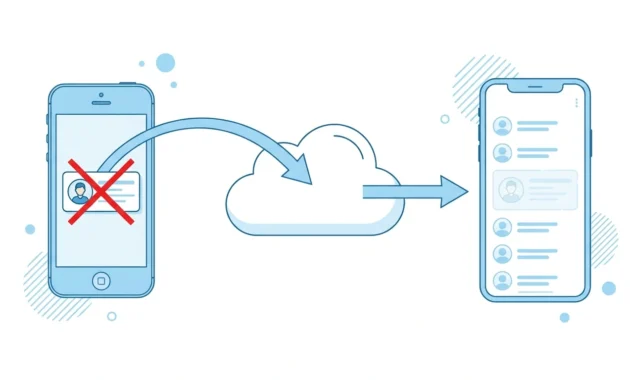
If this has happened to you, or to someone you’re helping out, the good news is the fix is identical to the regular Android recovery steps I covered earlier. Go to Fix & Manage, find Trash, and recover whatever you need from there using the same process.
The real lesson buried in this whole scenario is really about prevention rather than recovery. Always sign out of your Google Account completely before handing a phone to someone else, selling it, trading it in, or recycling it through any program. It takes maybe thirty seconds to do properly, and it saves you an entire headache down the road that could affect devices you’re not even using at the time.
I’d also mention this while we’re on the topic. If you’re the person receiving a used phone from someone else, and you notice it’s still logged into their account, do them a favor and let them know, or at minimum sign it out yourself before making any changes to the contact list. A small courtesy like that genuinely prevents this exact mess.
Samsung Owners, Don’t Forget This Second Backup
If you’re using a Samsung phone specifically, there’s a backup option that gets overlooked constantly, and it’s worth a dedicated section of its own because of how useful it can be. Samsung runs its own separate cloud service, completely independent from whatever your Google Account is doing.
Most people assume Google Contacts is their only real safety net here. It isn’t, if you own a Samsung device, and treating it as your only option means missing out on an extra layer of protection that’s already built into your phone.
Samsung Cloud offers a temporary backup feature specifically designed for situations like device repairs, factory resets, or switching to a new Samsung phone. It can hold your contacts, along with other data, for a decent stretch of time without the usual storage restrictions you’d run into with standard cloud storage limits. If Samsung backup was active and turned on before you lost your contacts, this is absolutely worth checking before you assume everything is gone.
Check your Samsung Cloud settings directly, which you’ll find separately from anything happening inside the standard Contacts app itself. It usually lives under your phone’s main Settings menu, under Accounts and Backup.
Having both Google sync and Samsung Cloud active at the same time gives you two genuinely independent safety nets rather than relying on just one single point of failure. If one system fails you for whatever reason, a sync glitch, an account issue, anything like that, the other one might still have what you need sitting there untouched.
One practical note here. If you ever switch away from a Samsung device to a different Android brand entirely, your Samsung Cloud backups won’t follow you to the new phone. Google Contacts, on the other hand, travels with you regardless of which brand you’re using. Keep that in mind if a brand switch is somewhere in your future, and see our guide on how to transfer contacts to a new phone.
Recovering Contacts in Outlook (and Other Apps)
If your contacts live inside Outlook rather than directly on your phone, the recovery process looks noticeably different from everything covered so far, and there’s a hidden layer here that most people genuinely never discover, even after using Outlook for years.
Start with the obvious spot, since it solves the problem most of the time on its own. Open People within Outlook and look for the Deleted folder. Contacts you removed recently usually show up here first, and restoring from this folder is about as straightforward as it gets. Select the contact, choose Restore, and you’re done.
The Hidden Folder Most Outlook Users Never Check
But what happens if the Deleted folder is already empty, or the specific contact you need just isn’t sitting there? Most people stop right at this point and assume the contact is gone for good, with no further options left to try.
It’s not necessarily gone, though. Outlook maintains a secondary, hidden folder called Recoverable Items. Contacts end up in this folder after they’ve been removed from the Deleted Items folder itself, whether that happened because someone permanently deleted them directly, or because the Deleted Items folder was emptied entirely at some point.
This folder isn’t something Outlook displays by default in the normal, everyday interface you’re used to looking at. You’ll need to specifically look for an option labeled something like Recover Deleted Items From Server, which surfaces this hidden layer and makes it accessible. It’s genuinely the last real chance to get a contact back before it’s truly, permanently gone from the system.
I’d mention this folder to anyone using Outlook professionally especially. Work related contact losses tend to carry more urgency, and knowing this hidden option exists before you actually need it can save a genuinely stressful moment later.
If You’ve Imported Contacts From a File Before
One more avenue worth checking if you’re an Outlook user. If you’ve ever exported your contacts to a PST file or a similar backup file in the past, even an old one, you can import that file back in and recover whatever was saved at that point. It won’t capture anything added after that backup was made, but it’s a solid fallback if both the Deleted Items folder and Recoverable Items folder come up empty.
No Backup, No Sync? Here’s What Still Might Work
I want to be completely honest with you in this section, rather than giving you false hope or writing the whole situation off as hopeless. Neither extreme would be accurate, and you deserve a straight answer here.
Check Your SIM Card First
If you’ve had your current phone number for a while, or if you recently transferred a SIM card from an older phone, there’s a decent chance some older contacts are still saved directly to the SIM card itself rather than to your account or your device storage.
SIM cards hold a fairly limited number of basic contacts, just names and phone numbers, nothing fancy like photos or email addresses attached. But it’s absolutely worth checking before you move on to anything more complicated or time consuming. Most phones let you view and import SIM contacts directly through the Contacts app settings, usually under an option labeled something like Import or Manage SIM Contacts.
Should You Try Third-Party Recovery Software?
If there’s genuinely no backup anywhere and no account sync to fall back on, specialized recovery software can sometimes pull contact data directly from your device’s internal storage, even without any formal backup existing. I won’t pretend this always works, because it doesn’t.
Results here are inconsistent at best. Independent testing on tools like this shows a fairly wide range of success rates depending on the specific software used, your specific phone, and most importantly, how much you’ve used the device since the contacts went missing. So please don’t expect guaranteed results from any single option you find online, no matter how confident the marketing sounds.
Here’s where I’d genuinely be careful, and this is the part I think matters most in this entire section. A lot of free recovery apps request permissions that have absolutely nothing to do with recovering contacts. Camera access. Microphone access. The ability to display content over other apps on your screen. None of that is remotely necessary just to scan your device for deleted contact data.
If an app you’re considering asks for permissions like that during installation, treat it as a genuine red flag and walk away from it. If you’ve already installed one, here’s how to delete apps on Android. Stick with established, reputable tools that have a real track record, rather than grabbing the first free option that shows up in a search result. And if you can run the recovery scan from a computer rather than installing anything directly on the affected phone how to connect your phone to a laptop, that’s always the safer path, since it avoids writing any new data to the exact device you’re trying to recover from.
What About Asking People Who Have Your Number Saved?
This one’s low tech, but it works more often than people expect, especially for important contacts. If you’ve lost a specific number for someone you talk to regularly, there’s a reasonable chance a mutual friend, family member, or coworker has that same contact saved on their own phone. A quick message asking someone to send over a contact card can solve the problem in minutes, with zero risk and zero technical steps involved.
Can You Recover Contacts After the 30-Day Window Closes?
This question comes up constantly, and I think the honest answer sits somewhere between a clean yes and a clean no, which isn’t the satisfying answer most people are hoping for.
Once the standard recovery window has passed, your official recovery options through the platform itself, the trash, the bin, the Undo Changes feature, are genuinely gone. That part is true, and no amount of searching through menus will bring those options back once the deadline passes.
But here’s the nuance that matters. “Permanently deleted” doesn’t automatically mean the data has been physically erased from your device’s storage at that exact moment. Deleted information can actually persist in parts of your device’s storage structure well after it’s no longer visible anywhere in any app, right up until something else gets written directly over that exact physical spot on the storage.
That’s a technical detail, not a promise, and I want to be clear about that distinction. It explains why specialized recovery software sometimes manages to pull back contacts even past the official deadline, and why it sometimes comes up completely empty despite your best efforts. It depends almost entirely on how much the device has been used since the deletion happened, not on some fixed calendar date.
Waiting until day twenty nine of a thirty day window because it feels like plenty of time is the exact mistake I’d steer you away from. The real practical deadline is usually much earlier than the official stated one, especially if you’re using your phone normally the entire time without any awareness of the risk.
So if you’re reading this well past any official window and wondering whether it’s worth even trying, my honest take is this. It’s worth a genuine attempt through the no backup methods I covered earlier, but go in with realistic expectations rather than assuming a guaranteed fix is waiting at the end of the process.
Mistakes That Can Make Things Worse
A handful of mistakes come up again and again across every scenario I’ve covered so far, and each one has the potential to turn a perfectly recoverable situation into a permanent, frustrating loss.
Continuing to use your phone normally after noticing contacts are missing tops this list, without question. Every photo taken, every app installed, every message sent afterward risks overwriting the exact data you’re trying to recover, often without you ever realizing it’s happening in the background.
Installing the first free recovery app you stumble across, without checking what permissions it’s actually asking for, is another mistake I see constantly. Grabbing something quickly, running it immediately on your actual affected device, then only noticing afterward that it wanted access to your camera and microphone for no explainable reason.
Using Undo Changes without stopping to think about what it genuinely does causes real, avoidable damage too. It’s an easy trap to fall into, assuming the feature only fixes the one specific problem you’re dealing with right now. It doesn’t work that way. It rolls your entire contact list back to a chosen point in time, newer additions included, whether you wanted those included or not.
Restoring from iCloud without backing up your current contacts first follows this exact same destructive pattern. One well intentioned recovery action ends up accidentally wiping out contacts you never meant to touch in the first place, simply because the restoration process doesn’t work selectively.
And giving up after checking just one single location, whether that’s only the device bin, or only the Google Account bin, or only the Deleted Items folder in Outlook without ever discovering Recoverable Items, means missing a recovery option that might have solved everything in under a minute.
What ties all of these mistakes together, if I’m being honest? Panic leads directly to rushed decisions, and rushed decisions usually make the actual underlying problem noticeably worse rather than better. Slow down. Check every relevant bin location before assuming contacts are truly, permanently gone. And back up whatever you currently have before attempting anything that involves a rollback feature or a full restore process.
Back Up Your Contacts So This Never Happens Again
I’ll leave you with this, because genuinely, prevention here is so much simpler than recovery ever is, and it takes almost no time to set up properly.
Relying on just one single backup method isn’t enough, not really. Combine automatic cloud sync, whether that’s Google Contacts on Android or iCloud on iPhone, with an occasional manual export using a vCard file. A vCard backup works across almost any platform you can think of, which makes it genuinely useful protection if you ever switch phone brands entirely down the road, moving from Android to iPhone or the other way around.
If you own a Samsung device specifically, turn on Samsung Cloud as an extra layer running alongside your regular Google sync. Two genuinely independent backups beat relying on one single point of failure, every single time something goes wrong.
And please, don’t rely on your SIM card as your main backup method for anything important. It holds a limited, fairly small number of contacts, with essentially no real protection if the card itself gets lost, damaged, or simply fails over time.
I’d also suggest setting a simple personal reminder, maybe every few months, to manually export a fresh vCard backup of your current contact list and save it somewhere safe, like an email draft to yourself or a cloud storage folder you control directly. It takes about two minutes and gives you a tangible snapshot that exists completely outside of any app’s automatic systems.
Set this up once, properly, and you’ll likely never need to work through the steps in this entire article again. That’s really the whole point of asking how do I retrieve deleted contacts in the first place. Getting your contacts back right now matters, obviously. But making sure you never have to go through this same stressful process again matters just as much, if not more.
Frequently Asked Questions
Can you actually recover permanently deleted contacts?
It genuinely depends on whether the storage space has been overwritten yet by new data. Recovery isn’t automatically impossible once contacts show as permanently deleted within an app, but your realistic chances drop significantly once the standard recovery window closes and normal phone use continues afterward.
Where is the bin for deleted contacts?
On Android, check both your device’s Contacts app and your Google Account through Fix & Manage, then Trash. On iPhone, there’s no true bin for contacts specifically, so you’ll need to use iCloud’s Data Recovery tool through a browser instead. Outlook users should check the Deleted Items folder first, then look into the hidden Recoverable Items folder if that comes up empty.
How do I retrieve deleted contacts on Android without a backup?
Start by checking your SIM card for any older contacts saved directly there rather than to your account. Try the Undo Changes feature inside Google Contacts, which works off your Google Account’s stored history rather than requiring a manual backup you set up yourself. If neither of those solves it, consider reputable third-party recovery software as a genuine last resort, while staying cautious about the permissions any app requests.
Why did my contacts disappear from a phone I didn’t even touch?
This typically happens when someone else uses a different device that’s still signed into your Google Account, and deletes contacts from that device. Since contacts sync across every device tied to the same account, the deletion shows up everywhere connected to it, including phones that were never physically involved in the actual deletion.
Does Google’s Undo Changes only remove the problem, or does it affect everything?
It rolls your entire contact list back to a specific chosen point in time, not just the one contact you originally deleted by accident. Any contacts added after that selected date will disappear as a side effect, so it’s worth backing up your current list before using this feature.
Can I recover deleted contacts on my iPhone the same way as Android?
No, and this trips up a lot of people switching between platforms. iPhone doesn’t have a trash folder for contacts the way Android does. Instead, you’ll use iCloud’s Data Recovery tool to restore an archived version of your entire contact list, which replaces everything currently saved on your devices rather than restoring individual contacts one at a time.
Getting Your Contacts Back, and Keeping Them That Way
So here’s where we landed after all of this. Most deleted contacts aren’t actually gone the moment they disappear from your screen. They’re sitting somewhere, waiting, whether that’s a device bin, a Google Account trash, an iCloud archive, or a hidden Outlook folder nobody bothers to check.
The real work isn’t complicated once you know where to look. It’s knowing there are usually two places to check instead of one, understanding that features like Undo Changes come with side effects most people never expect, and acting fast instead of assuming thirty days is plenty of time.
I’ve walked through this process more times than I’d like to admit, for myself and for people who called me in a panic after losing an entire contact list. The pattern is always the same. Someone checks one spot, finds nothing, and gives up way too early.
Don’t be that person.
Check both bins. Try Undo Changes if you understand what it actually does. And if you’re on iPhone, stop looking for a Recently Deleted folder that was never there to begin with.
Once your contacts are back, take the five minutes to set up a real backup. A vCard export sitting in your email, cloud sync turned on properly, Samsung Cloud if that applies to you. It genuinely isn’t much effort, and it’s the difference between reading an article like this once and never needing to again.
That’s really what answering how do I retrieve deleted contacts should give you in the end. Not just your contacts back today, but enough understanding to never lose them for good again.
1 comment